
Installation
Install Fileline from WordPress.org and offer your first download in a couple of minutes.
Fileline is free and listed on WordPress.org, so you can install it straight from your dashboard. It works on any WordPress site: it doesn't need WooCommerce or any other plugin.
Install the plugin
- Go to Plugins → Add New Plugin and search for Fileline.
- Click Install Now on "Fileline – Download Manager", then Activate.
If you have the zip file instead, use Plugins → Add New Plugin → Upload Plugin, choose the file, then Install Now and Activate.
A Downloads menu appears in the admin. Activating also makes the protected folder, wp-content/uploads/fileline, where files uploaded for downloads are kept.
Offer your first download
- Go to Downloads → Add Download.
- Give it a title, such as "Oak table care guide", and a short description.
- In the Versions box, click Upload or choose file and upload the file (or pick one from the Media Library). The version number and release date are filled in for you.
- Click Publish.
The Download link box now shows the link, such as example.com/download/oak-table-care-guide/, and the shortcode [fileline id="12"].
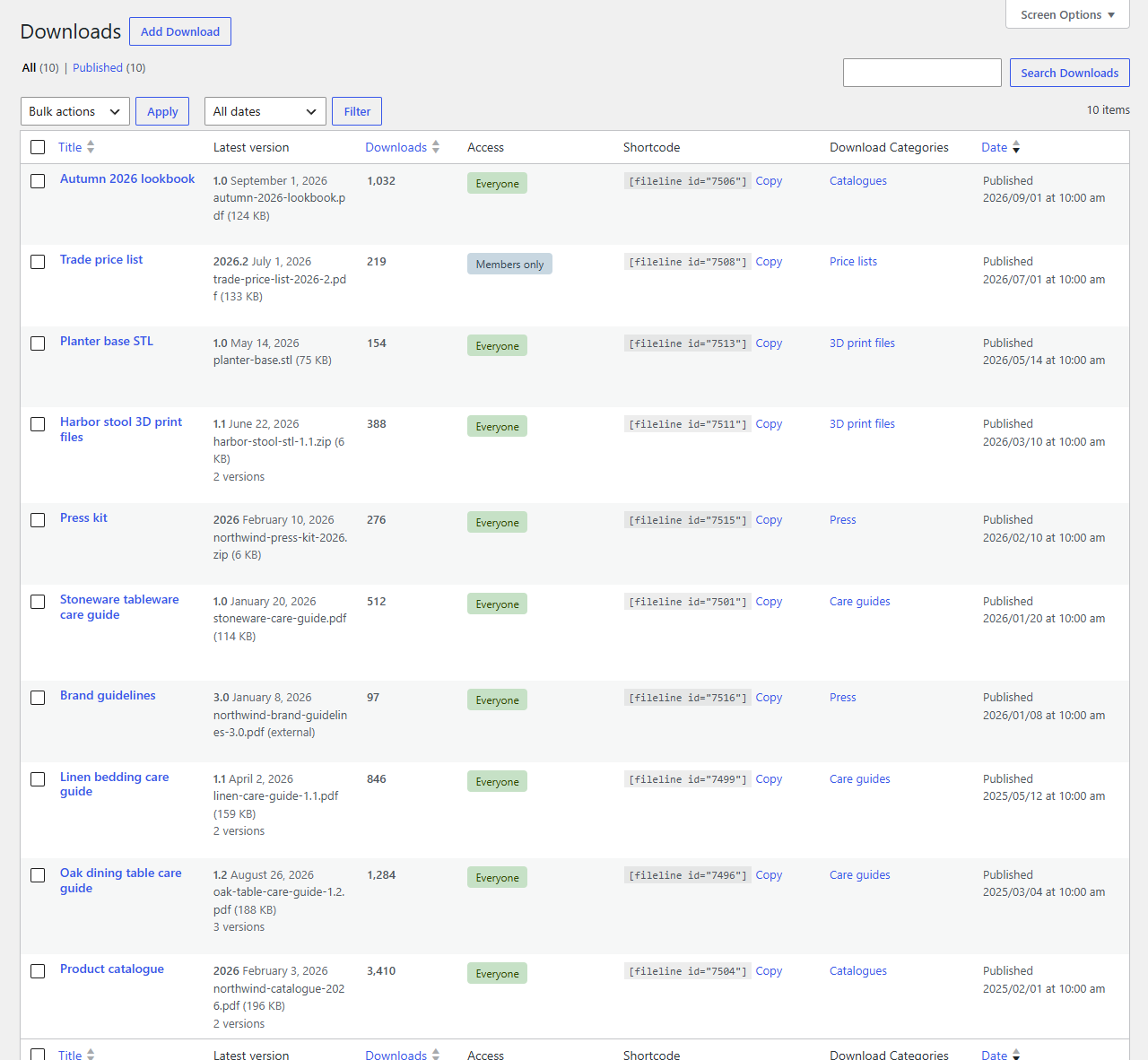
Put it on a page
- In the block editor, add the Download button block and choose the download.
- Anywhere else (classic editor, widgets, page builders), paste the shortcode.
- Or share the link itself: in an email, a newsletter or on social media.
Each download also has a page of its own on your site (the View Download link at the top of its edit screen), with the button, the file's details and its earlier versions.
What's next
- Adding downloads and versions covers versions, external files and categories.
- Secure serving and server setup explains the protected folder and the settings for big files.
- Blocks and shortcodes lists every option of the button and the download list.