
Adminline Pro
White label and the login page
Put your client's brand on the login page, the admin bar and the admin footer, and keep WordPress's update notices for the people who can act on them.
Note
This is part of Adminline Pro.
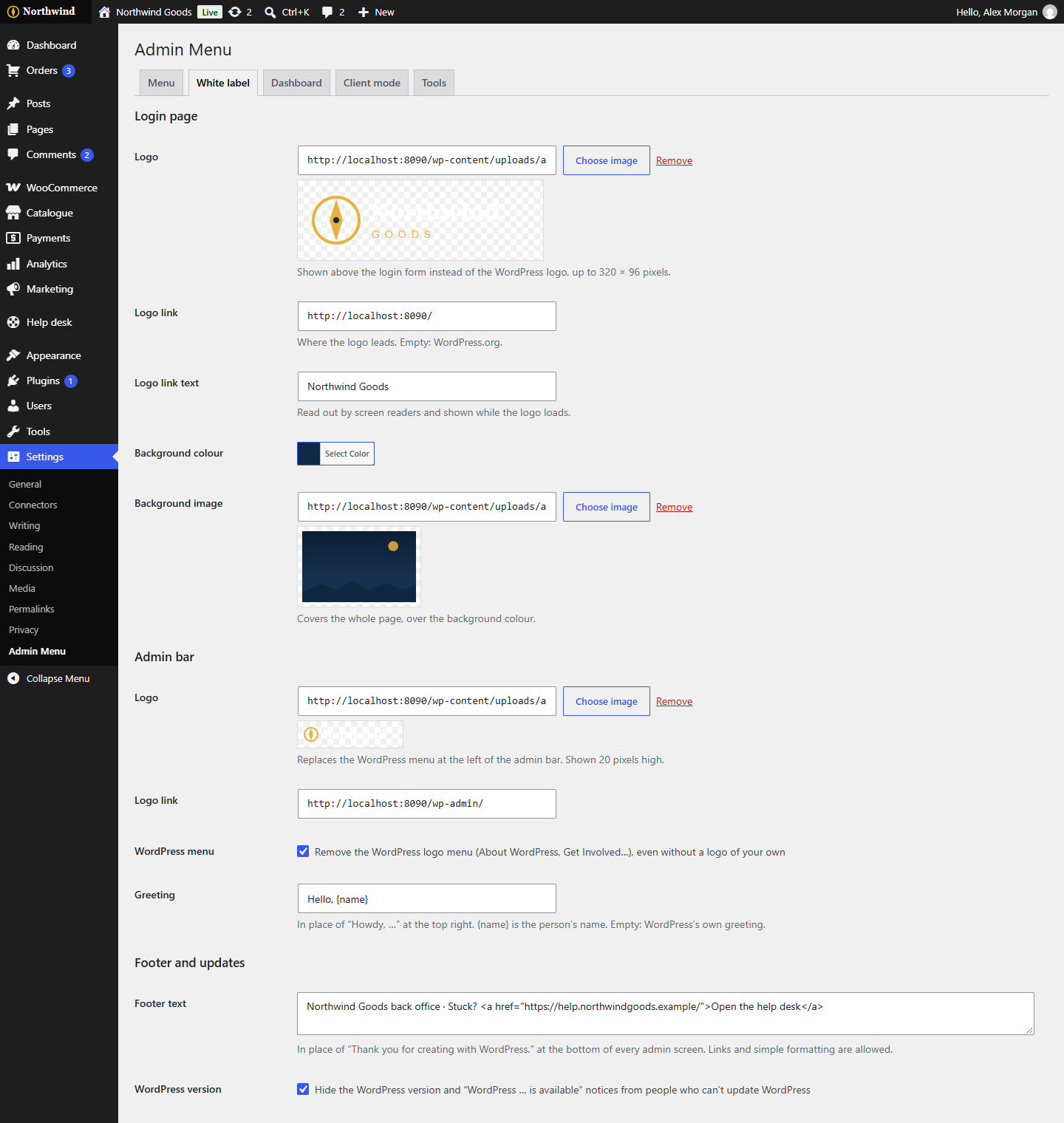
Go to Settings → Admin Menu → White label. Every setting is optional: leave one empty and WordPress's own stays.
The login page
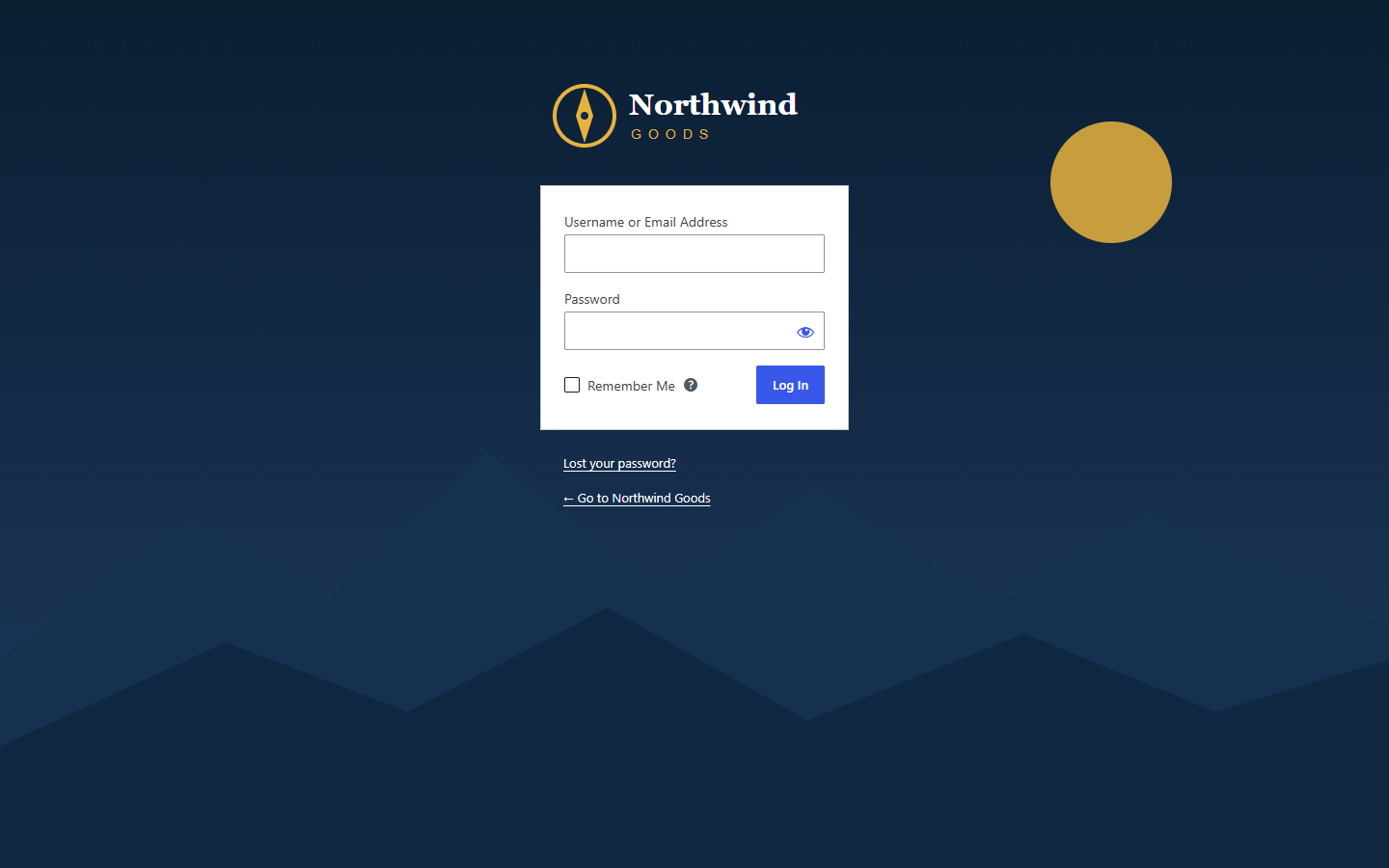
- Logo: shown above the login form instead of the WordPress logo. Click Choose image to pick or upload it from the Media Library, or paste an image address. It's fitted into 320 × 96 pixels, so a wide logo works best. SVG files work too, if your site allows them.
- Logo link: where clicking the logo leads, such as the site's home page. Empty: WordPress.org.
- Logo link text: the logo's text for screen readers. Empty: the site's name.
- Background colour and Background image: the page behind the form. The image covers the whole page. The links under the form switch to white or dark text to stay readable on your colour.
The admin bar
- Logo: replaces the WordPress logo menu at the left of the admin bar (About WordPress, Get Involved, and so on), in the admin and on the site. Shown 20 pixels high. Logo link is where it leads; empty: the Dashboard.
- WordPress menu: tick Remove the WordPress logo menu to remove it even without a logo of your own.
- Greeting: replaces "Howdy, …" at the top right. Write
{name}where the person's name goes, such asWelcome back, {name}.
The footer
- Footer text: replaces "Thank you for creating with WordPress." at the bottom of every admin screen. Links and simple formatting (bold, italic) are allowed, so "Site by Your Studio" works.
- WordPress version: tick it to hide WordPress's version number at the bottom right and its "WordPress … is available! Please notify the site administrator." notices from everyone who can't update WordPress. Administrators still see both.
Click Save Changes at the bottom of the tab.
Tip
To check the login page, open it in a private window, or log out.