
Installation
Install Adminline from WordPress.org and make your first change to the admin menu in a few minutes.
Adminline is free and listed on WordPress.org, so you can install it straight from your dashboard. It works on any WordPress site: no WooCommerce or other plugin needed, though it handles WooCommerce's menus (and every other plugin's) just as well as WordPress's own.
Install the plugin
- Go to Plugins → Add New Plugin and search for Adminline.
- Click Install Now on "Adminline – Admin Menu Editor", then Activate.
If you have the zip file instead, use Plugins → Add New Plugin → Upload Plugin, choose the file, then Install Now and Activate.
Nothing changes yet: until you save a menu in Adminline, everyone's admin menu stays exactly as it was.
Open the menu editor
Go to Settings → Admin Menu. You'll also find an Edit menu link under Adminline on the Plugins screen.
The editor lists every item of your admin menu, top-level items and their submenus, in the order you see them in the menu on the left. Beside it, the Preview shows the menu as a role will see it.
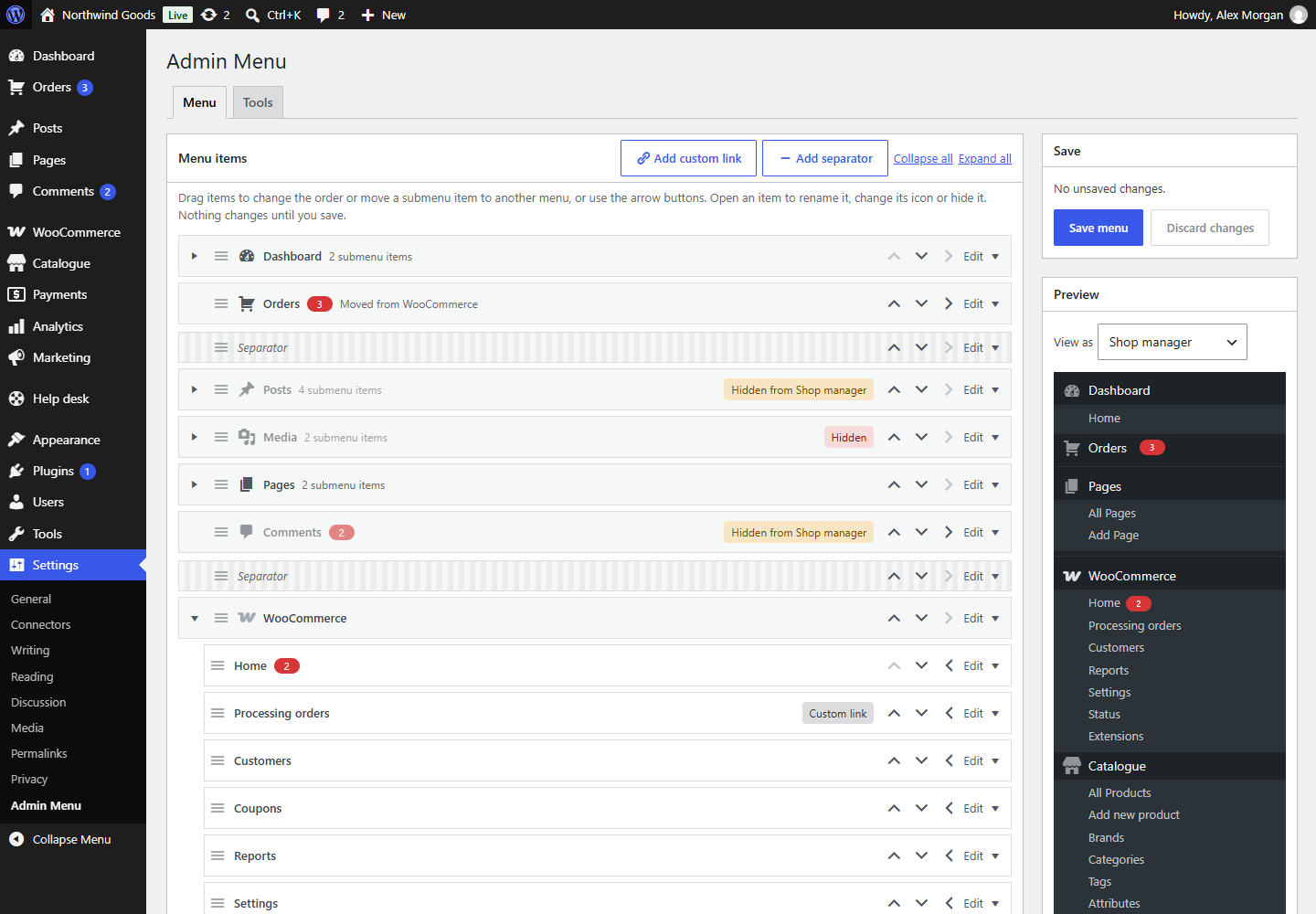
Make your first change
- Find Posts in the list and click Edit on its row.
- Type a new name in Menu title, such as "Articles". The row and the preview change straight away.
- Click Save menu in the Save box.
The admin menu on the left now says "Articles". Only the name changed: the screen, its address and who may open it are all as they were.
Tip
Nothing changes for anyone until you click Save menu. Discard changes puts the editor back the way it was when you opened it.
What's next
- Renaming, icons and order covers every change you can make to an item.
- Hiding items by role explains "hidden only" and "hidden and blocked".
- Safe mode and reset is worth a quick read before you hide anything.