
Hiding items by role
Hide menu items from everyone or from chosen roles, and choose whether their screens are hidden only or also blocked.
Most people need a fraction of the admin menu. Hiding the rest makes the admin easier to find your way around, and blocking keeps people from opening the menu screens they don't need.
Hiding an item
- Click Edit on the item.
- Under Visibility, choose:
- Shown to everyone who can open it (the default);
- Hidden from everyone;
- Hidden from these roles: and tick the roles.
- Under When hidden, choose Hidden only or Hidden and blocked (see below).
- Save the menu.
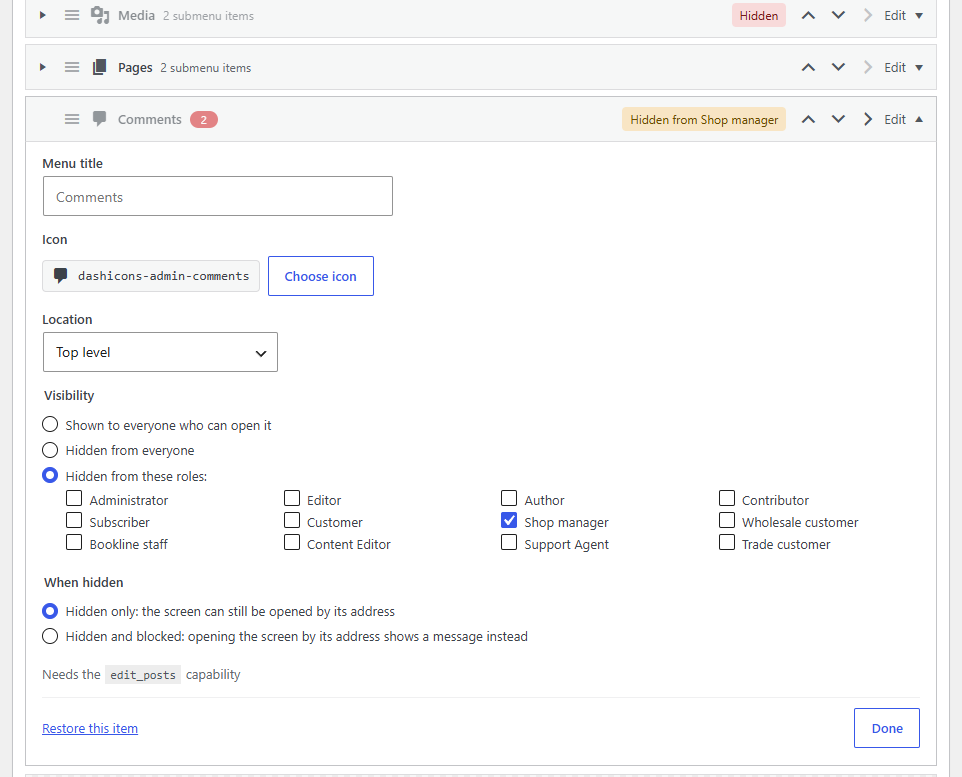
The row gets a label saying who it's hidden from. Hiding a top-level item hides its whole submenu too.
Someone with several roles sees an item as long as any of their roles may. For example, if Comments is hidden from Shop Managers but not Editors, someone who is both still sees Comments.
Hidden only, or hidden and blocked
- Hidden only: the item leaves the menu, but its screen still opens from a link or a bookmark. Use it to tidy the menu.
- Hidden and blocked: opening the item's own screen by its address shows "This screen isn't available", with a button back to the Dashboard. Use it when people really shouldn't be on that screen.
Blocking covers the screens the menu item leads to, not the screens reached from them: blocking Posts → All Posts doesn't block the screen for editing a post, if someone has a link to it.
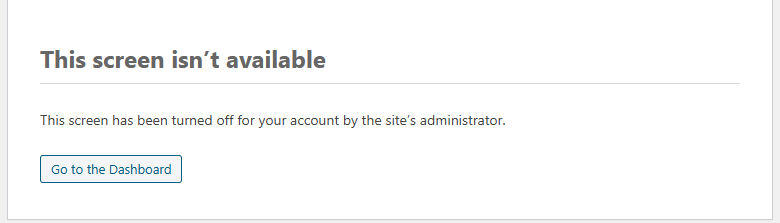
If the Dashboard itself is blocked for someone, they go to the first screen in their menu when they log in, instead of seeing the message.
Important
Blocking is about screens, not permissions. Adminline never changes roles or capabilities: what people can do (through forms, the block editor, the REST API, other plugins' screens) is still up to their role. To take a capability away from a role, use a role editor.
The admin bar follows
When an item is hidden from someone, links to its screen in the admin bar go too: Comments, Updates, + New → Post (when Posts → Add Post is hidden), the site menu's Dashboard, Themes, Widgets and Menus, and plugins' admin bar links. This works on your site's pages as well as in the admin.
What can't be hidden from administrators
Two screens always stay in the menu for administrators, and are never blocked for them, whatever the settings: Settings → Admin Menu (Adminline itself) and Plugins. So is the top-level item they're in. You can still hide them from other roles. That way nobody can lock themselves out by accident; see Safe mode and reset for everything else.