
Using Adminline
Previewing as a role
See the menu as people with any role will see it, before you save.
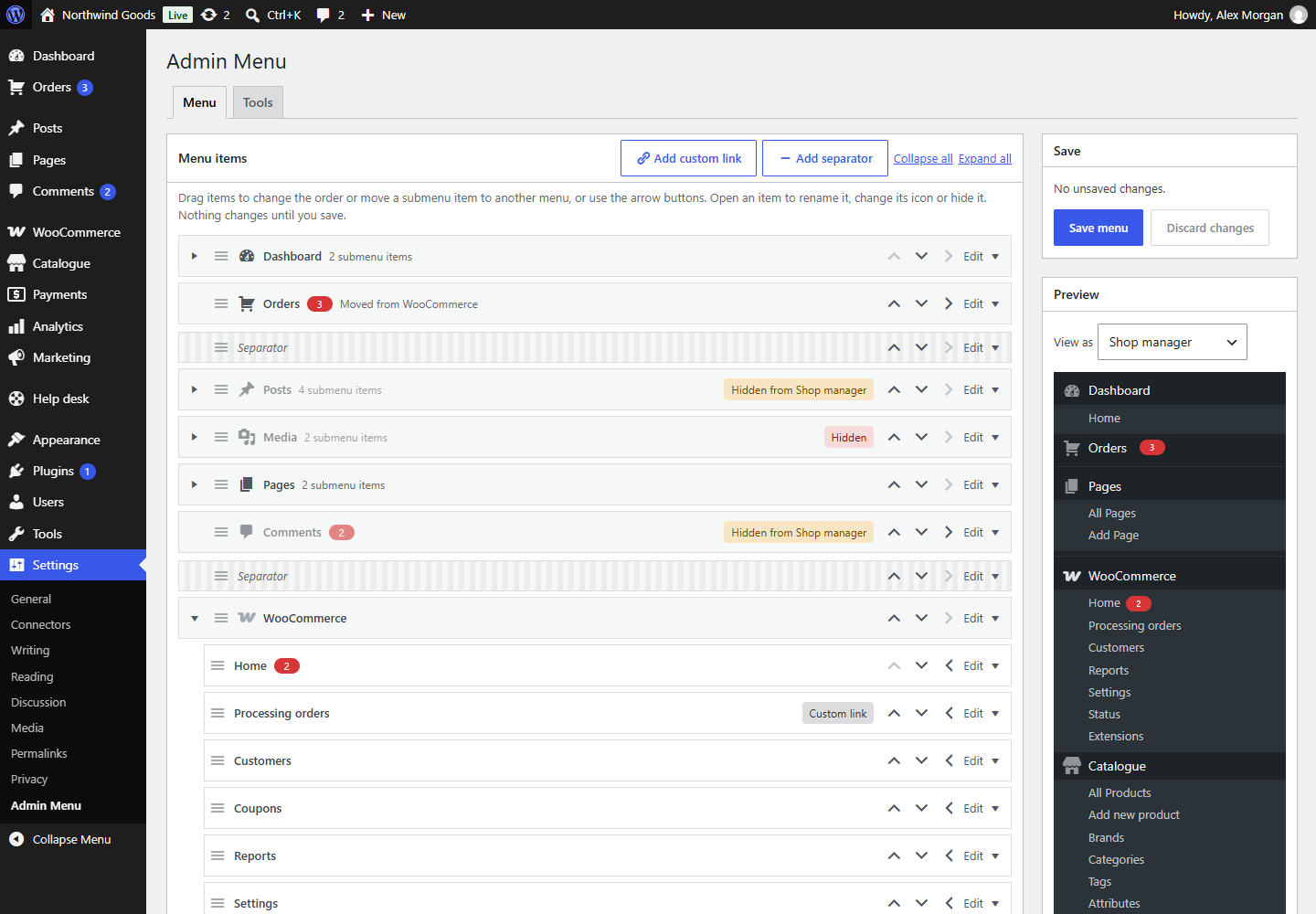
The Preview box beside the menu editor draws the admin menu as people with one role will see it once you save.
- Choose the role in View as.
- Make your changes. The preview updates as you go.
The preview leaves out:
- items hidden from that role (or from everyone);
- items the role can't open anyway, because it lacks the capability they need. A note under the preview says how many.
It shows your names, icons, order and moves, and the count bubbles as they are for you.
To see the real thing
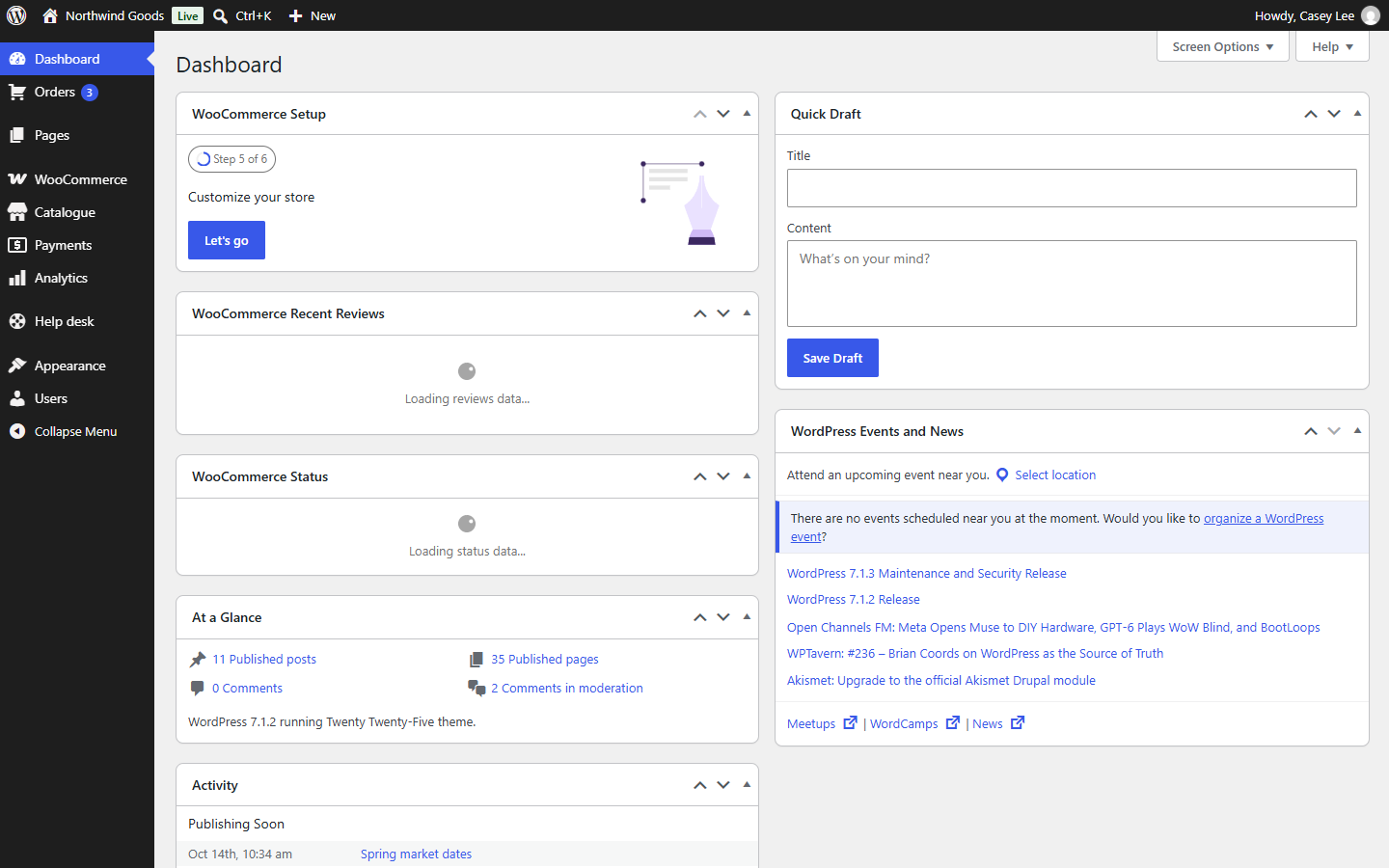
After saving, log in as someone with that role (or use a plugin that lets you switch users) to see their admin exactly, with their own counts.
Note
Some plugins only add an item for certain people, or under conditions of their own. The preview is built from the menu you see as an administrator, so such items can differ.