Using Adminline
Moving items between menus
Move a submenu item into another menu, promote it to the top level, or tuck a top-level item into a submenu.
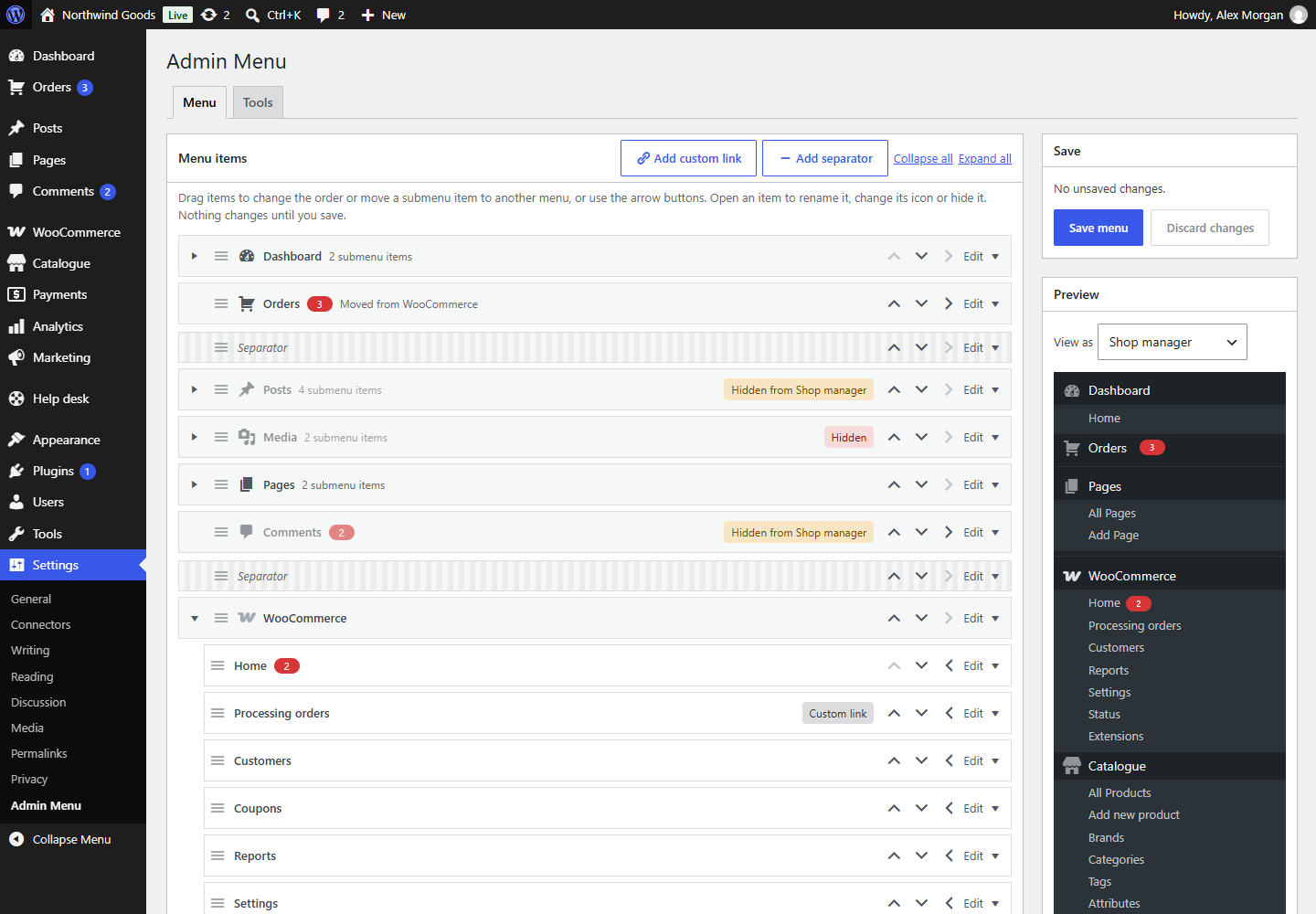
Items don't have to stay in the menu their plugin put them in. A shop manager who spends the day in WooCommerce → Orders can have Orders right at the top of the menu; a rarely used top-level item can go into Tools.
Ways to move an item
- Drag it into another item's submenu, or out to the top level.
- Location in the item's panel: choose Top level, or In the … submenu for any top-level item. This is the quickest way across a long menu, and works from the keyboard.
- The right arrow on a top-level item moves it into the submenu of the item above; the left arrow on a submenu item moves it out to the top level.
The row then says Moved from …, so you can always tell where an item came from.
What to know
- Moved items keep working. Their links go to the same screen as before, and when you're on that screen, the menu highlights the item in its new place.
- Only items without a submenu can go into a submenu. WordPress's menu has two levels. Move or empty the submenu first.
- Separators stay at the top level. WordPress can't draw them in a submenu.
- If the menu an item was moved into goes away (its plugin is deactivated), the item goes back to its own place, with your other changes to it, until the plugin is back.