
The menu editor
A tour of Settings → Admin Menu: the tree of menu items, the item panels, the preview and saving.
Settings → Admin Menu is where you change the admin menu. It has three parts.
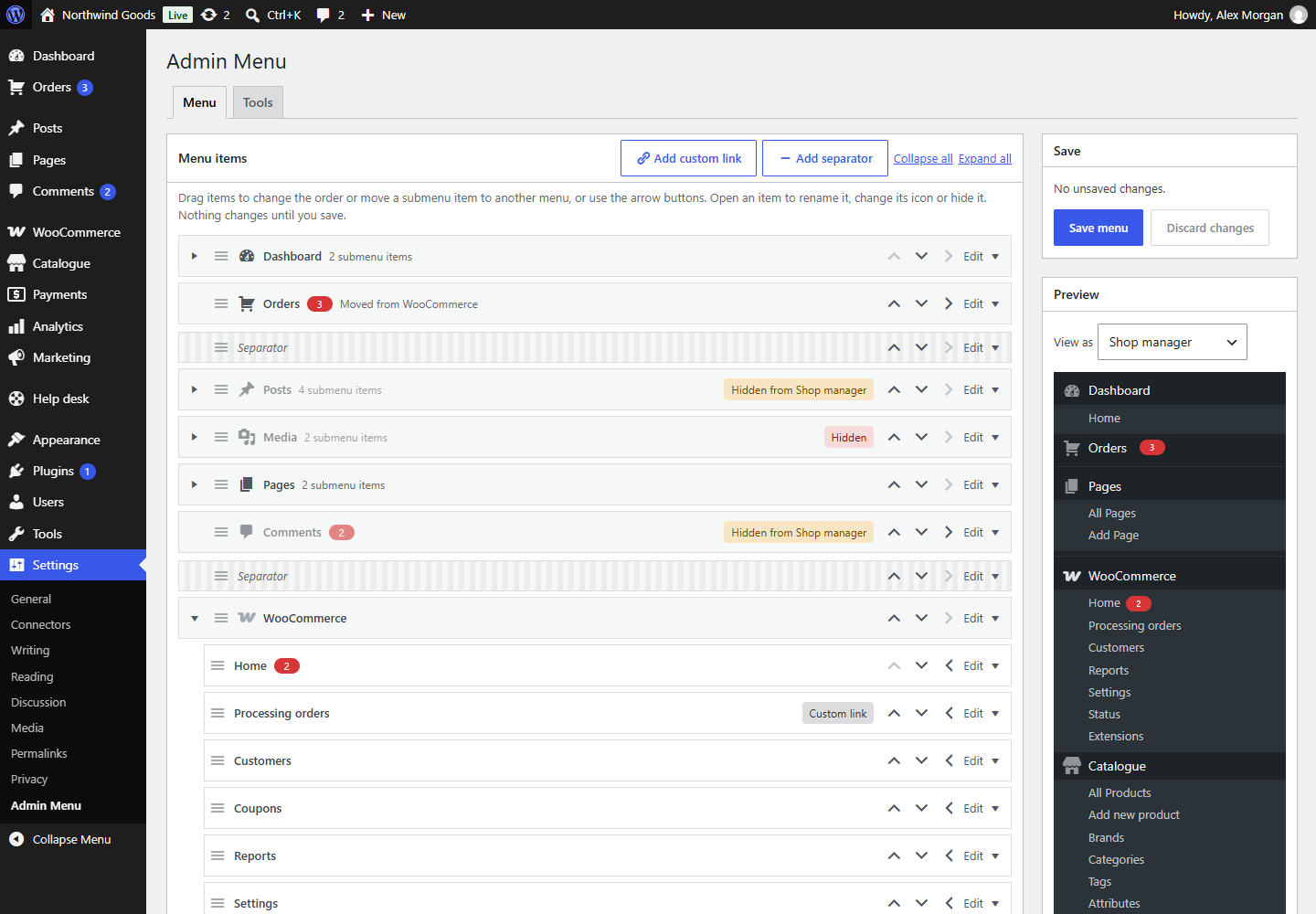
The menu items
The big box lists the whole admin menu as a tree: each top-level item with its submenu items indented below it, and separators (the gaps between groups) as striped rows. It's built from the menu WordPress and your plugins create, so everything you see on the left of the screen is here.
Each row shows:
- the item's icon and name, and its count bubble if it has one;
- what you've changed: the original name under a new one, Moved from … for an item you moved, and coloured labels for New items, items Hidden from everyone and items hidden from some roles;
- the arrow buttons that move it (see Renaming, icons and order), and Edit, which opens its panel.
Top-level items with a submenu have a small arrow at the start of the row to fold the submenu away. Collapse all and Expand all at the top of the box fold or unfold every submenu, which helps with long menus such as WooCommerce's.
An item's panel
Click Edit on a row to open its panel. That's where you rename an item, choose its icon, move it to another menu and hide it.
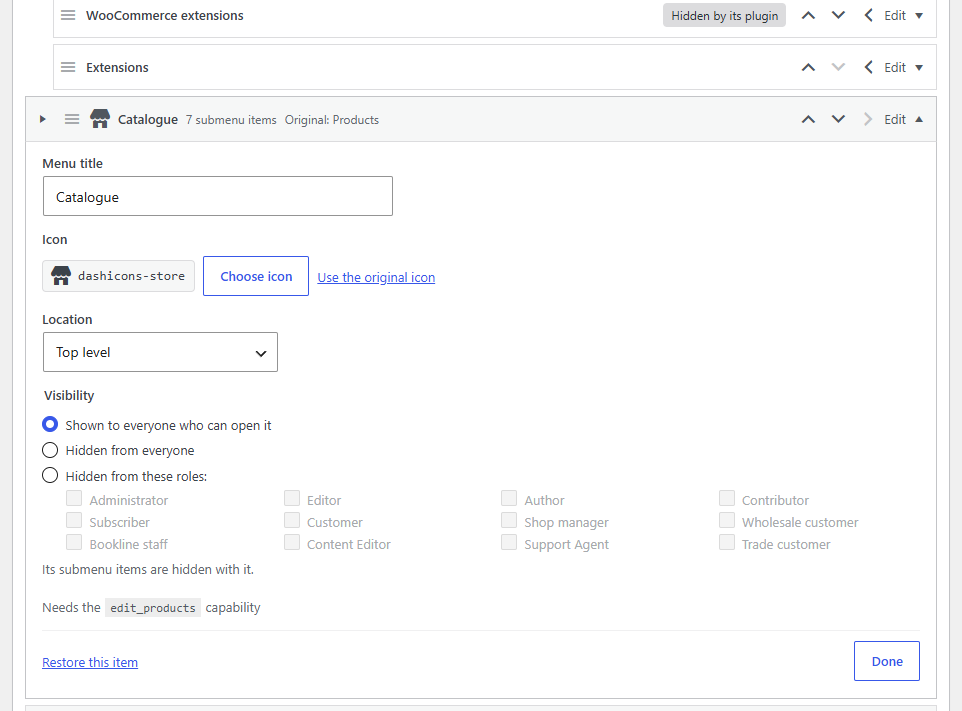
The panel also shows the capability the item needs: people whose role lacks it never see it, whatever Adminline says. Click Done to close the panel. Restore this item clears its name, icon and hiding (not its place).
The preview
The Preview box draws the menu as people with a chosen role will see it once you save: in your order, with your names and icons, without what you hid from them, and without what their role can't open anyway. Pick the role in View as. It updates as you work. See Previewing as a role.
Saving
The Save box says whether you have unsaved changes.
- Save menu saves everything and reloads the page, with the admin menu on the left now as you made it.
- Discard changes throws away everything since you opened the editor (or last saved).
If you try to leave the page with unsaved changes, your browser asks first.
Using the keyboard
Every part of the editor works without a mouse. Tab to a row's buttons: the arrows move the item and keep the focus on it, so you can press the same button again; Edit opens the panel and puts you in its first field. Moves are announced to screen readers ("Media moved to position 3 of 14").