
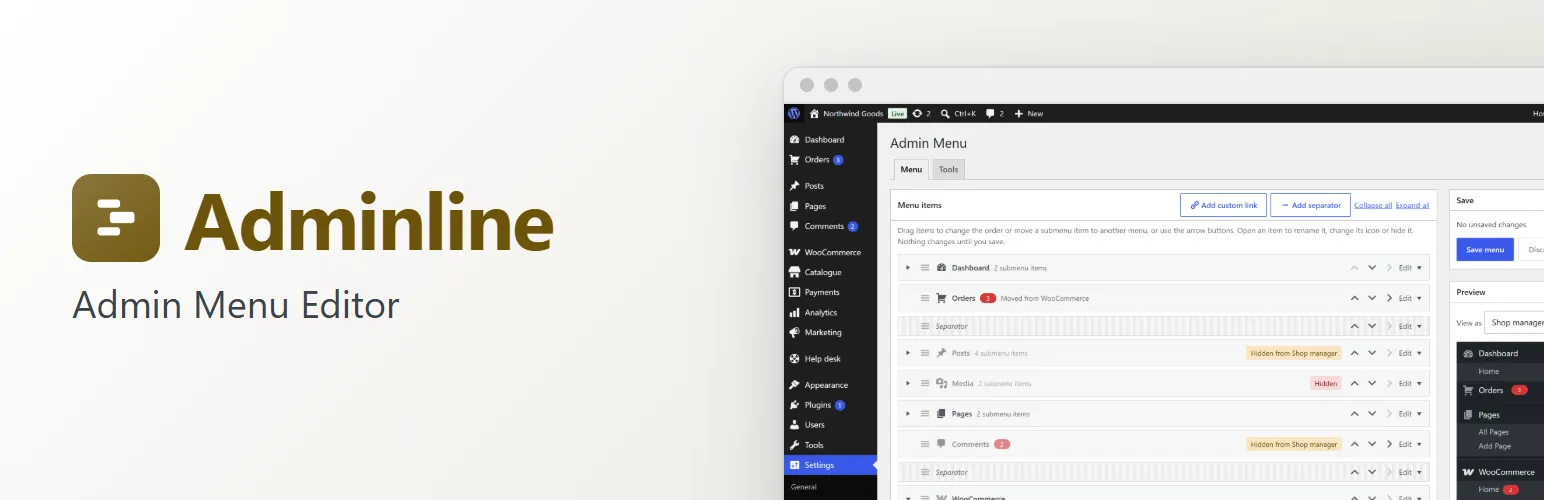
Every plugin adds to the admin menu, and before long nobody can find anything. Adminline puts you in charge of it. Open Settings → Admin Menu and you get the whole menu as a tree, exactly as WordPress and your plugins built it, WooCommerce and the rest included. Drag things where they belong, give them names your team understands, and hide what each role doesn't need.
Arrange the menu
- Drag and drop top-level items and submenu items into a new order.
- Move a submenu item into another menu, or out to the top level, and a top-level item into a submenu.
- Rename any item. Count bubbles (pending comments, plugin updates, WooCommerce orders) stay on the renamed item.
- Pick a new icon for any top-level item from all of WordPress's Dashicons, with a search.
- Add separators, and custom links: to any screen inside wp-admin (such as your drafts) or to an outside address such as your help desk, optionally opening in a new tab.
- Every move has a button too (up, down, into the submenu above, out to the top level), so the whole editor works from the keyboard.
Hide items by role
- Hide an item from everyone, or only from the roles you choose. A submenu goes with its item.
- Choose hidden only (the item leaves the menu, the screen still opens from a link) or hidden and blocked (opening the item's own screen by its address shows a short message).
- The admin bar follows along: a hidden screen's links (Comments, Updates, + New, the site menu's Dashboard, Themes and Menus, plugins' links) disappear from it too.
- Hiding is about the menu, not permissions. Adminline never changes roles or capabilities.
Preview before you save
- The preview beside the editor draws the menu as any role will see it, by the capabilities that role has, and updates as you work.
- Nothing changes for anyone until you click Save menu. Discard changes puts the editor back.
Plugins come and go
- An item a plugin adds after you saved your menu appears where the plugin put it, marked New in the editor. Your order stays as it is.
- When a plugin is deactivated, its items quietly leave the menu, and your changes to them come back with it.
Safe by design
- Adminline's own screen and the Plugins screen are never hidden from, or blocked for, administrators, whatever the settings say.
- Safe mode: add
?adminline-safe=1to any admin address and your menu changes are off on that page (administrators only), so the full menu is back. - As a last resort,
define( 'ADMINLINE_DISABLE', true );in wp-config.php switches every change off. - Reset puts the whole menu back the way WordPress and your plugins set it up, and export and import move your menu to another site as a JSON file.
For developers
Filters and actions for every step: the menu as read (adminline_live_menu) and as about to be drawn (adminline_menu), who sees an item (adminline_item_visible), which items are protected, blocking and its message, the icon list, export and import, and adminline_loaded for add-ons.
Adminline Pro
The separate Adminline Pro add-on brands the admin for your clients: a white label (login page logo and background, admin bar logo, footer text, "Howdy" text, a custom admin colour scheme), dashboard widgets hidden or added by role, a simplified client mode, per-user menu changes, and hiding plugins from the Plugins list. See extendiment.com/plugins/adminline.