
Dashboard widgets
Choose which dashboard widgets each role sees, add your own notes and quick links, and replace the welcome panel.
Note
This is part of Adminline Pro.
The Dashboard is the first thing people see after logging in. On Settings → Admin Menu → Dashboard you decide what's on it, role by role.
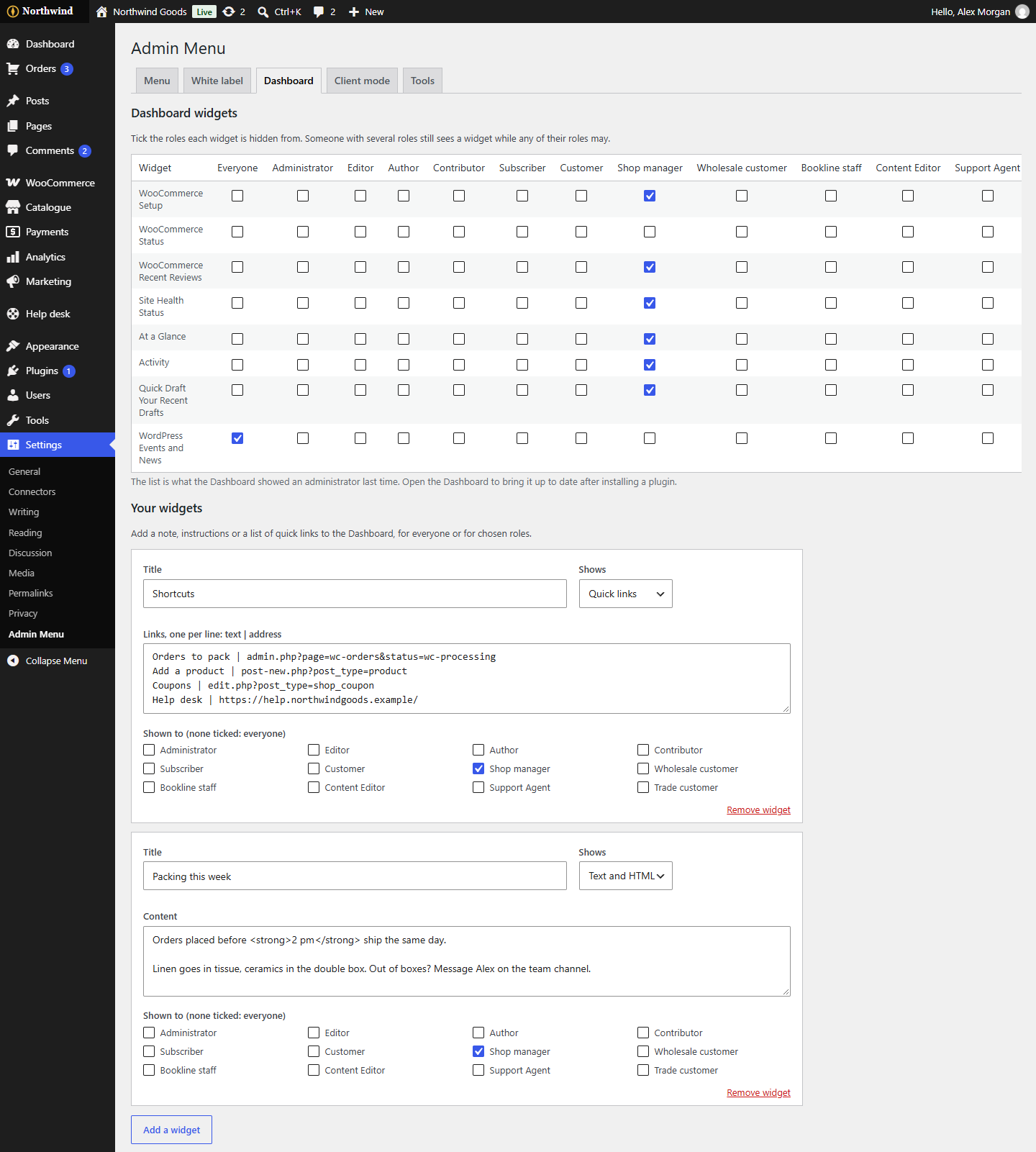
Hiding widgets
The table lists the Dashboard's widgets, WordPress's and your plugins' (WooCommerce's status widget, for example), with a column for each role. Tick a box to hide that widget from that role; tick Everyone to hide it from everyone.
Someone with several roles still sees a widget while any of their roles may.
The list is what the Dashboard showed an administrator the last time one opened it. After installing a plugin that adds a widget, open the Dashboard once, then come back to this tab to see it listed.
Your own widgets
Under Your widgets, click Add a widget, then:
- Give it a Title.
- Choose what it Shows:
- Text and HTML: a note, instructions or contact details. Paragraphs, links, lists, headings and images are allowed.
- Quick links: one link per line, written as
text | address. The address is a screen inside wp-admin (such aspost-new.php?post_type=product) or a full address starting withhttps://(opened in a new tab).
- Tick the roles it's Shown to. With none ticked, everyone sees it.
Remove widget takes it away. Save the tab when you're done. People can move and collapse your widgets on their Dashboard like any other.
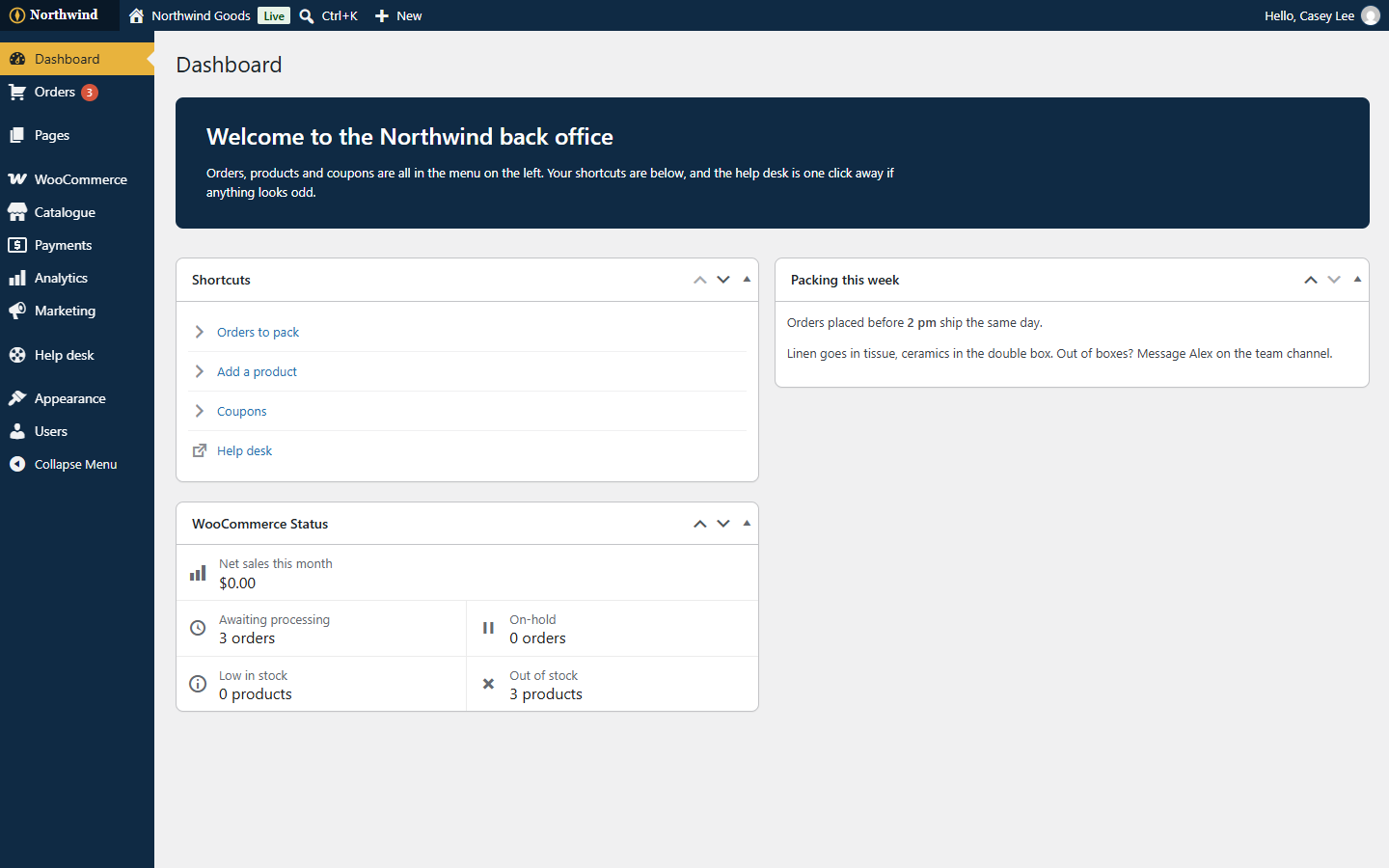
The welcome panel
- WordPress's welcome panel (the default).
- No welcome panel.
- My own welcome panel, for everyone: a Title and Content (text and HTML) shown across the top of the Dashboard, in the admin's highlight colour, for everyone, including roles that never get WordPress's panel.