
Custom links and separators
Add your own menu items that lead to any screen or website, and separators to group items.
Adding a custom link
- Click Add custom link at the top of the menu items. A new link appears at the end of the menu with its panel open.
- Type the Link text, as it should appear in the menu.
- Type the Address:
- a screen in your admin, written the way it appears after
/wp-admin/in the address bar, such asedit.php?post_status=draft(your drafts) oredit.php?post_type=shop_order&post_status=wc-processing; - or a full address starting with
https://, such as your help desk or a shared document.
- a screen in your admin, written the way it appears after
- Tick Open in a new tab if it should.
- Move it where you want it, then save the menu.
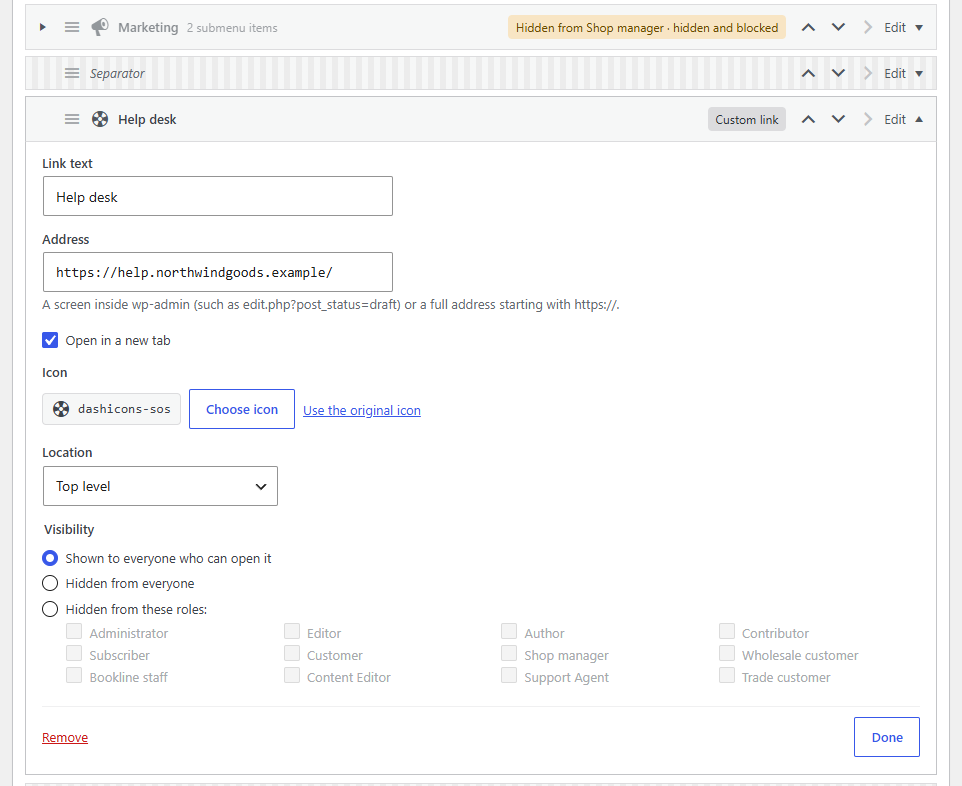
A custom link can go at the top level, with an icon of your choice, or into any submenu. You can hide it from roles like any other item, which is how to give one role a link the others don't see.
Links are visible to anyone who can see the menu, so a link to a screen is only useful to people allowed to open that screen.
Adding a separator
Click Add separator. It appears at the end of the menu: drag it, or use the arrow buttons, to where a gap should be.
WordPress's own separators are in the list too. You can hide them like items. WordPress never shows two separators in a row, or one at the start or end of the menu, and neither does Adminline: hiding the items between two separators leaves one gap.
Removing them
Open the link or separator and click Remove. WordPress's own separators and items can't be removed, only hidden.