
To reorder
The list of products at or below their reorder point, what its columns mean, and how its quantities are worked out.
WooCommerce → Purchase Orders → To reorder lists everything that needs ordering, grouped by supplier. The number on the tab is how many products are on it.
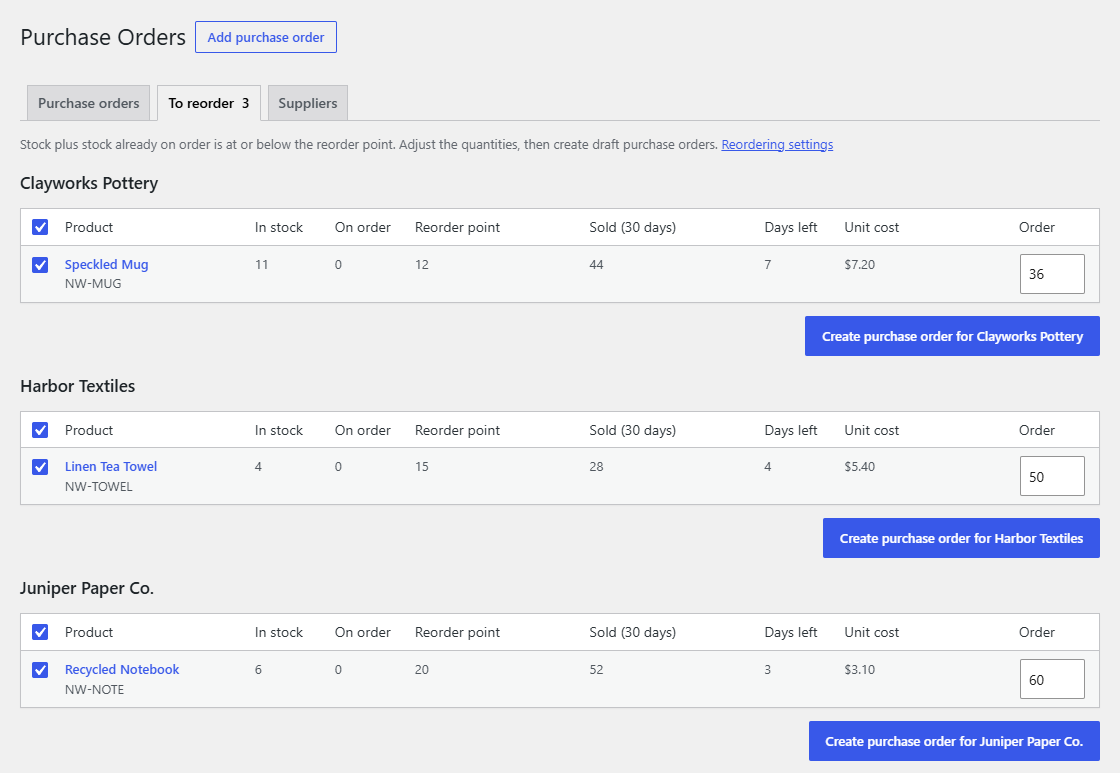
What's on the list
A product or variation is listed when:
- it tracks stock (Track stock quantity on its Inventory tab),
- it has a reorder point, and
- its stock plus what's already on order is at or below that point.
"On order" is what's still to arrive on purchase orders that are Ordered or Partly received. Drafts don't count, as they haven't been sent. So once you order a product it drops off the list, and it comes back only if the stock falls again.
Products are grouped under their supplier, with No supplier last.
The columns
| Column | Meaning |
|---|---|
| In stock | The current stock level. |
| On order | Units still to arrive on ordered purchase orders. |
| Reorder point | The product's reorder point. |
| Sold (30 days) | Units sold in the sales period, from processing, on-hold and completed orders, less refunded units. |
| Days left | How many days the stock plus what's on order lasts at that rate. Empty when the product didn't sell. |
| Unit cost | The product's cost price. |
| Order | The suggested quantity, which you can change. |
The sales period is 30 days unless you change it in WooCommerce → Settings → Products → Purchasing → Sales period. A link to the settings is above the list.
The suggested quantity
- The product's Reorder quantity, if it has one.
- Otherwise, just enough to get back above the reorder point: reorder point − (stock + on order) + 1.
- Then raised to the supplier's Minimum order, and rounded up to whole Packs.
For example, a planter with a reorder point of 8, 3 in stock, no reorder quantity, a minimum order of 12 and packs of 6: 8 − 3 + 1 = 6, raised to 12, which is two packs.
Making purchase orders
- Untick anything you don't want to order now.
- Change any quantities. A ticked product with a quantity of 0 is left out; if nothing is left, no purchase order is made.
- Click Create purchase order for… under the supplier.
You get a draft purchase order for that supplier, with the ticked products and quantities, their supplier SKUs and unit costs. Nothing is sent yet: check it, then mark it as ordered. See Purchase orders.
Each supplier has its own button, so you make one purchase order per supplier. Under No supplier, the draft has no supplier; choose one on the draft.