
Setting up
Suppliers
Add the businesses you buy from, with their contact details and how long their deliveries take.
A supplier is anyone you buy stock from. Supplyline keeps them in their own list, so products and purchase orders can point to them.
Adding a supplier
- Go to WooCommerce → Purchase Orders and click the Suppliers tab.
- Click Add supplier.
- Enter the supplier's name as the title, then fill in the Details box.
- Click Publish.
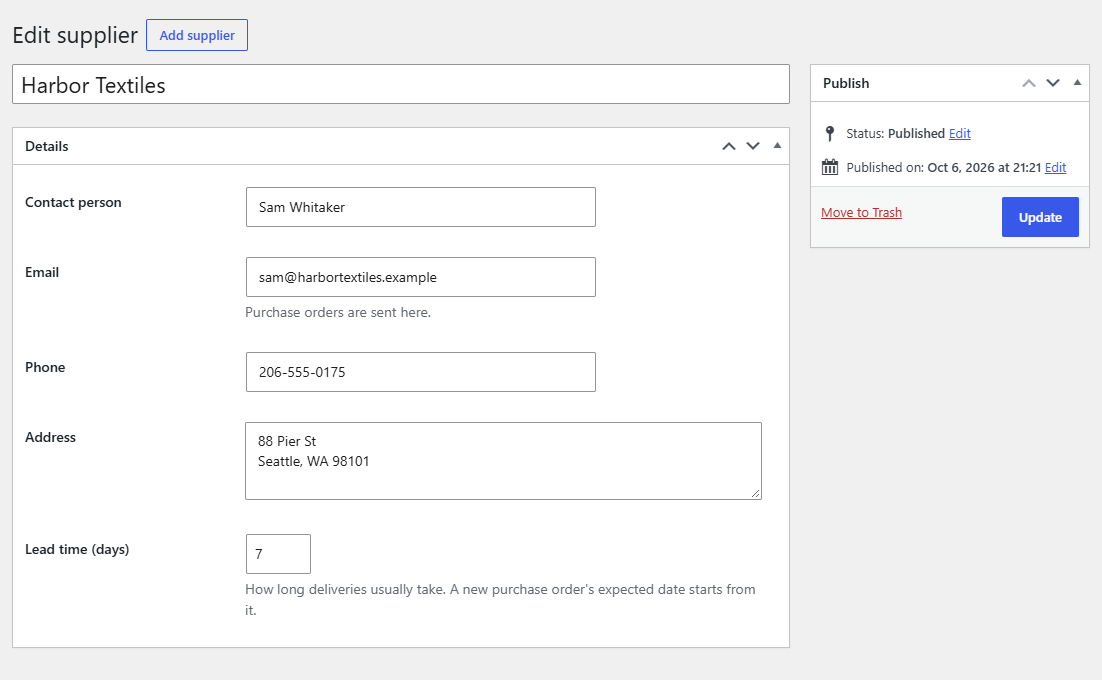
| Field | What it's for |
|---|---|
| Contact person | Shown on the supplier list, so you know who to call. |
| Where you send purchase orders. It shows on ordered purchase orders as a link, and on the supplier list. | |
| Phone, Address | For your reference and on the printed purchase order. |
| Lead time (days) | How long a delivery usually takes. A new purchase order's Expected date starts this many days from today. |
The supplier list
The Suppliers tab lists every supplier with their contact, lead time and how many products and variations have them as their supplier. Click a name to edit it.
Suppliers use WordPress's own list and edit screens, so search, quick links and Trash work as usual. Moving a supplier to the trash doesn't change existing purchase orders; products that had it as their supplier show None until you choose another.
What's next
Give your products a supplier and a reorder point: see Purchasing fields on products.