
Emailing purchase orders
Send a purchase order to the supplier when you mark it as ordered, as a WooCommerce email with a PDF, and download the PDF any time.
Note
This is part of Supplyline Pro.
With Supplyline Pro, marking a purchase order as ordered can also send it to the supplier, so ordering is one click.
Sending it
On a draft, the side box has Email it to the supplier above Mark as ordered. It's ticked when the purchase order's supplier has an email address, and greyed out with "The supplier has no email address" when it doesn't. It follows the supplier you choose, before you save too.
Click Mark as ordered with the box ticked. The notice says "Marked as ordered and emailed to the supplier", and the history notes "Emailed to" and the address. Untick the box to mark it as ordered without sending anything, for example when you ordered by phone.
What the supplier gets
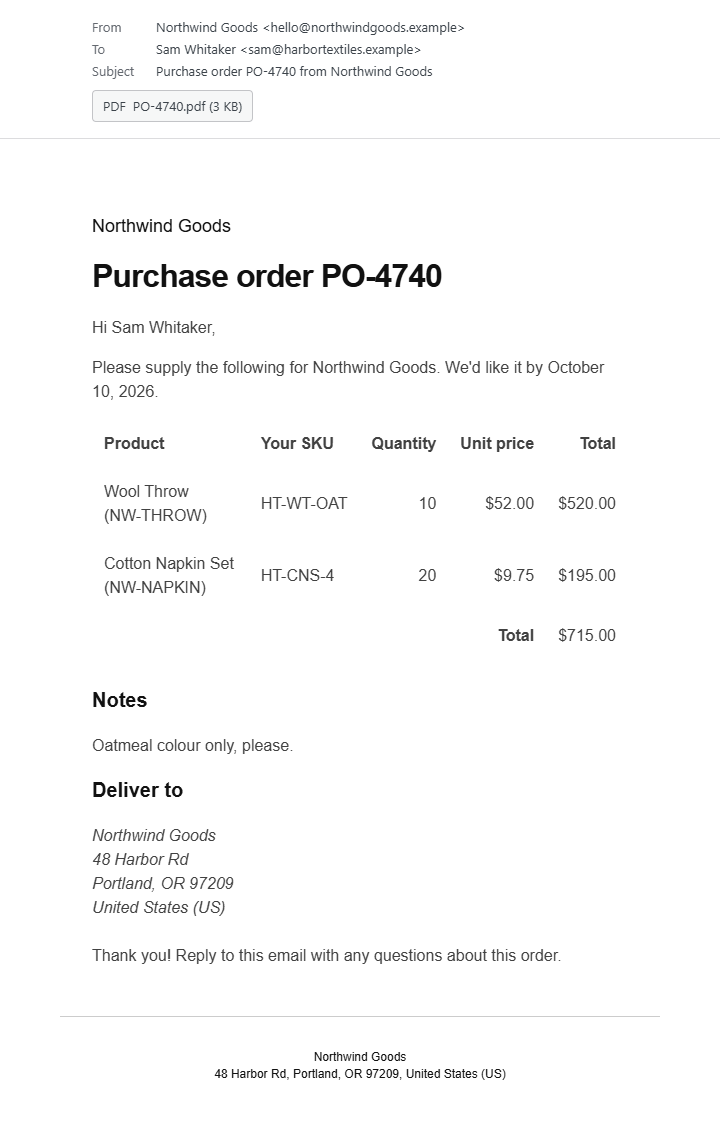
An email in your store's WooCommerce email style, with:
- a greeting to the supplier's contact person,
- the products with the supplier's own SKUs, quantities and unit prices,
- shipping, other costs, tax and the total,
- your notes and the expected date,
- your store's address to deliver to,
- the purchase order as a PDF attachment.
Amounts are in the purchase order's currency.
Changing the email
Go to WooCommerce → Settings → Emails and click Purchase order. There you can:
- switch it off,
- change the subject (default "Purchase order {po_number} from {site_title}") and heading,
- add text under the products, such as how to confirm the order,
- turn off the PDF attachment,
- choose HTML or plain text.
For more changes, copy templates/emails/supplyline-purchase-order.php (or plain/supplyline-purchase-order.php) from the plugin to yourtheme/supplyline/emails/ and edit the copy.
The PDF
Every purchase order has a Download PDF link next to Print, for any status. The PDF is an A4 page with your store and address, the purchase order's number, date, expected date and currency, the supplier, the products with their SKUs, the totals and your notes.
The PDF uses the standard Helvetica font, so it has no fonts to embed and stays small. Characters outside Western European languages show as "?", and amounts in a currency whose symbol it can't show are written with the code, like "12.50 PHP".
When the email doesn't arrive
If WordPress can't send the email, the purchase order is still marked as ordered, with a warning that the email couldn't be sent, and the history notes it. If the email is switched off in WooCommerce's settings, the warning says so. Either way, print the purchase order and send it yourself, or fix the cause and send the next one.
- Check the supplier's Email on their screen.
- Check the email is enabled in WooCommerce → Settings → Emails → Purchase order.
- Supplyline Pro sends through WordPress like all WooCommerce emails. If your store's other emails don't arrive either, set up an SMTP plugin.