
Receiving stock
Add what arrived to your stock, all at once or in parts, and what it changes on your products.
When a delivery arrives, receive it on its purchase order and the units are added to your stock.
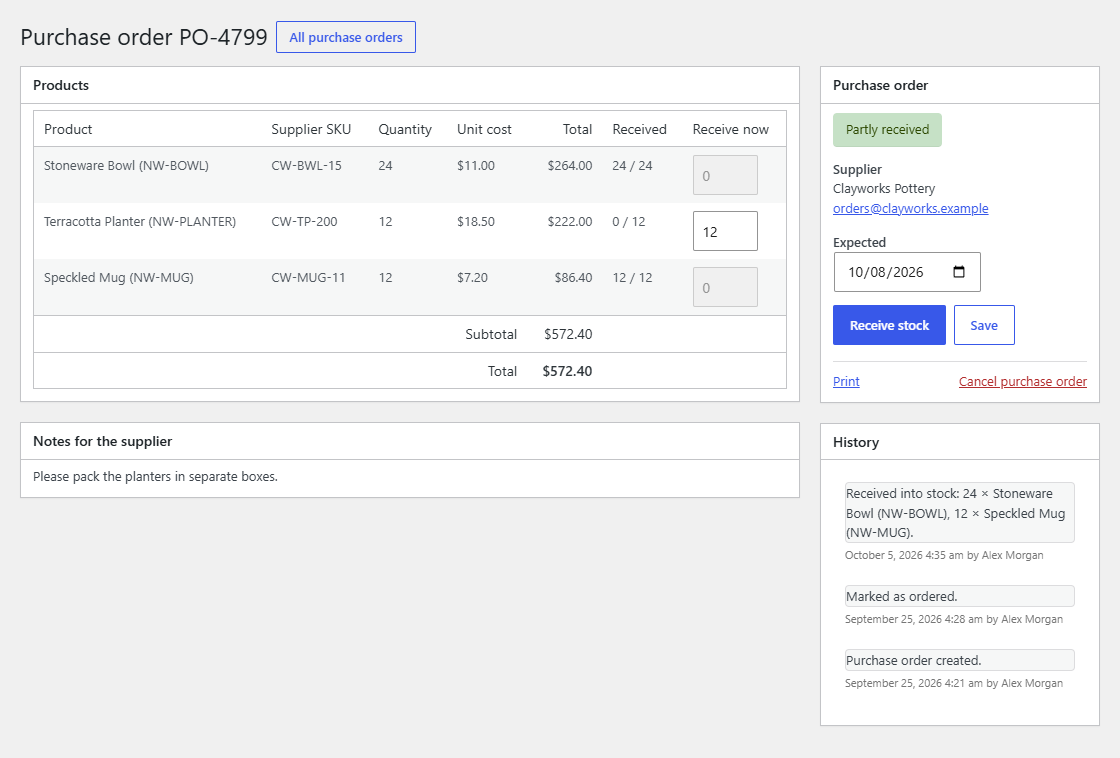
Receiving a delivery
- Open the purchase order (it must be Ordered or Partly received).
- In the Receive now column, each line is filled in with what's still to come. Change the numbers to what actually arrived; enter 0 for anything that didn't.
- Click Receive stock.
The Received column then shows how many arrived out of how many were ordered, the status moves to Partly received or Received, and the history notes what came in.
You can receive as many times as you need. You can't receive more than is still outstanding on a line; anything above that is ignored.
A delivery is only received once. If stock was received on the purchase order after you opened it (in another tab, or by someone else), Receive stock stops with a message instead of adding the units again: reload the page, check the Received column, and receive what's still to come.
What it changes
- Stock: the received units are added to each product's or variation's stock with WooCommerce's own stock function, as if you'd changed the quantity on the product. Stock statuses update (an out of stock product becomes in stock), and WooCommerce and other plugins see the change as usual.
- Products that don't track stock are left alone, but the line still counts as received.
- On order: received units no longer count as on order on To reorder.
Receiving doesn't change the product's cost price; update it on the product if what you paid changed.
Mistakes
Receiving can't be undone from the purchase order. If you received too many, correct the product's stock on its Inventory tab. The purchase order's history still shows what was entered.