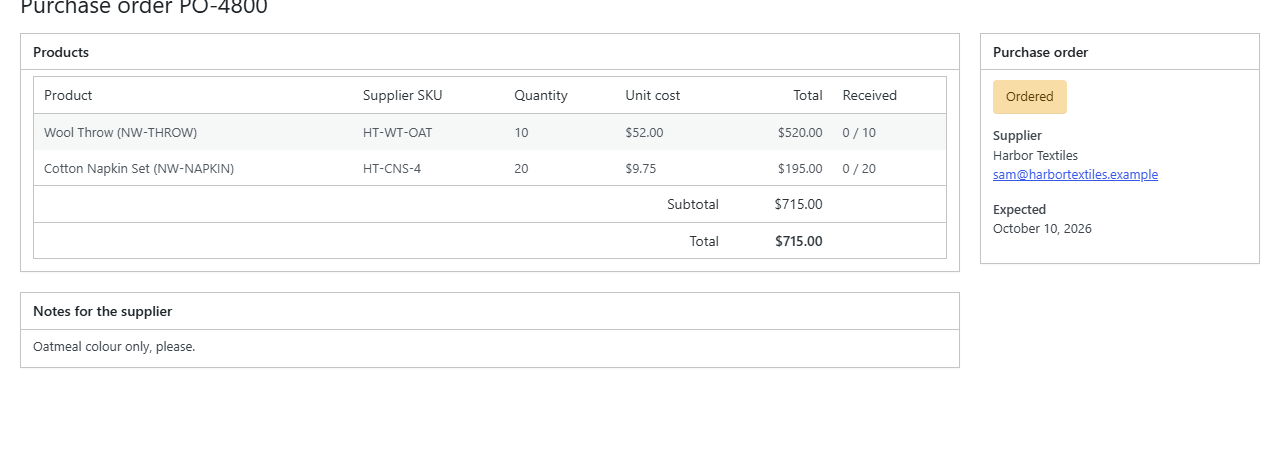
Purchase orders
Drafts, ordering, statuses, the expected date, notes, history, cancelling and printing a purchase order.
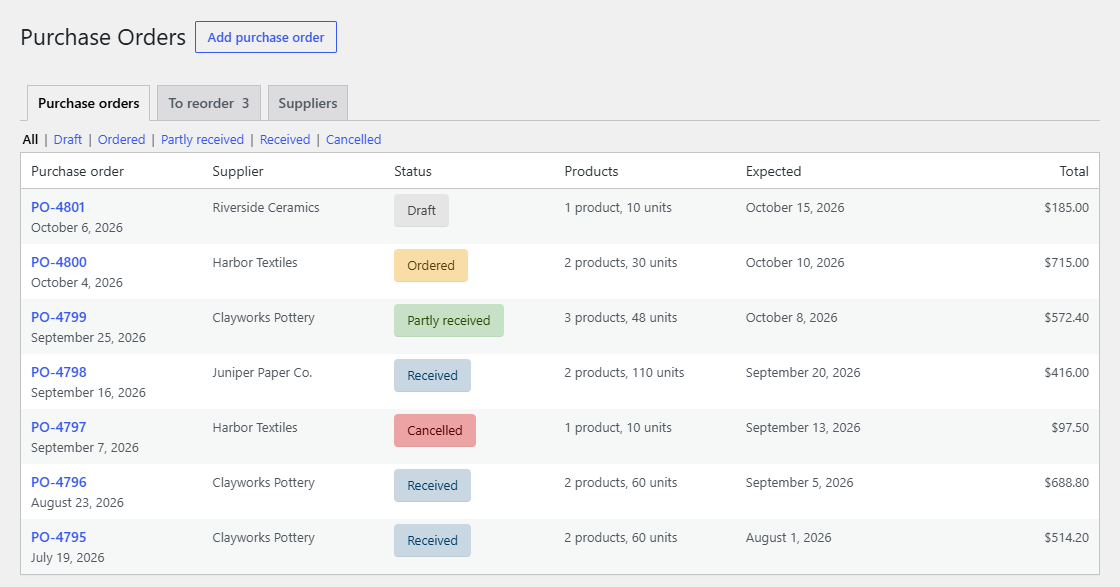
A purchase order is what you order from a supplier. WooCommerce → Purchase Orders lists them all, newest first, with their supplier, status, products, expected date and total, 20 to a page. Filter the list by status with the links above it.
Making one
- From To reorder: click Create purchase order for… under a supplier. See To reorder.
- From scratch: click Add purchase order at the top of the screen. You get an empty draft.
Each purchase order is numbered PO-0042 and so on.
Drafts
While it's a draft, you can change everything:
- Supplier, in the side box. The expected date doesn't change with it; set it yourself if needed.
- Products: search for a product or variation under the table, enter a quantity and click Add product. Remove a line with the bin icon. Adding a product that's already there adds to its quantity.
- Quantities and unit costs. An empty unit cost takes the product's cost price when you save.
- Notes for the supplier: delivery instructions, colours, anything they should know.
- Expected: when you expect the delivery.
Click Save draft to keep your changes. After saving, each line shows the supplier SKU and any warning: Minimum order: 12 when the quantity is below the supplier's minimum, Sold in packs of 6 when it isn't whole packs. They're reminders; you can still order.
Ordering
Send the purchase order to your supplier as you usually do (print it, or save it as a PDF from the print dialog; see below), then click Mark as ordered. It needs at least one product.
From then on, the products, quantities, costs and notes are fixed, the units count as On order on To reorder, and the purchase order is ready to receive. You can still change the expected date and click Save.
Statuses
| Status | Meaning |
|---|---|
| Draft | Being prepared; everything can change. |
| Ordered | Sent to the supplier, nothing received yet. |
| Partly received | Some units arrived, some are still to come. |
| Received | Everything arrived. |
| Cancelled | Not going ahead. Its units no longer count as on order. |
The colours are WooCommerce's own order status colours.
Cancelling
Click Cancel purchase order in the side box and confirm. A draft or ordered purchase order can be cancelled; one that's partly received too (what already arrived stays in stock). A received purchase order can't be cancelled.
History
The History box lists every step, newest first, with the date and who did it: created, ordered, each delivery received with what arrived, cancelled.
Printing
Click Print in the side box. The page prints without WordPress's menus, buttons, the receiving column and the history, with fields printed as plain text, so you get a clean purchase order with the supplier, dates, products, supplier SKUs, quantities, costs and notes. To make a PDF, choose Save as PDF in your browser's print dialog.