
Getting started
Installation
Install Supplyline from WordPress.org, add a supplier and see your first products to reorder in a few minutes.
Supplyline is free and listed on WordPress.org, so you can install it straight from your dashboard.
Install the plugin
- Make sure WooCommerce is installed and active. Supplyline won't activate without it.
- Go to Plugins → Add New Plugin and search for Supplyline.
- Click Install Now on "Supplyline – Purchase Orders & Suppliers for WooCommerce", then Activate.
If you have the zip file instead, use Plugins → Add New Plugin → Upload Plugin, choose the file, then Install Now and Activate.
A new Purchase Orders item appears under WooCommerce in the admin menu. There's also a Purchase Orders link under Supplyline on the Plugins screen.
Your first ten minutes
- Add a supplier. Go to WooCommerce → Purchase Orders, open the Suppliers tab and click Add supplier. Enter the name, and at least their lead time: how many days a delivery usually takes. See Suppliers.
- Set up a product. Edit a product you buy in, open its Inventory tab and make sure Track stock quantity is on. Below the stock settings, choose the Supplier and enter a Reorder point: the stock level at which you want to reorder. A Cost price and Reorder quantity help too. See Purchasing fields on products.
- See what to reorder. Go to WooCommerce → Purchase Orders → To reorder. Every product at or below its reorder point is listed under its supplier. If the list is empty, set a product's reorder point above its current stock to try it out.
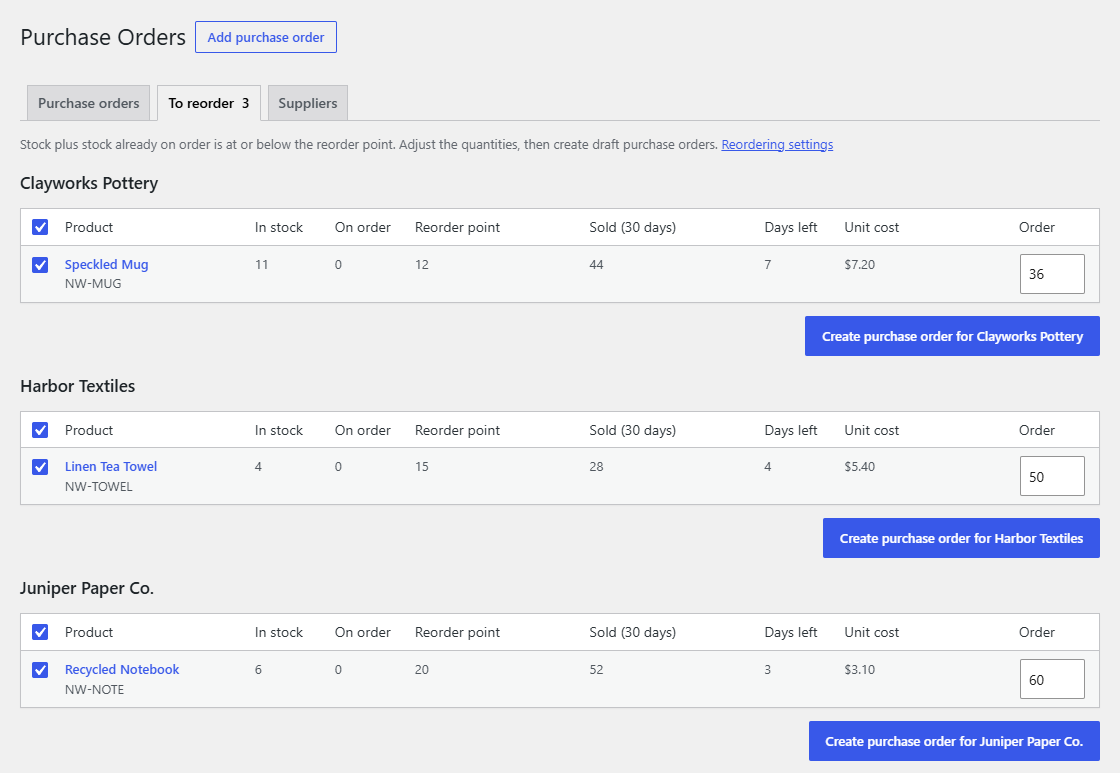
- Make a purchase order. Click Create purchase order for… under a supplier. You get a draft with the products and quantities from the list, ready to check and order. See Purchase orders.
What's next
- To reorder explains how the list and its suggested quantities work.
- Purchase orders covers drafts, ordering, cancelling and printing.
- Receiving stock covers adding what arrived to your stock, in one go or in parts.