
The customer's side
How customers request a return from My Account, follow it, and cancel it.
Customers do everything from their account, with pages that look like the rest of it.
Starting a return
An order that can be returned has a Return button in My account → Orders, and a Returns section on the order's own page with the last day for returns.
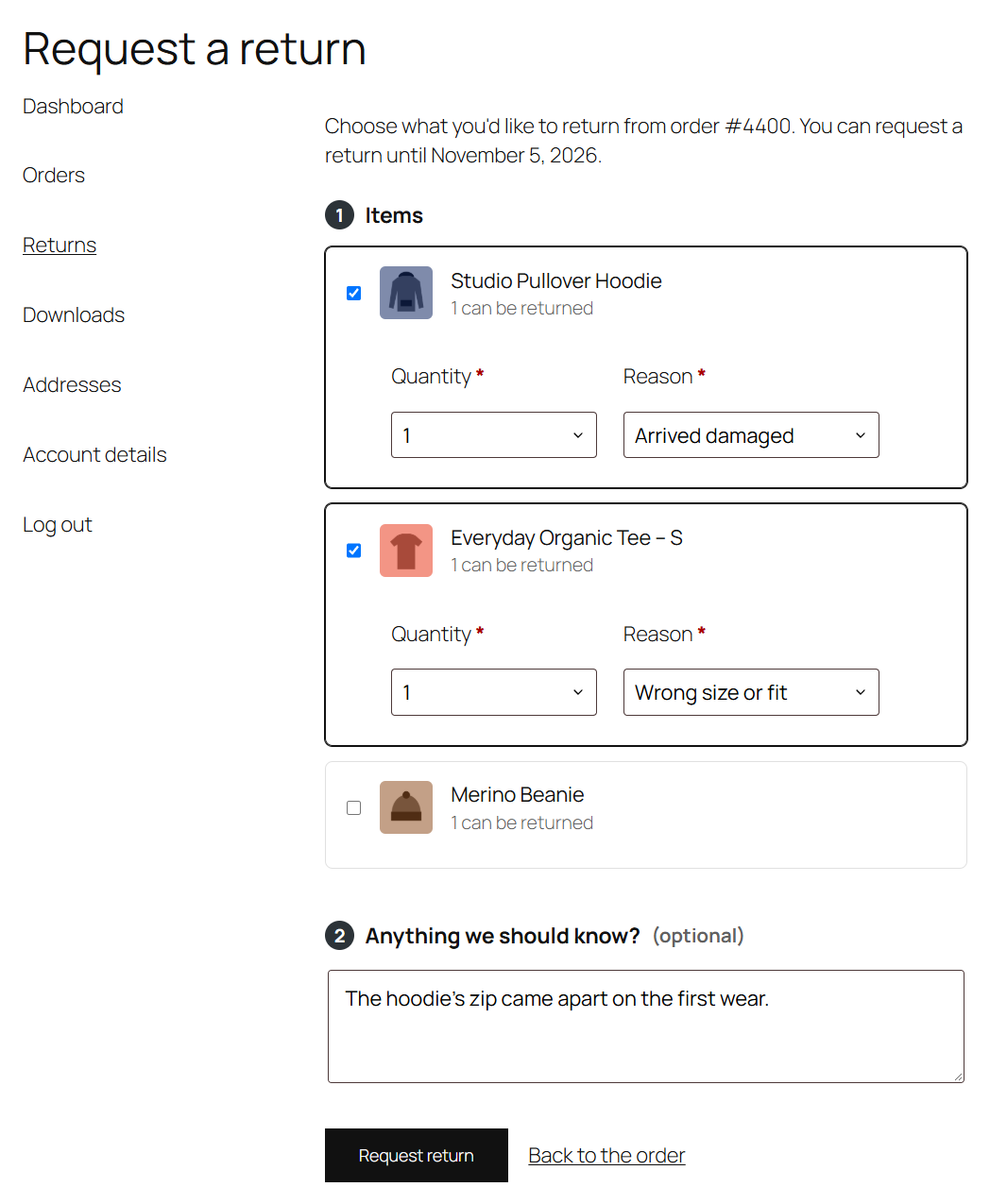
On the request form, the customer:
- Ticks the items to return. Each shows how many can be returned.
- Chooses how many, and a reason for each.
- Adds a comment if they want to, for example what's wrong with it.
- Clicks Request return.
If something is missing, such as a reason, the form says so and keeps everything they entered.
Following it
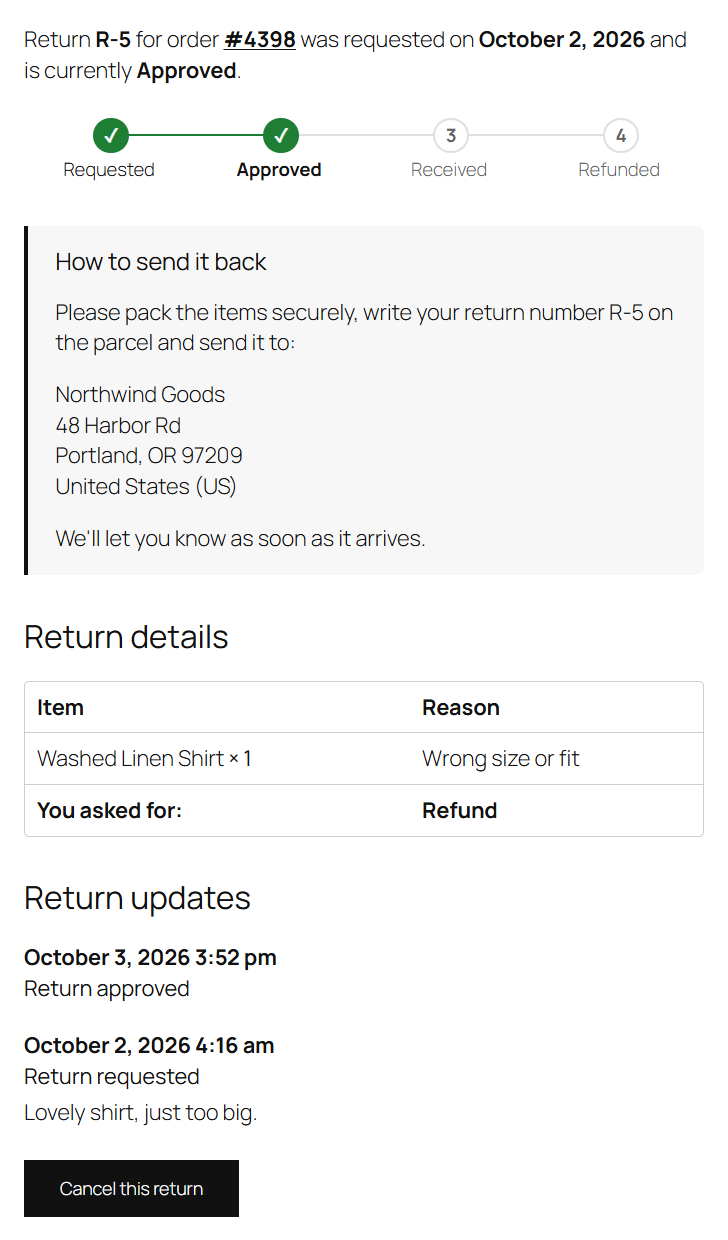
After sending, the customer lands on the return's own page, and gets a "We received your return request" email. The page shows:
- a sentence with the return number, the order, the date and the status, like WooCommerce's order page;
- a progress bar: Requested → Approved → Received → Refunded;
- once approved, How to send it back, with your instructions;
- the items and reasons, and the amount refunded once it's done;
- Return updates: each step, and any message you sent them.
All their returns are listed under My account → Returns, in the same table as their orders.
Emails
The customer gets an email when the request is received, when you approve it (with the instructions), when you decline it (with your reason) and when it's refunded. Each email has a button to the return's page. See Emails.
Cancelling
While a return hasn't been received yet, the customer can Cancel this return at the bottom of its page. The items can then be returned again later, within the window.
Orders without an account
Customers who checked out without an account can't use these pages. You can still create a return for their order from the order screen, and they get the emails, with the instructions in them. With Returnline Pro, they can also start a return themselves from a Returns page, by order number and email address.