
Returns without an account
The Returns page where guests find their order by number and email, request a return and follow it from a private link.
Note
This is part of Returnline Pro.
Customers who checked out without an account can't use My Account. With Returnline Pro, they start a return from your Returns page instead.
The Returns page
Activating Returnline Pro creates a page called Returns (at /returns/) with the [returnline_returns] shortcode. Link to it from your returns policy, your footer or your order emails. You can edit its title and add text around the shortcode like any page.
To use another page, put [returnline_returns] on it and choose it under Returns page on WooCommerce → Settings → Returns.
Finding the order
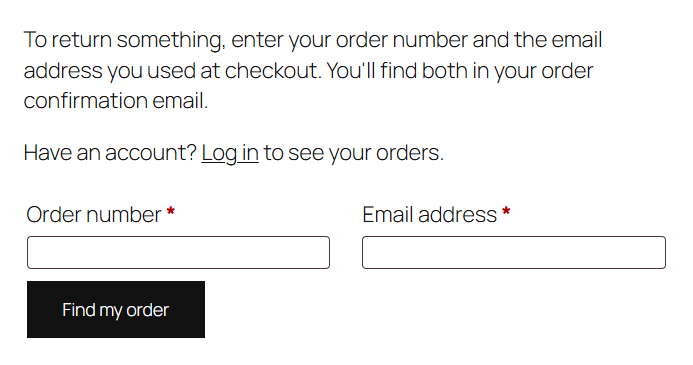
The customer enters the order number and the email address they used at checkout. Both are in the order confirmation email. The email address is matched without regard to capitals, and a leading # on the number doesn't matter.
If either is wrong, the page says it couldn't find the order, without saying which was wrong. If the order belongs to an account and the customer is logged in to it, they're taken to the request form in their account instead.
The form then works exactly like the one in My Account: items, quantities, reasons, what they'd like, comments and photos.
Following the return
After sending the request, the guest lands on the return's page, at a private link with a long random key. The same link is the button in every email we send them, so they can come back to it at any time, see the progress, download the return label, see their store credit code, and cancel the request while it's still waiting.
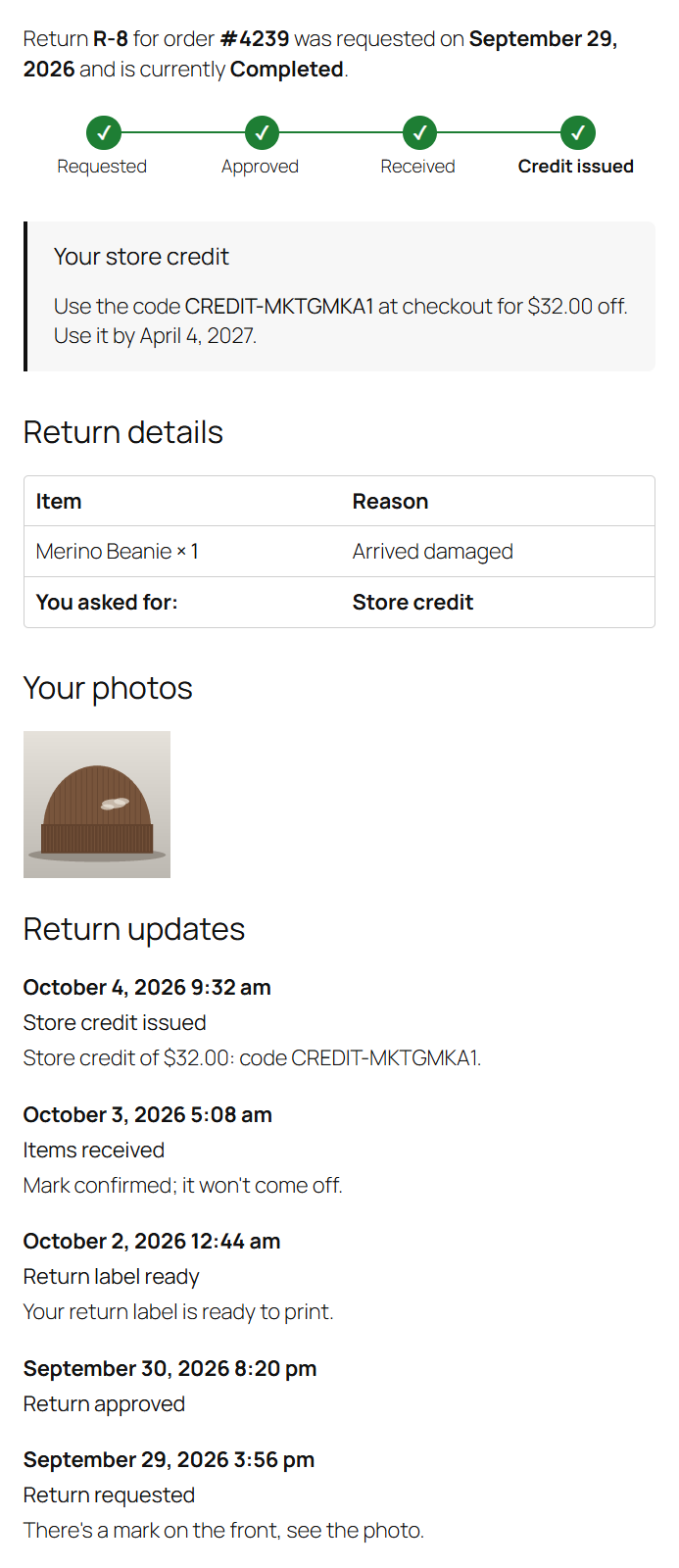
The page doesn't link to My Account, since the guest doesn't have one.
Switching it off
Untick Without an account under Account page on WooCommerce → Settings → Returns. The Returns page then tells visitors to log in to their account. Guests' existing returns keep working from their links.
For your own numbers
If your order numbers aren't the order IDs (for example with a sequential order numbers plugin), add a filter that turns the number customers see into the order ID; see Returnline Pro for developers.