
Installation
Install Returnline from WordPress.org, check your return policy, and take your first return request.
Returnline is free and listed on WordPress.org, so you can install it straight from your dashboard.
Install the plugin
- Make sure WooCommerce is installed and active. Returnline won't activate without it.
- Go to Plugins → Add New Plugin and search for Returnline.
- Click Install Now on "Returnline – Returns & Refunds for WooCommerce", then Activate.
If you have the zip file instead, use Plugins → Add New Plugin → Upload Plugin, choose the file, then Install Now and Activate.
Activating creates Returnline's own database tables and adds a Returns page to your customers' account menu. Nothing else changes on your store until a customer asks for a return.
Check your return policy
Returnline starts with a sensible policy: returns are open for 30 days after an order is completed, digital products can't be returned, and every request waits for your review. Look it over before customers start using it:
- Go to WooCommerce → Settings → Returns. There's also a Settings link under Returnline on the Plugins screen.
- Check the Return window, the Reasons customers choose from and the Return instructions they get when you approve a request. The instructions should say where to send the parcel:
{store_address}fills in the address from WooCommerce → Settings → General. - Click Save changes.
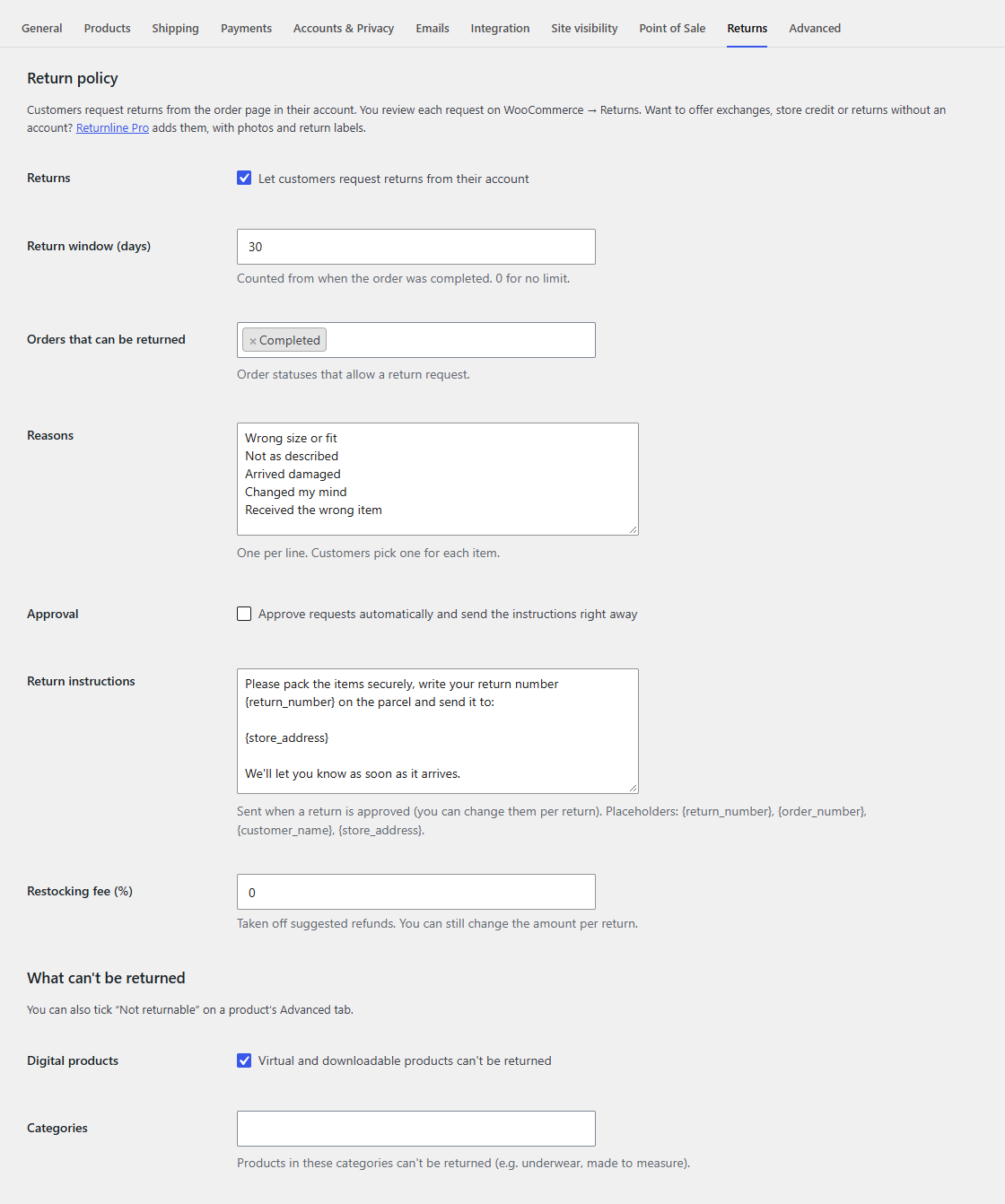
Return policy explains every setting, and What can't be returned covers products you don't take back.
Try a return
The quickest way to see how it works is to be your own customer:
- In a private browser window, log in with a customer account that has a completed order (or complete one of your test orders under WooCommerce → Orders).
- Open My account → Orders. The completed order now has a Return button.
- Pick an item, a reason and click Request return.
- Back in your admin, go to WooCommerce → Returns. The request is there, with a count next to the menu item.
From there, Handling returns walks through approving, receiving and refunding it.
Tip
Customers get an email at each step. While you try things out, you can see them with an email log plugin, or switch individual emails off under WooCommerce → Settings → Emails.
What's next
- Return policy and What can't be returned for your settings.
- The customer's side for what your customers see.
- Handling returns for the day-to-day work.