
Handling returns
The Returns list, and each return's page: review, approve or decline, receive the parcel, and refund through WooCommerce.
The Returns list
WooCommerce → Returns lists every return, newest first, with the order, customer, items, what the customer asked for and the status. New requests are counted next to the menu item, like new orders.
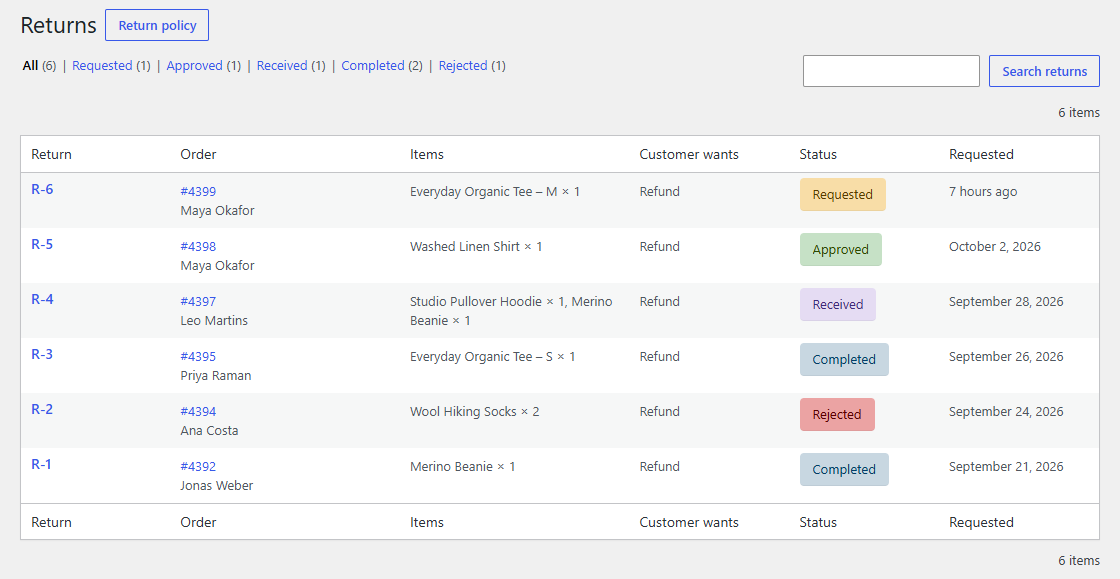
- Filter by status with the links above the list.
- Search by return number, order number or email address.
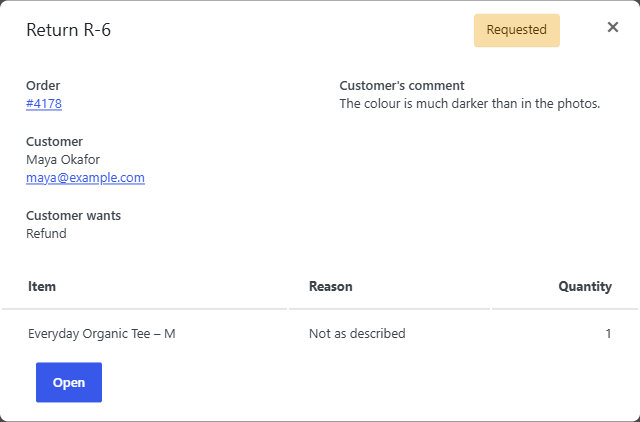
- Click the eye next to a return number for a quick preview of the items, reasons and comment, as on the Orders list.
A return's page
Click a return number to open it. It's laid out like WooCommerce's order screen: the next step, the items and the customer's comment on the left; the order, and the return notes on the right. The boxes can be collapsed, and stay as you left them.
The box at the top always shows what to do next.
1. Review the request
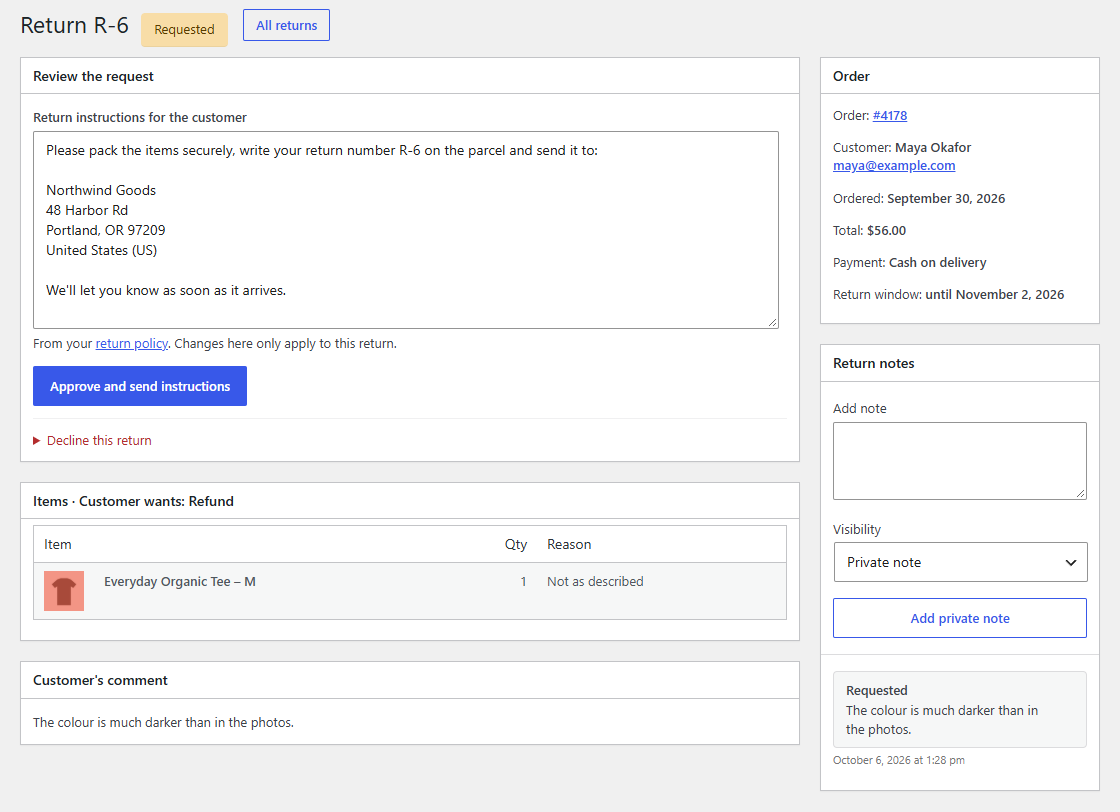
- Approve and send instructions: the instructions come from your policy, with the return number and address filled in. Change them here for this return only. The customer gets them by email and on their return page.
- Decline this return: enter a reason, which the customer gets by email. Declining can't be undone; the items can then be returned again.
2. Wait for the parcel
When it arrives, check the items and untick Restock for any that are damaged or can't be sold again, then click Mark as received. Add condition notes if you like: they go into the return notes, privately.
If you don't need the items back (for example a cheap item that arrived broken), open Complete without waiting for the parcel to refund straight away.
3. Refund the customer
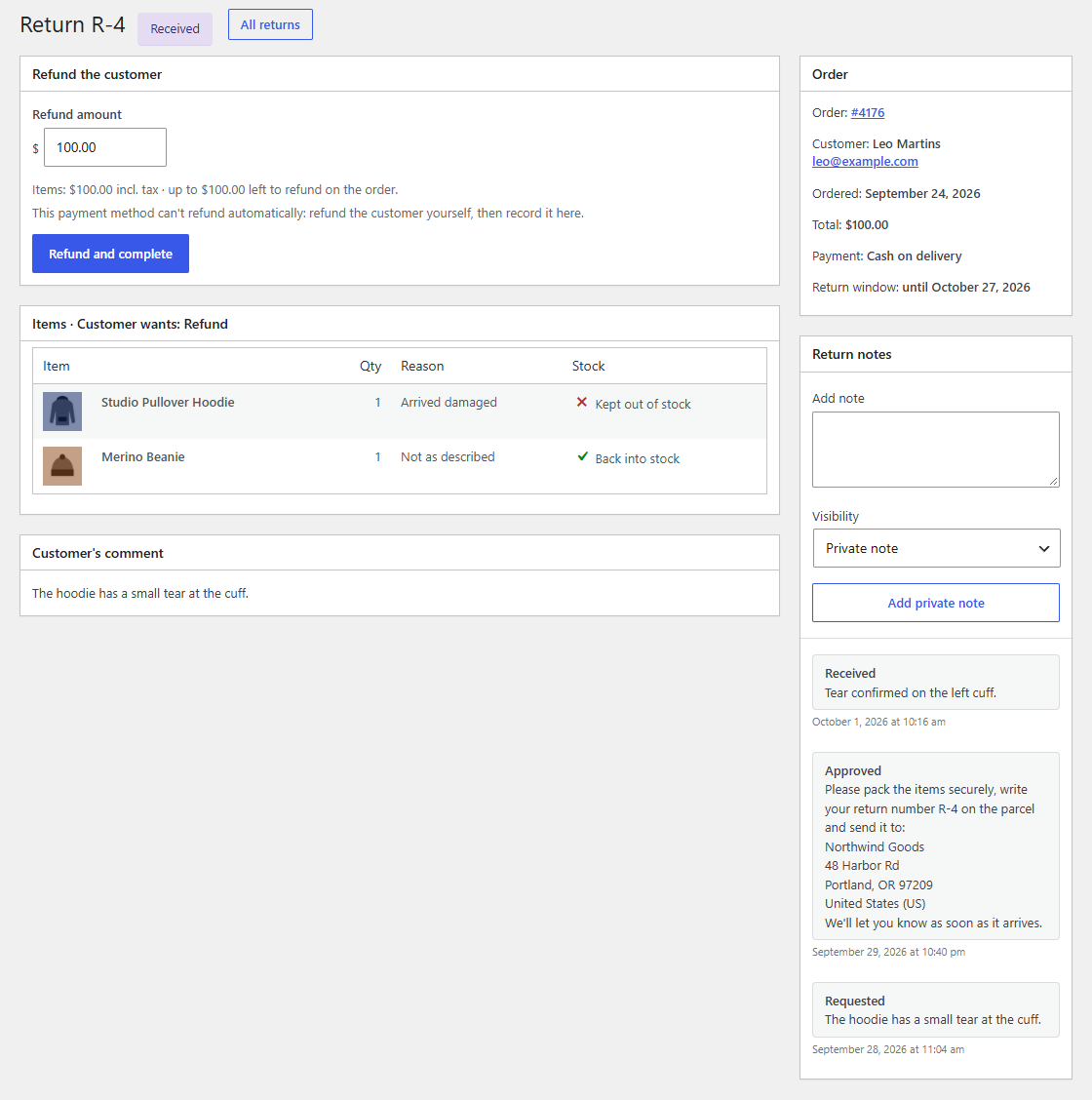
Returnline suggests the amount: the items' price including tax, less your restocking fee, and never more than is left to refund on the order. Change it if you need to. If you already refunded some of the items on the order itself, the return only refunds and restocks the rest.
- When the payment method can refund automatically, Send the money back through … is ticked: the money goes back to the customer's card or account.
- Otherwise, refund the customer yourself (by bank transfer, for example), then click Refund and complete to record it.
WooCommerce's modal asks you to confirm, then Returnline creates the refund on the order: the items show as refunded there, the ones marked Restock go back into stock, and the customer gets the "Your return is complete" email.
Note
Damaged items get a separate WooCommerce refund without restocking, so you may see two refunds on the order for one return. Together they add up to the amount you entered.
When the customer asked for something else
Returns made with Returnline Pro can ask for an exchange or store credit. Without Returnline Pro, such a return is still listed and shows what the customer asked for; the next step offers a refund, with a note saying so. Refund it, or arrange the exchange with the customer yourself and record it in the notes.
Statuses
| Status | Meaning |
|---|---|
| Requested | Waiting for your review |
| Approved | The customer has the instructions; waiting for the parcel |
| Received | The parcel is here; waiting for the refund |
| Completed | Refunded |
| Rejected | You declined it |
| Cancelled | The customer withdrew it |