
Handling returns
Return labels
Attach a prepaid shipping label to a return for the customer to download and print.
Note
This is part of Returnline Pro.
If you pay for returns, create the label with your carrier as usual, then attach it to the return. The customer downloads it from their return page and the approval email.
Attaching a label
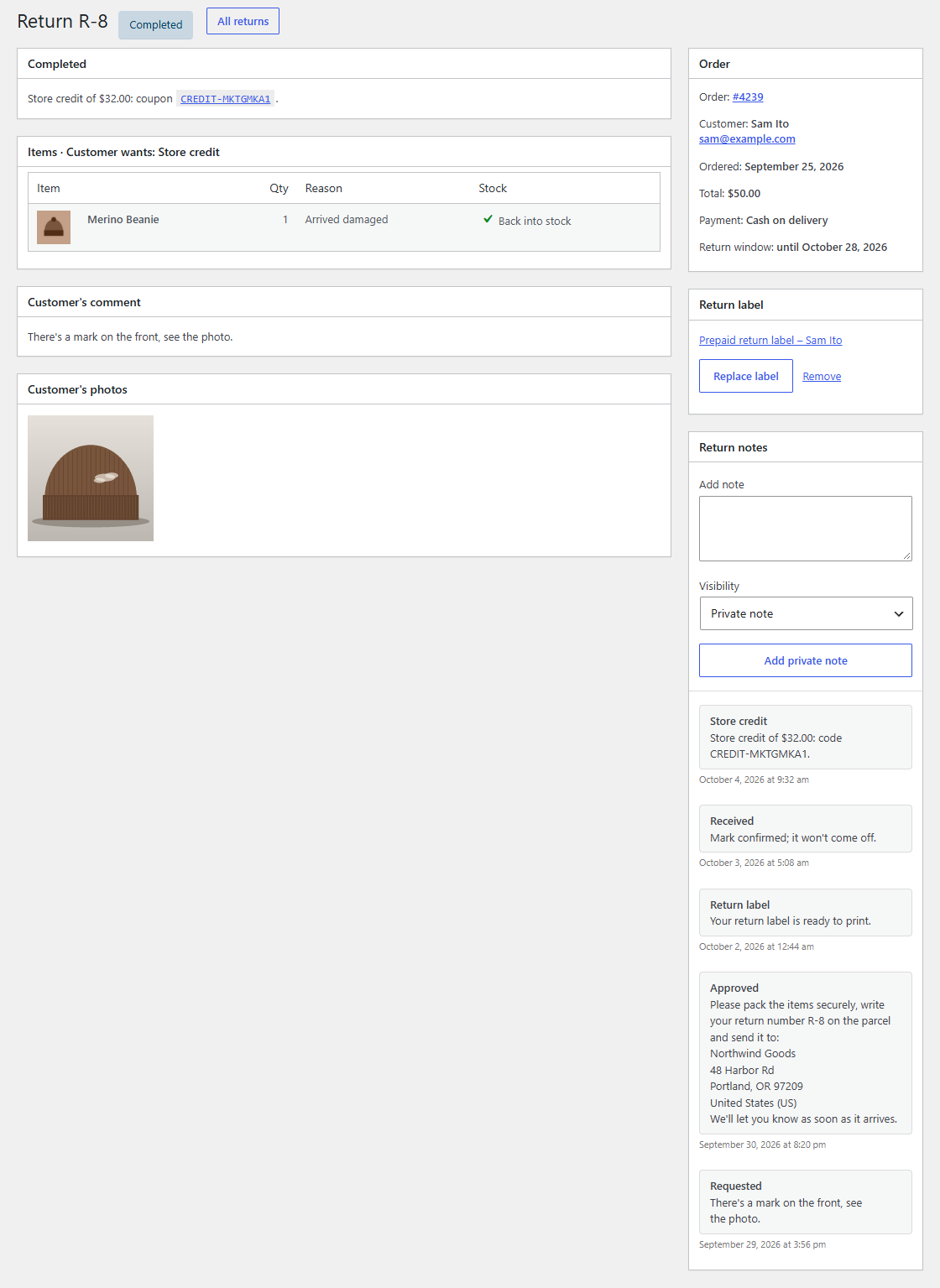
The Return label box is in the side column of a return's page while the return is open.
- Click Choose label.
- Upload the label (a PDF or an image) or pick it from your media library, and click Use this label.
It's saved straight away, and the box links to it. Replace label swaps it; Remove takes it off the return (the file stays in your media library).
What the customer gets
- Attached before you approve: the approval email has a Download your return label link under the instructions.
- Attached after you approve: the customer gets the approval email again, starting "Your return label is ready: print it and stick it on the parcel", with the link.
While the return is approved, their return page has a Download your return label button under How to send it back, and the timeline says "Return label ready".
Things to know
- Returnline Pro doesn't buy labels from carriers: it shares the file you attach.
- Labels are your own files in the media library. Removing a label, deleting the return's data or deleting the plugin never deletes them.
- The file's address isn't secret: anyone with the link can open it, as with any media file. That's usually fine for a shipping label.