
Where labels show
Labels on product images in shop lists and on product pages, in classic themes and block themes.
Each label has a Show it on setting in its Where it shows box:
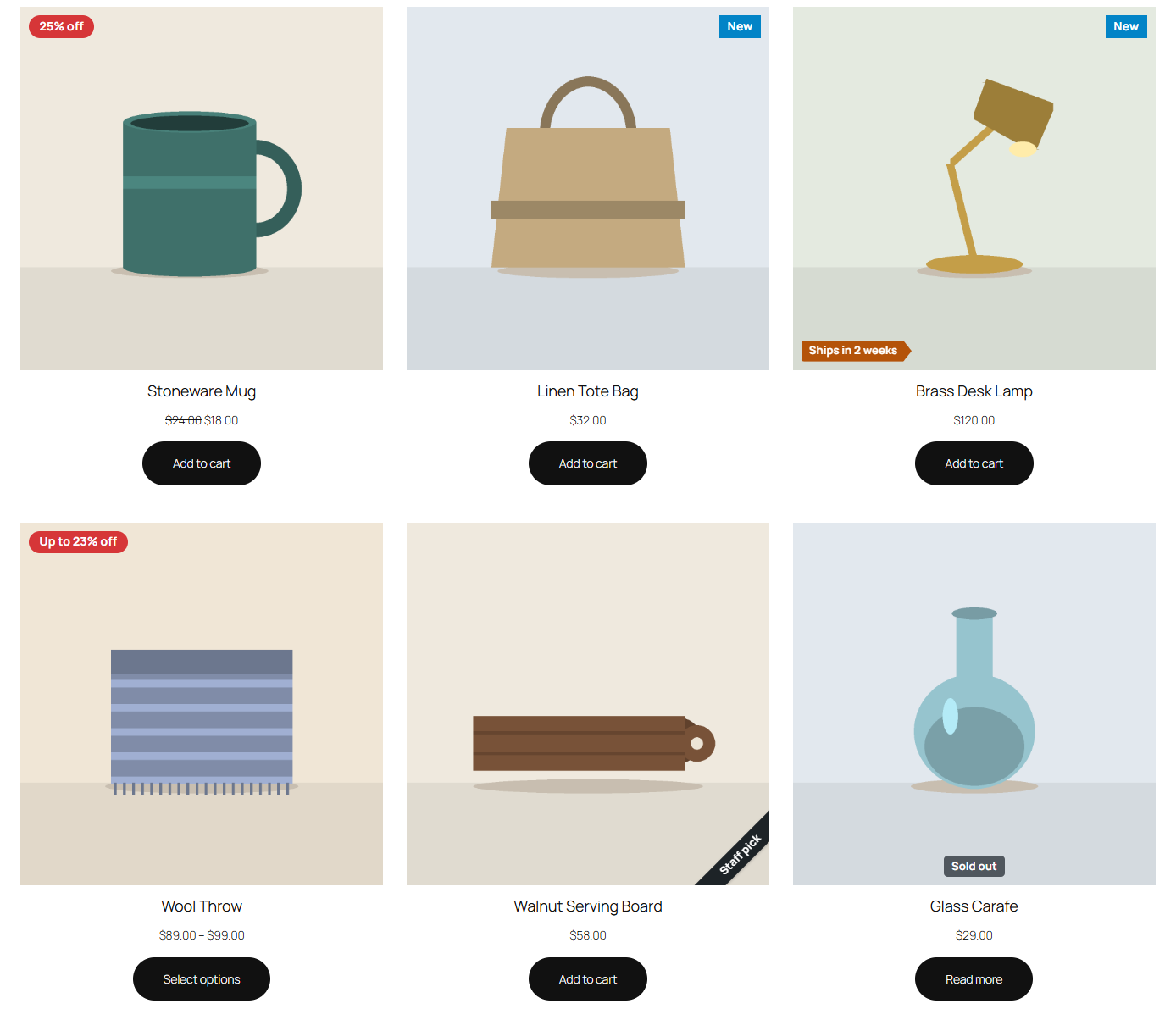
- Shop and product lists: product images in the shop, on category and tag pages, in product blocks, related products, upsells and the
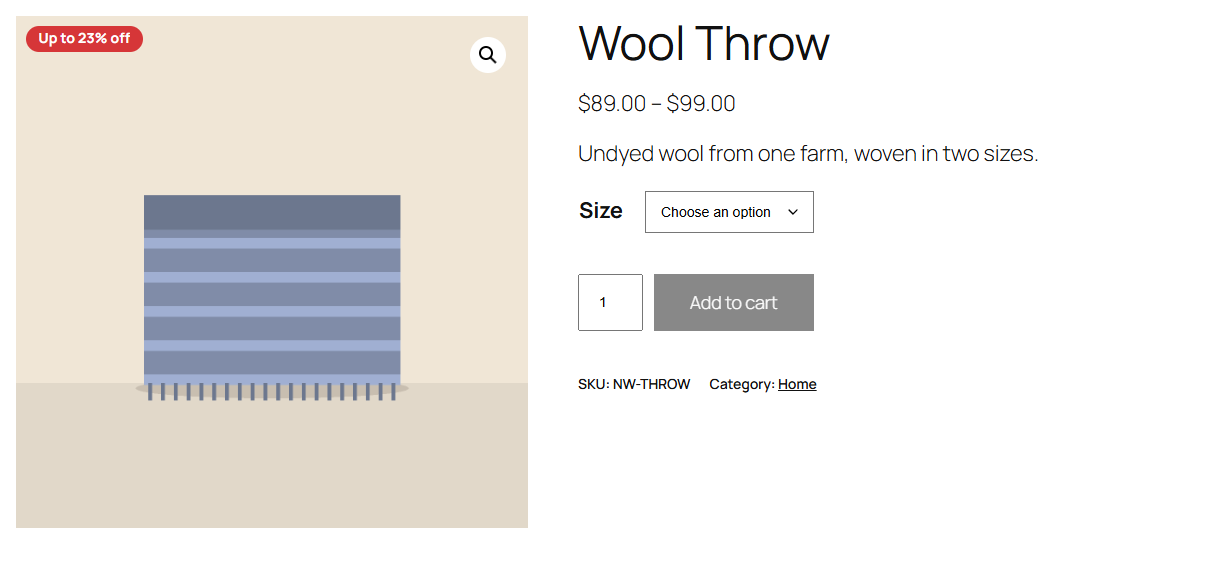
[products]shortcode. - Product page image: the main image on the product's own page.
Tick one or both. A label with neither ticked is kept but shows nowhere.
Classic themes
In classic themes such as Storefront, labels sit on the product image in WooCommerce's product list template, which the shop, category and tag pages, related products, upsells, cross-sells and the [products] shortcode all use. On the product page they sit on the gallery's main image; when the product has more images, they stay on the main image as shoppers slide through them.
Block themes
In block themes such as Twenty Twenty-Five:
- Product Collection (your shop, category and tag pages, and any product list you add) and the other product blocks show labels on the Product Image block.
- The older Products by Category, Hand-picked Products and similar grid blocks show them on their images too.
- On the product page, the Product Image Gallery block and the newer Product Gallery block show the product page's labels. A Product Image block inside a Single Product block counts as the product page.
Not on cart images
Product images in the cart, mini cart, checkout, emails and widgets stay plain. Labelline Pro can show labels as small text labels in the cart: see Labels by the title and in the cart.
Accessibility
- Labels are real text: screen readers read them, and they never depend on colour alone.
- Inside a product's link, a label is read with the product's name, as WooCommerce's own "Sale!" badge is. Use Text for screen readers for labels whose text is short or visual.
- The editor warns when the text and background colours are too close to read easily.
- In Windows' high-contrast mode, labels get a border so they stay visible.