
Installation
Install Labelline from WordPress.org and put your first label on your product images in a few minutes.
Labelline is free and listed on WordPress.org, so you can install it straight from your dashboard.
Install the plugin
- Make sure WooCommerce is installed and active. Labelline won't activate without it.
- Go to Plugins → Add New Plugin and search for Labelline.
- Click Install Now on "Labelline – Product Labels & Badges for WooCommerce", then Activate.
If you have the zip file instead, use Plugins → Add New Plugin → Upload Plugin, choose the file, then Install Now and Activate.
Nothing changes in your shop yet: Labelline only shows the labels you make.
Make your first label
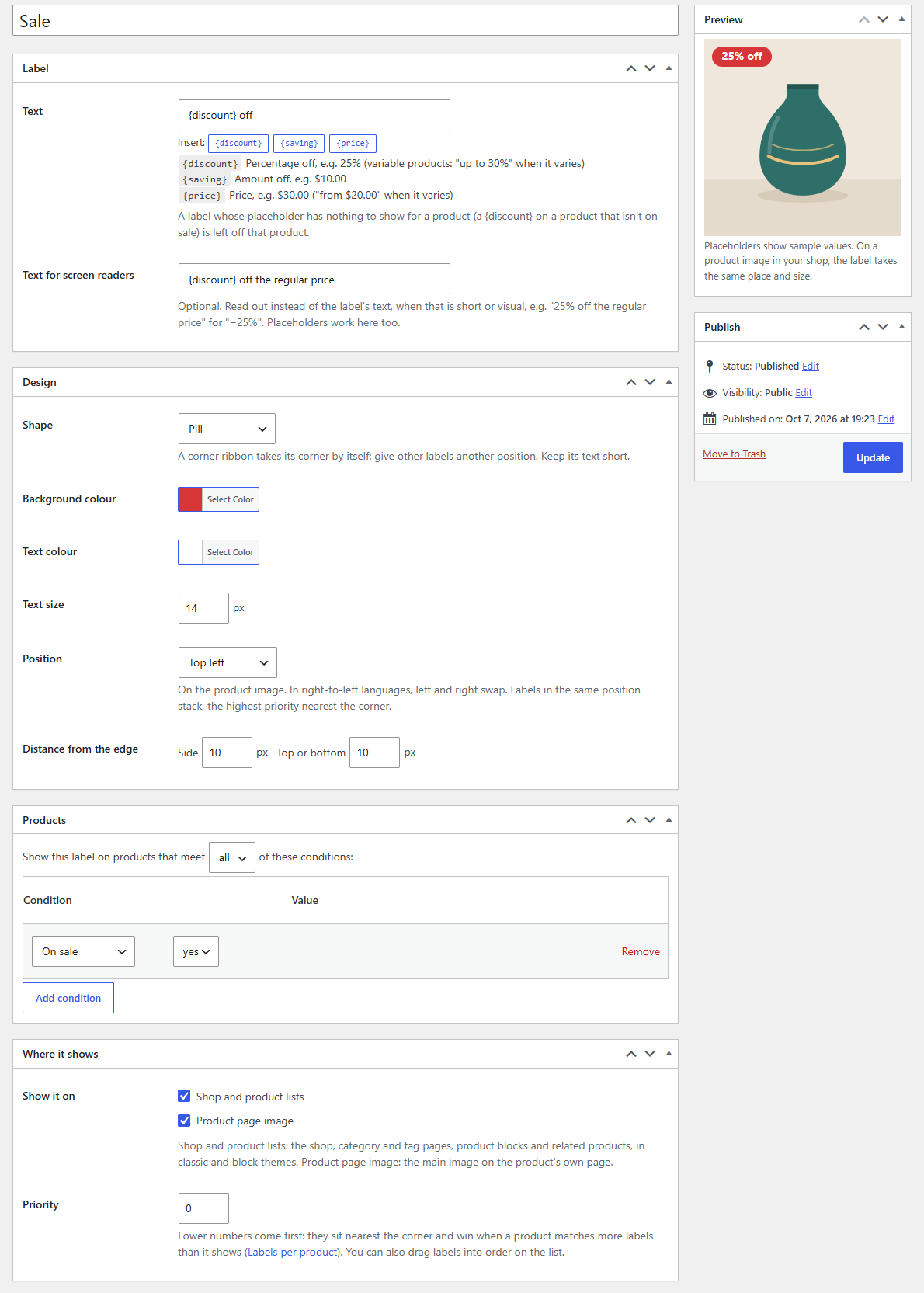
A sale label that shows how much each product saves:
- Go to WooCommerce → Labels and click Add label.
- Give it a name only you see, such as "Sale".
- In Text, type
{discount} off. The preview on the right shows "25% off" on a sample product. - Under Design, choose a Shape (a pill, for example) and a Background colour.
- Under Products, click Add condition and choose On sale.
- Click Publish.
Now open your shop in a private browser window. Every product on sale has the label on its image, with its own discount: "25% off", or "Up to 30% off" for a variable product whose sizes save different amounts. WooCommerce's own "Sale!" badge gives way to it.
Tip
A label is on as soon as it's published. To work on one without showing it, click Save Draft instead, or turn it off from the list.
What's next
- Creating labels goes through the label screens.
- Design and placeholders covers every shape, colour and placeholder.
- Conditions explains how to choose the products a label shows on.
- Where labels show covers classic and block themes.