
Image and icon labels
Use a badge image from your Media Library, or one of the bundled icons with or without text.
Note
This is part of Labelline Pro.
With Labelline Pro, the Label box of the label editor has a Type: Text (Labelline's), Image or Icon.
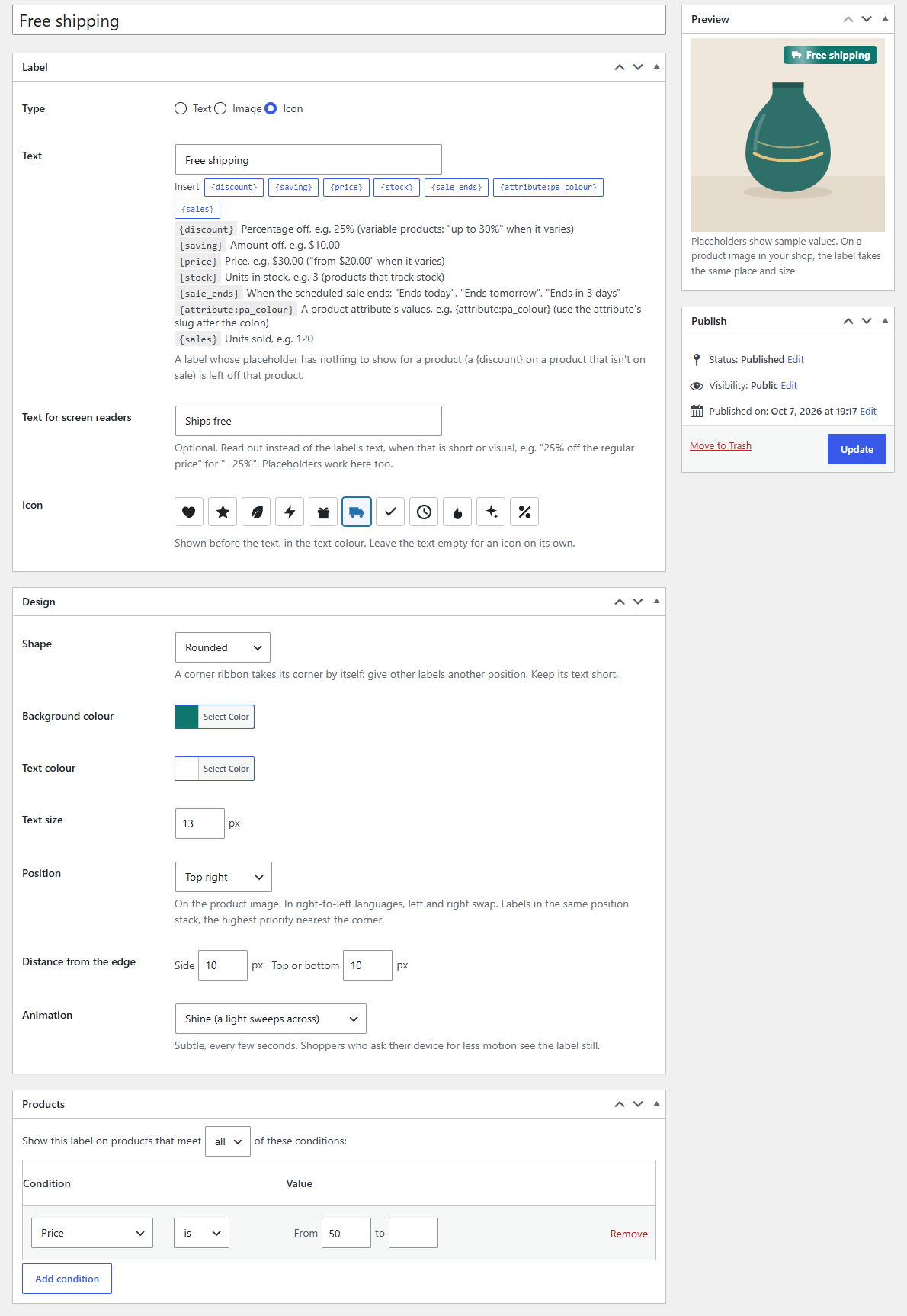
Image labels
An image label is a picture: a badge, a stamp, a seal or a logo from your designer.
- Choose Image as the type.
- Click Choose image and pick or upload it in the Media Library.
- Set the Image width in pixels (16–400). The height follows the image.
- Type a Text: for an image label, it's the image's alternative text for screen readers ("Eco certified"). Leave it empty only for a purely decorative image.
The label's shape, colours and text size don't apply to an image; its position, distance from the edge, priority and animation do. A PNG with a transparent background looks best. Choose the Circle shape to show a square image as a circle.
If the image is deleted from the Media Library, the label is held back and its editor says so; choose another image.
Icon labels
An icon label is one of the bundled icons, drawn in the label's text colour on its shape and background, with or without text beside it:
| Heart | Star | Leaf | Bolt |
| Gift | Truck | Check mark | Clock |
| Flame | Sparkle | Percent |
- Choose Icon as the type, then click an icon.
- Type a Text to show next to it ("Free shipping"), or leave it empty for the icon alone. An icon alone is announced by its name to screen readers ("Truck"); set Text for screen readers to say more ("Ships free").
Placeholders work in an icon label's text, as in any label: a star with "{sales} sold", a clock with {sale_ends}.
In other places
Image and icon labels show in shop lists and on the product page image like any label. Next to the title and in the cart they show smaller: an icon label as its icon and text, an image label at the height of the text (the cart shows text only, so an image label without text is left out there).