
Priorities and limits
Which labels win when a product matches many, how labels stack in a corner, and the limit per product.
Priority
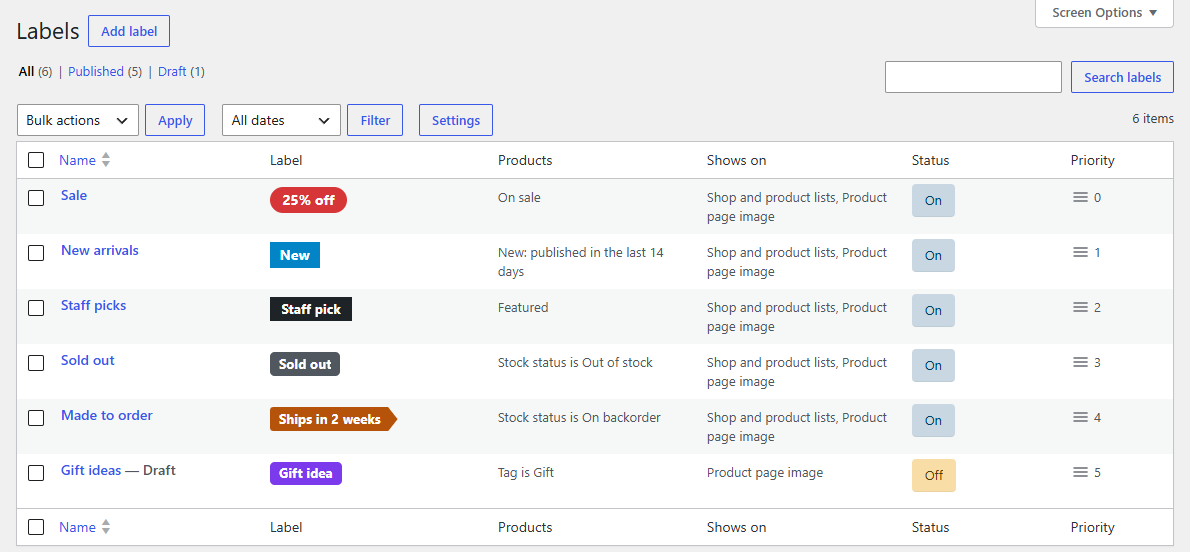
Every label has a Priority (in its Where it shows box): lower numbers come first. A new label goes after the others.
The priority decides:
- Which labels a product shows when it matches more than the limit: those first in the order win.
- The order in a stack: in the same position, the first label sits nearest the corner.
- Which corner ribbon shows when two share a position.
The easiest way to change it is on the list: drag a label by the handle in the Priority column. The new order is saved at once, and the numbers follow the order on the page. You can also type a number in the editor; labels with the same number keep the order they were made in.
Labels per product
WooCommerce → Settings → Products → Labels → Labels per product sets how many labels one product image shows: 3 by default. Set 0 to show every label a product matches.
The limit counts per place: a product can show three labels in the shop and three on its page. A label left off a product because its placeholder has nothing to show doesn't count, so the next label takes its place.
Tip
Fewer labels say more. Give each corner one job (sale, new, stock) and let the priorities decide the rest.