
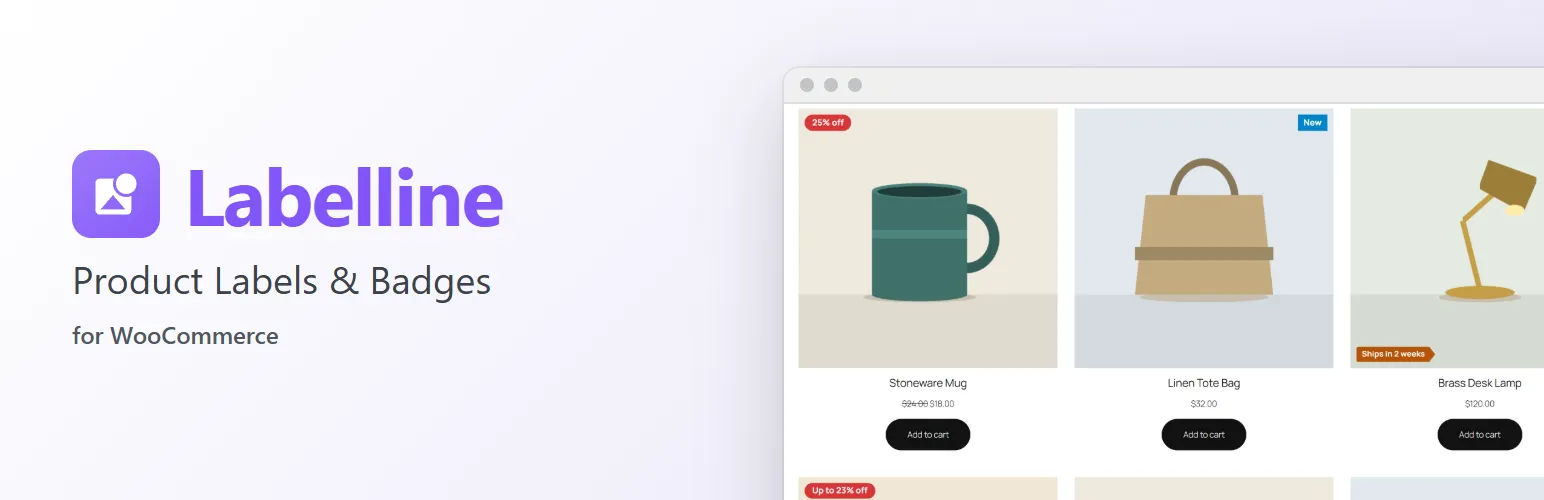
Tell shoppers what makes a product worth a second look, right on its picture. Labelline adds WooCommerce → Labels, where you make labels once and choose which products get them: everything on sale, products added in the last two weeks, featured products, a category, a tag, chosen products or a product type. No code, and no editing products one by one.
Labels that look like your shop
- Your own text, with placeholders filled in for each product:
{discount}("25%", or "up to 30%" for a variable product whose variations save different amounts),{saving}("$10.00") and{price}. - Six shapes: rectangle, rounded, pill, circle, corner ribbon and tag.
- Background and text colour, text size, and the distance from the image's edge.
- Six positions: the four corners, and top or bottom centre. Several labels in the same corner stack neatly, the most important nearest the corner.
- A live preview on a sample product image while you edit, and a warning when the text and background colours are too close to read easily.
Shown by rules
- Conditions: on sale, new (published in the last N days), featured, stock status (in stock, out of stock, on backorder), category (including its subcategories), tag, chosen products and product type. Match all of them or any of them; a label without conditions shows on every product.
- A priority for each label (drag labels into order on the list), and a store-wide limit of labels per product, so the most important ones win.
- A label whose placeholder has nothing to show for a product (a
{discount}on a product that isn't on sale) is left off that product, never shown with a gap.
Everywhere your products are
- Shop, category and tag pages, related products and the
[products]shortcode in classic themes such as Storefront. - Block themes such as Twenty Twenty-Five: the Product Collection block and the other product blocks (through the Product Image block), and the product page.
- The product page's main image, in classic and block themes, on its own setting: show a label in lists, on the product page, or both.
- Labels sit over the image without moving anything on the page, keep out of the way of clicks, follow right-to-left languages, and are real text that screen readers read (with an optional text just for them, such as "25% off the regular price" for "−25%").
One sale badge, not two
WooCommerce shows its own "Sale!" badge on products on sale. Labelline hides it on products that show a Labelline sale label in the same place (a setting: always show it, hide it there, or always hide it). If you use Extendiment's Stockline, stock labels stay off the product page, where Stockline already shows the stock line; with Discountline, its discounts count as sales for your labels and its own badge next to the price gives way to your label. Both are settings.
Fast
Labelline loads your labels once per page, checks products against them with what WooCommerce has already loaded, and remembers each product's labels until a label or product changes, so a shop page with many products stays quick.
For developers
Add conditions (labelline_conditions), placeholders (labelline_placeholders), kinds of label (labelline_kinds) and places (labelline_places), change a product's labels (labelline_product_labels), the markup (labelline_label_html, labelline_label_classes) and the limit (labelline_max_labels). labelline_loaded fires once Labelline has loaded. The hooks are documented in the code and on extendiment.com.
Labelline Pro
The separate Labelline Pro add-on adds image and icon labels, more conditions (such as best sellers, price and stock ranges, attributes, ratings and dates) and placeholders, a product's own label, labels next to the product title and in the cart, and subtle animations. See extendiment.com/plugins/labelline.