
Per-product labels
Give one product a label of its own, and leave the store's labels off a product, from its Labels tab.
Note
This is part of Labelline Pro.
Most labels are made once for many products. For the exceptions, Labelline Pro adds a Labels tab to the Product data box of every product.
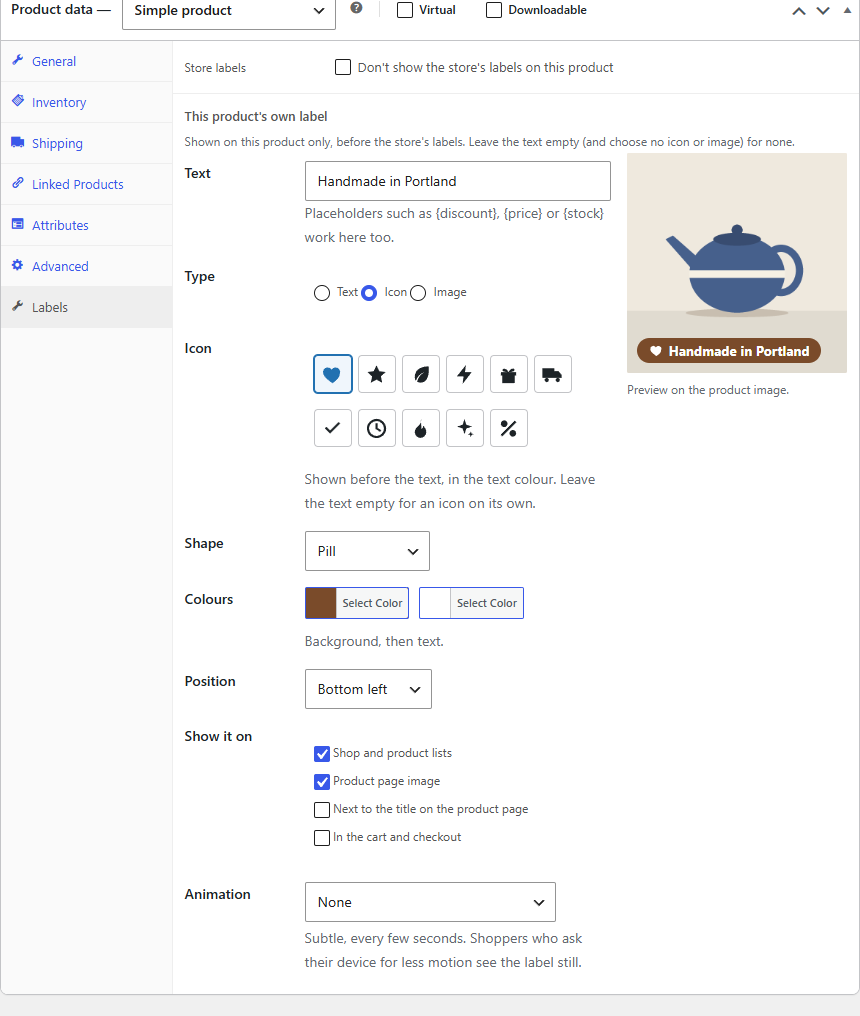
A label of its own
Under This product's own label, set the label as in the label editor: its Text (placeholders work), Type (text, icon or image), Shape, Colours, Position, where it shows and an Animation. The preview on the right shows it on the product's image.
Click Update to save it with the product. The label shows on this product only, before the store's labels: nearest its corner, and first when the limit per product applies.
To remove it, empty the text (and choose no icon or image), then update the product.
Leave the store's labels off
Tick Store labels: Don't show the store's labels on this product to keep every label from WooCommerce → Labels off this product, in every place. Its own label still shows. Useful for a product whose photo already has a badge in it, or a product you don't want to look like a deal.
Without Labelline Pro
Products' own labels and the "don't show the store's labels" choice are kept on the products while Labelline Pro is inactive, but Labelline doesn't use them: those products show the store's labels as usual. They're back as soon as Pro is active.