
Creating labels
The labels list, the label editor and its preview, turning labels on and off, and duplicating them.
Labels live under WooCommerce → Labels. You make a label once, and Labelline puts it on every product that meets its conditions, now and as your catalogue changes.
The labels list
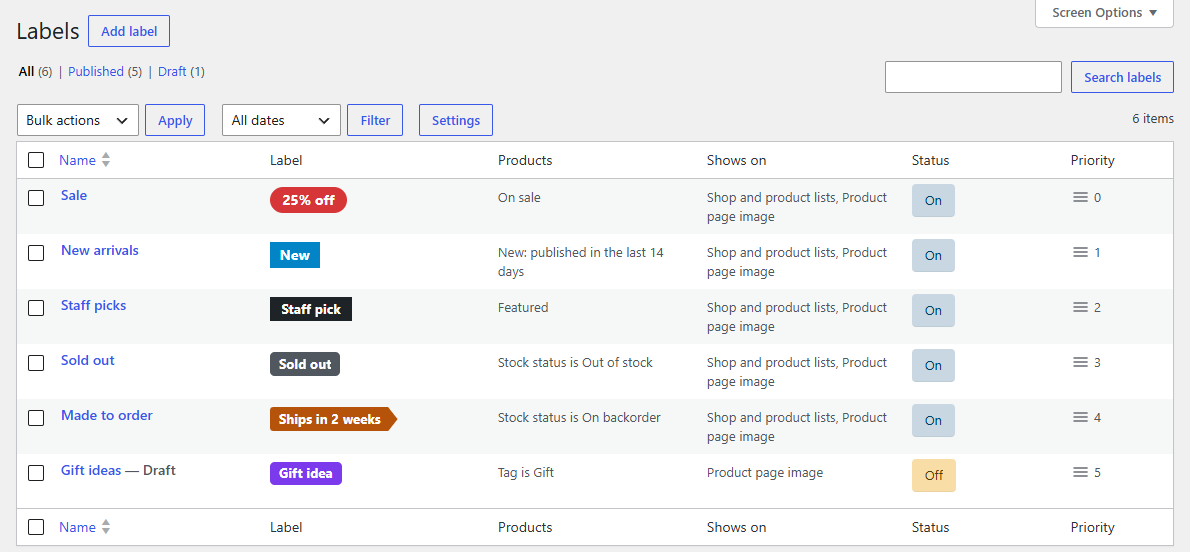
| Column | Shows |
|---|---|
| Name | The label's name, only for you. |
| Label | What it looks like, with sample values for placeholders. |
| Products | Its conditions in words, such as "On sale and Category is Kitchen", or "Every product". |
| Shows on | Shop and product lists, the product page image, or both. |
| Status | On (published), Off (a draft), Shows nowhere (no place ticked) or Needs Labelline Pro / Not shown (see Troubleshooting). |
| Priority | Its place in the order; drag the handle to change it. See Priorities and limits. |
Hover a label for its actions:
- Turn off / Turn on: takes it off every product, or puts it back, without deleting it.
- Duplicate: makes a copy, turned off, to start a similar label from.
- Trash: removes it (you can restore it from the Trash).
The Settings button above the list opens WooCommerce → Settings → Products → Labels.
The label editor
Click Add label, or a label's name. The editor has a box for each part of the label:
- Label: the text, with buttons to insert placeholders, and an optional text for screen readers. See Design and placeholders.
- Design: shape, colours, text size, position and distance from the edge.
- Products: the conditions. See Conditions.
- Where it shows: shop and product lists, the product page image, and the priority.
- Preview (on the right): the label on a sample product image, redrawn as you type, with sample values for placeholders ("25%", "$10.00"). It shows the label in the same position and at the same size as in your shop.
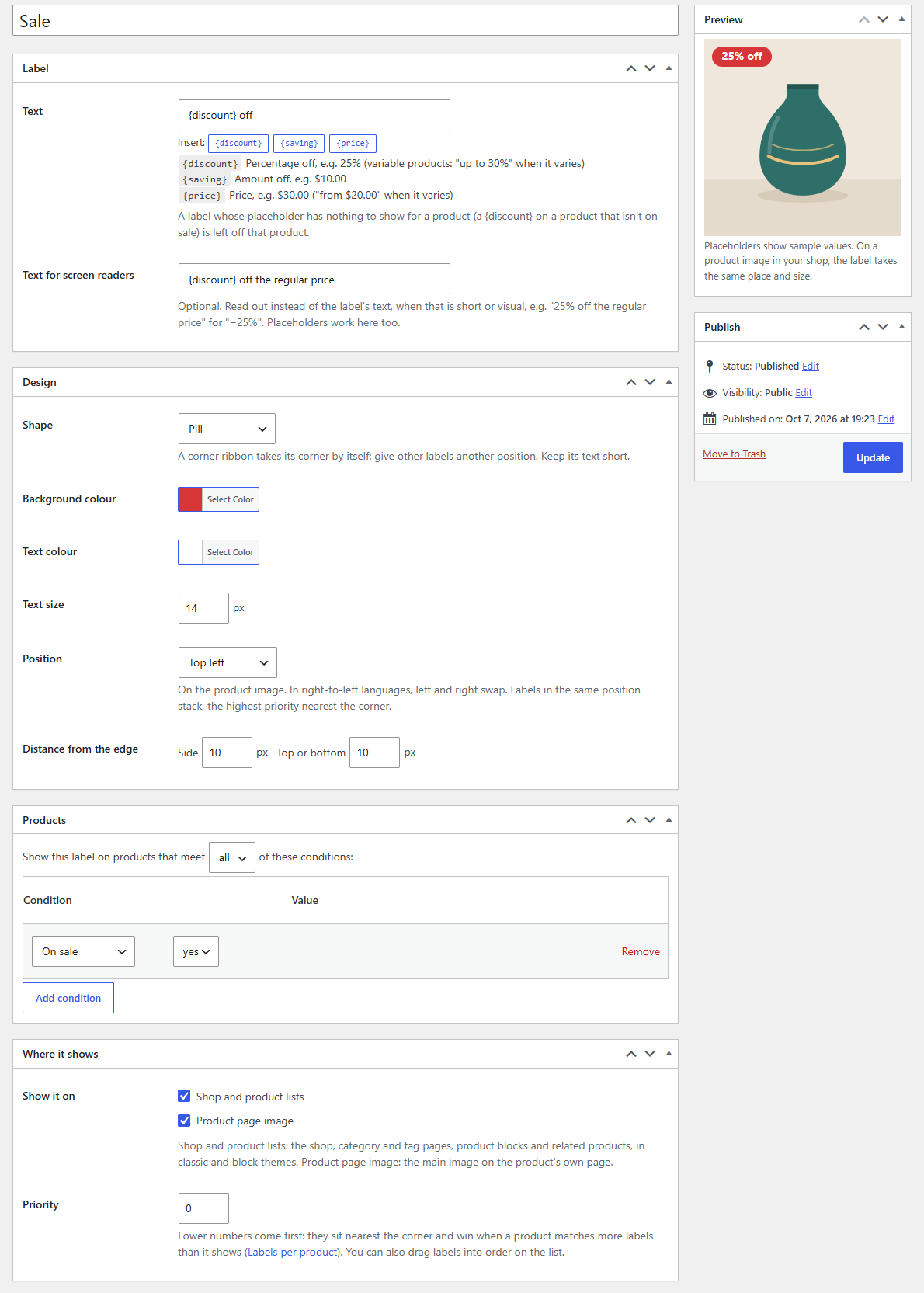
If the text and background colours are too close to read easily, a note under Text colour gives their contrast and suggests aiming for 4.5:1 or more.
Click Publish to turn the label on, or Save Draft to keep it off. Update saves changes to a label that's on; they show in your shop straight away.
Note
The label's name is just for you. If you leave it empty, the label is named after its text.