
Quantities and minimum orders
Minimum, maximum and pack-size quantities per product and group, and a minimum order value per group.
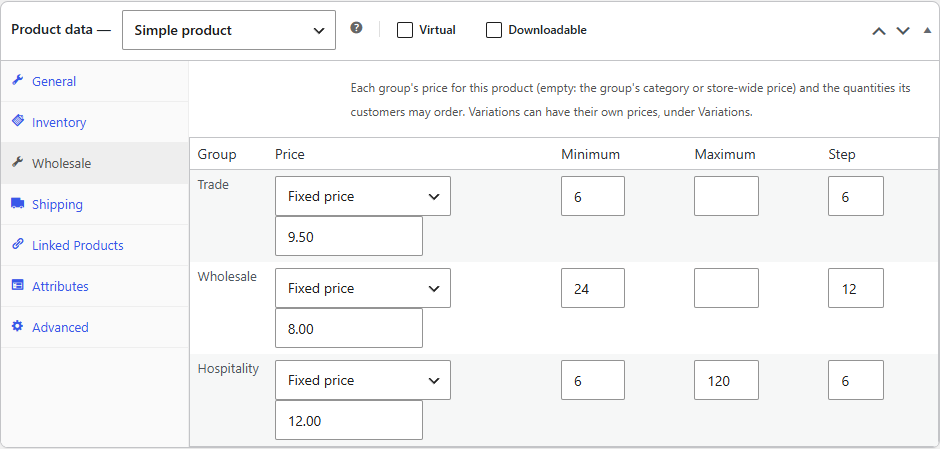
Trade customers often buy by the case. Wholesaleline lets each group have its own quantity rules for a product, and its own minimum order value.
Quantity rules for a product
- Edit the product and open its Wholesale tab.
- For each group, fill in what applies:
- Minimum: the fewest the customer may order.
- Maximum: the most they may order.
- Step: the pack size. With 6, they order 6, 12, 18 and so on.
- Click Update.
Leave a field empty for no rule. A variable product's rules apply to each of its variations.
What customers see
- The quantity box on the product page starts at the minimum (rounded up to the pack size) and goes up in steps of the pack size.
- Add to cart buttons on the shop and category pages add the minimum (rounded up to the pack size).
- Adding an amount that breaks the rule shows a message straight away, such as "Order at least 6 of "Stoneware mug"." or ""Stoneware mug" is sold in multiples of 6."
- The cart and checkout, classic or block, don't let an order through until the quantities are right. The classic cart shows a message for each line to change; the Cart block changes a line's quantity to the nearest one allowed by itself.
Customers without a group, and guests, order any quantity.
A minimum order value
- Go to WooCommerce → Wholesale and edit the group.
- Under Ordering, enter the Minimum order, for example
150. - Click Save group.
The group's customers can't check out until their cart subtotal reaches it. They see "Your account has a minimum order of $150.00. Your cart comes to $52.50." in the cart and at checkout, and the minimum under My Account → Wholesale account.
The subtotal is the one the customer sees: with or without tax, as the store (or the group's Show prices) displays it. Shipping isn't counted.