
How prices are worked out
Group prices per product, variation, category and store-wide, customers' own price lists, and how the retail price shows next to them.
A customer in a group, or with a price list of their own, sees their own price everywhere: on the shop and product pages, in product blocks, the cart, the checkout and the order. Guests and customers without either pay your regular prices.
Each price is either a Fixed price or a % off the regular price. A percentage is always taken off the regular price, not a sale price: a group price replaces any sale price.
Which price applies
The most specific price wins:
- The customer's own price list (on their profile): the variation or product, then its categories (the lowest price if several match), then Every product.
- Their group's price for the product, on the product's Wholesale tab (for a variation: its own price, then its product's).
- Their group's category prices (the lowest price if several match).
- Their group's price for every product.
- Otherwise, the regular price, with your sale price if the product is on sale.
So a customer with their own price for one product pays that, and their group's prices for everything else.
A product's prices per group
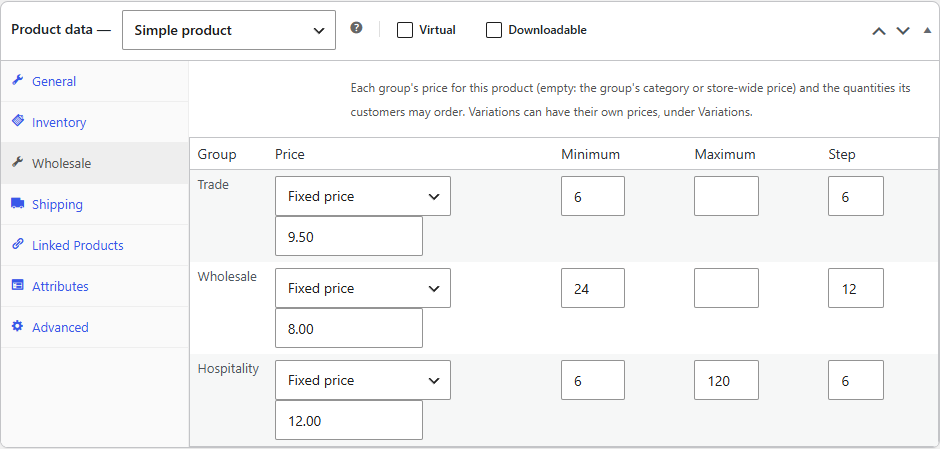
- Edit the product and open its Wholesale tab.
- For each group, choose Fixed price or % off the regular price and enter the amount. Leave it empty to use the group's category or store-wide price.
- Minimum, Maximum and Step set the quantities the group's customers may order (see Quantities and minimum orders).
- Click Update.
For a variable product, each variation has Wholesale prices under Variations: one price per group. A variation without its own price uses the price on the product's Wholesale tab, then the group's category and store-wide prices. Quantities are set for the whole product.
With Gridline, you can edit the group prices and minimums of many products at once.
A customer's own price list
For a customer with contract prices, open their profile under Users and find Own price list in the Wholesale section:
- Click Add price.
- Under Applies to, choose Product (then search for a product or variation), Category or Every product.
- Choose Fixed price or % off the regular price and enter the amount.
- Click Update User.
A customer doesn't need to be in a group to have their own price list. See Managing customers.
Show the retail price next to a group price
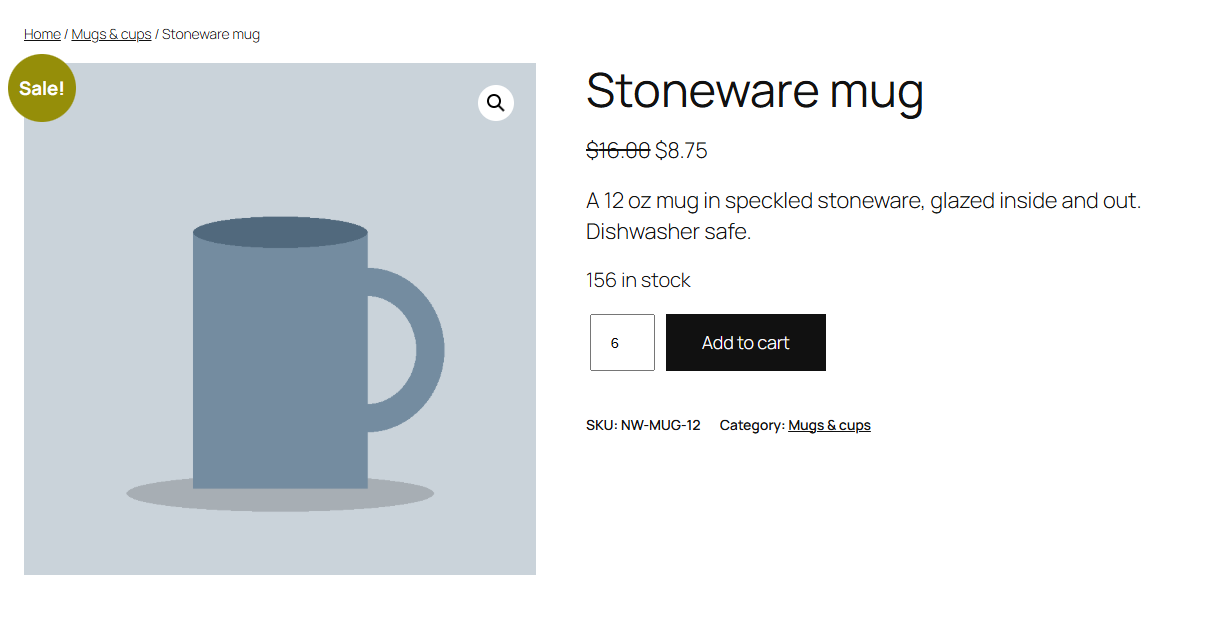
By default, customers see only their own price, as if it were the regular price. To show your regular price struck through next to it:
- Go to WooCommerce → Wholesale → Settings.
- Under Prices, tick Show the retail price struck through next to a group's price.
- Click Save Changes.
With it on, WooCommerce shows a group price lower than the regular price the way it shows a sale, including the Sale! badge of most themes.
Orders you add in the admin
Under WooCommerce → Orders → Add order, choose the customer first, then click Add item(s): the products are added at that customer's price, from their own price list or their group. Products added before you choose a customer, or for a customer without a group or price list, get the regular price.
Changing the customer afterwards doesn't change the prices of products already on the order, as in WooCommerce. Remove them and add them again, or edit their price.
Orders an app creates through the WooCommerce REST API, such as a point of sale or an ERP, get the order's customer's prices the same way, for lines sent without a price of their own.
With discounts
Coupons and other discounts are taken off the customer's own price. With Discountline, its discounts and quantity tiers apply on top of the group's price, and its rules can be limited to wholesale customers or to one group.