
Wholesale applications
Let customers and visitors apply for a wholesale account, then approve them into a group or decline, with emails at each step.
Customers can ask for a wholesale account from their account, or from a page of your own where visitors create their account as they apply. You approve each application into a group, or decline it.
Applying never locks anyone out: applicants can log in and shop at your regular prices while they wait. Only their group waits for your approval.
Set up applications
- Go to WooCommerce → Wholesale → Settings.
- Under Applications:
- Let customers apply for a wholesale account: turns applications on or off.
- Visitors can create their customer account as they apply: lets visitors without an account apply on the application page. Off: they're asked to log in first.
- Approve applications straight away: applicants join the group at once, without waiting for you.
- Group for approved applicants: the group the Approve link puts them in. You can choose another group as you approve each one.
- Questions: the company name is always asked. Tick Tax or VAT number, Phone, Website and Tell us about your business to ask those too.
- Application page: where customers apply (see below).
- Click Save Changes.
The form takes plain text only; there are no file uploads.
Where customers apply
- My Account → Wholesale account: a tab for logged-in customers. It's the default Application page.
- A page of your own: add the
[wholesaleline_application]shortcode to a page (with the Shortcode block, for example), then choose that page as the Application page. Visitors can create their account there as they apply, with their email address (and a password, if WooCommerce doesn't create one for them).
When a customer applies, the company name and phone they gave fill their billing details where those are empty.
After applying, customers see a message that their application is being reviewed. A customer whose application was declined can apply again.
Review applications
The Wholesale menu shows how many applications are waiting.
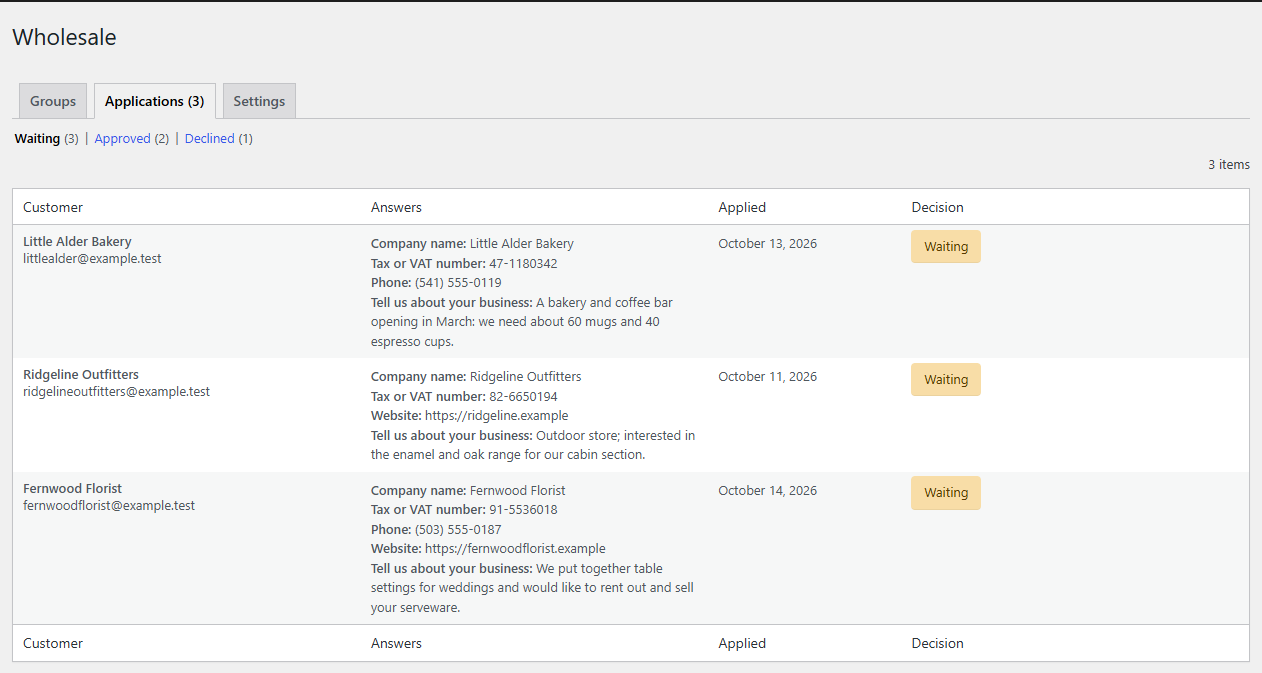
- Go to WooCommerce → Wholesale → Applications. Waiting, Approved and Declined filter the list.
- Read each applicant's answers. Profile opens their profile.
- Hover over a row and click:
- Approve: puts the customer in the Group for approved applicants. To approve into another group, open their profile and click Approve into (group).
- Decline: asks for an optional reason, which goes into the email to the customer.
Putting a waiting applicant in a group some other way, from their profile or with the bulk action on the Users screen, approves their application too. The Users screen marks waiting applicants as Applied in its Wholesale group column.
Emails
Wholesaleline adds three emails under WooCommerce → Settings → Emails, where you can turn each one off or change its subject, heading and recipients:
| Sent to | When | |
|---|---|---|
| New wholesale application | You (the site's admin email, or the recipients you set) | A customer applies. |
| Wholesale application approved | The customer | You approve their application. "Your wholesale account is ready." |
| Wholesale application declined | The customer | You decline it, with your reason if you gave one. |