
Customer groups
Create groups such as Trade or Wholesale, each with its own prices, minimum order, payment and shipping methods, payment terms and tax settings.
A customer group is the heart of Wholesaleline. Everything a group sets applies to every customer in it, whenever they're logged in. A customer is in one group at most.
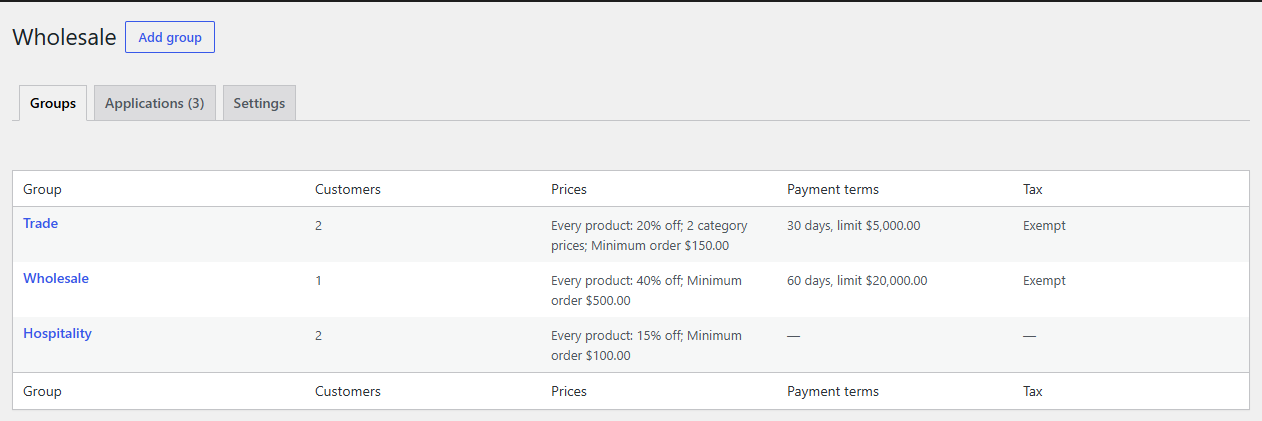
The Groups tab under WooCommerce → Wholesale lists your groups with their number of customers, prices, payment terms and tax. View customers under a group opens the Users screen filtered to it.
Add or edit a group
- Go to WooCommerce → Wholesale and click Add group, or click a group's name.
- Enter the group's name. Customers see it under My Account → Wholesale account.
- Fill in the boxes below, then click Save group.
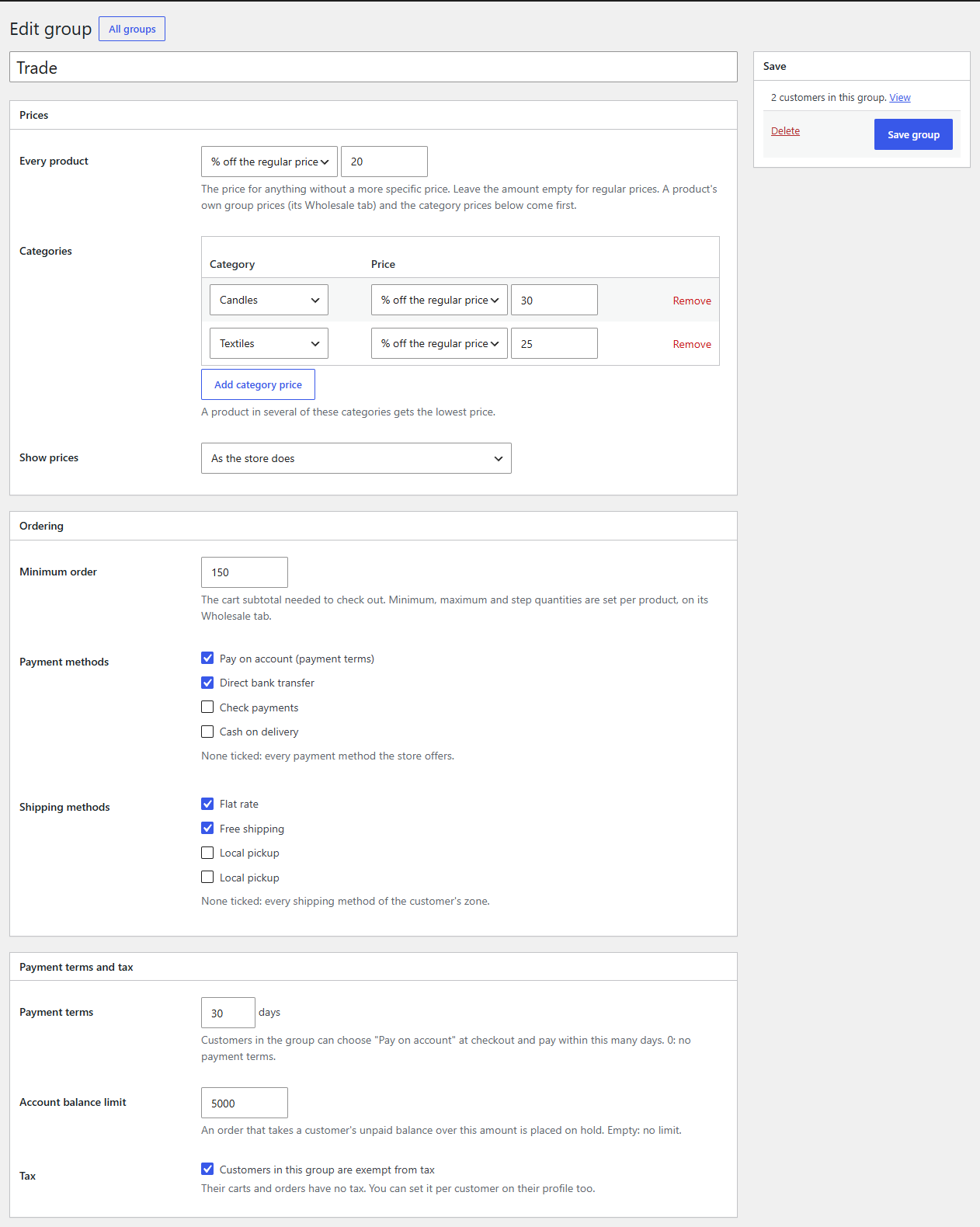
Prices
| Setting | What it does |
|---|---|
| Every product | The group's price for anything without a more specific price: % off the regular price or a Fixed price. Leave the amount empty for regular prices. |
| Categories | Click Add category price for a price in one category, such as 30% off candles. A product in several of these categories gets the lowest price. |
| Show prices | As the store does, Excluding tax or Including tax, for this group's customers only. Useful when trade customers think in prices without tax. |
A product's own price for the group, on its Wholesale tab, comes before these. See How prices are worked out.
Ordering
| Setting | What it does |
|---|---|
| Minimum order | The cart subtotal the group's customers need to check out. Empty: none. See Quantities and minimum orders. |
| Payment methods | The payment methods the group may use at checkout. None ticked: every payment method the store offers. |
| Shipping methods | The shipping methods the group may use. None ticked: every shipping method of the customer's shipping zone. |
Tip
Limiting a group's payment methods? Tick Pay on account (payment terms) too if the group has payment terms, or its customers can't pay on account.
Payment terms and tax
| Setting | What it does |
|---|---|
| Payment terms | The days customers have to pay when they choose Pay on account at checkout. 0: no payment terms. See Payment terms. |
| Account balance limit | An order that takes a customer's unpaid balance over this amount is placed on hold. Empty: no limit. |
| Tax | Customers in this group are exempt from tax: their carts and orders have no tax. See Tax exemption. |
A customer's own payment terms, balance limit and tax setting, on their profile, come before the group's.
Put customers in a group
- Several at once: on the Users screen, tick the customers, choose Add to group: (name) in Bulk actions and click Apply. Remove from wholesale group takes them out.
- One customer: on their profile, under Wholesale, choose the Customer group.
- By application: approving a wholesale application puts the customer in a group. See Wholesale applications.
Customers keep their own role (usually "Customer"): the group is added next to it. The Users screen has a Wholesale group column, and its role filter lists each group.
Delete a group
On the group's screen, click Delete. Its customers keep their accounts and pay regular prices from then on. The group's prices and quantities come off every product, and the settings stop naming it. Orders already placed don't change.