
Getting started
Installation
Install Optionline from WordPress.org and add your first product option in a few minutes.
Optionline is free and listed on WordPress.org, so you can install it straight from your dashboard.
Install the plugin
- Make sure WooCommerce is installed and active. Optionline won't activate without it.
- Go to Plugins → Add New Plugin and search for Optionline.
- Click Install Now on "Optionline – Product Add-Ons & Extra Options for WooCommerce", then Activate.
If you have the zip file instead, use Plugins → Add New Plugin → Upload Plugin, choose the file, then Install Now and Activate.
Nothing changes in your shop yet: Optionline only shows the options you add to products.
Add your first option
- Go to Products and edit a simple or variable product.
- In the Product data box, open the Options tab.
- Click Add field.
- Type a Label, for example "Engraving", and choose a Type: text, text area, dropdown, radio buttons or checkboxes.
- For a text field, enter a Price if it costs extra. For a dropdown, radio buttons or checkboxes, add the Choices and a price for each.
- Click Update (or Publish) to save the product.
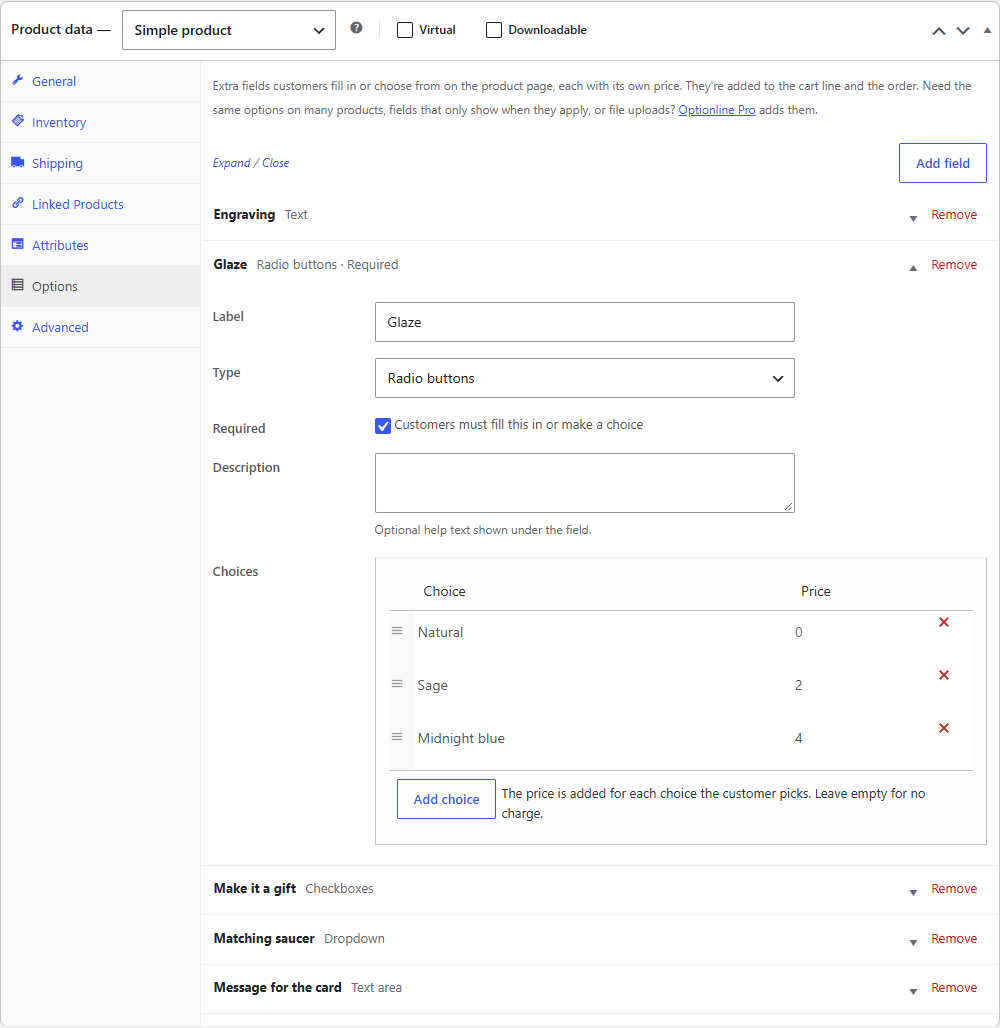
Now open the product in a private browser window. The option is in the add-to-cart form, above the button, with a live total underneath when anything costs extra.
Tip
Fields are saved with the product, so nothing changes in your shop until you click Update.
What's next
- Adding options goes through every setting of a field.
- Field types shows how each type looks on the product page.
- Prices explains how option prices are added to the cart.
- Where options appear follows the options from the cart to the order and its emails.