
Your options
Field types
Text, text area, dropdown, radio buttons and checkboxes, and how each one looks and is priced on the product page.
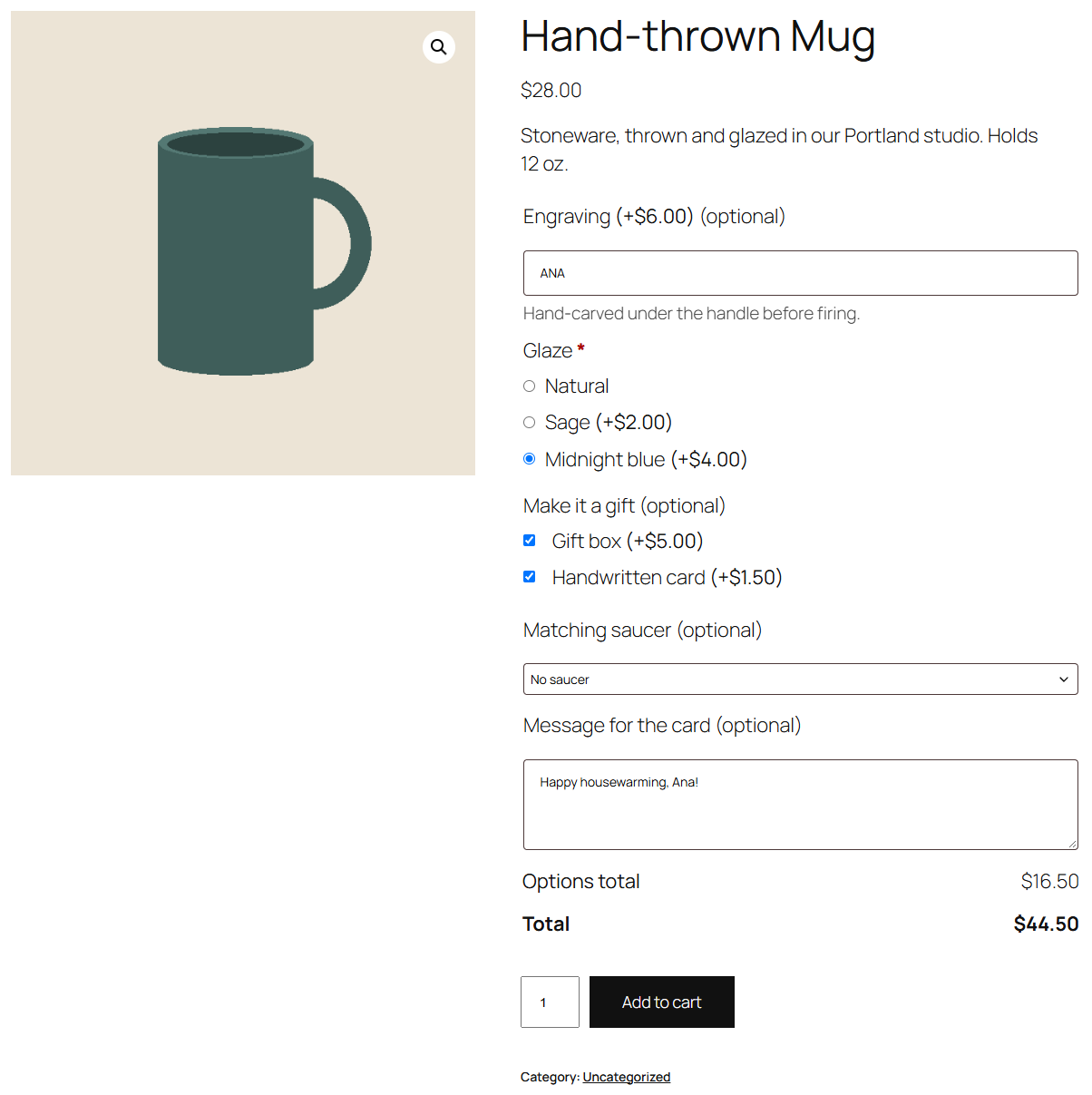
| Type | On the product page | Priced |
|---|---|---|
| Text | A one-line text box. | Its price, when it's filled in. |
| Text area | A box for a few lines, such as a message for a card. Line breaks are kept. | Its price, when it's filled in. |
| Dropdown | A list to pick one choice from. Its placeholder (or "Choose an option") is the empty first entry. | The chosen choice's price. |
| Radio buttons | One button per choice; the customer picks one. An optional field starts on None, so customers can leave it. | The chosen choice's price. |
| Checkboxes | One box per choice; the customer ticks any number. | The price of every ticked choice. |
Labels and prices on the page
- A field's price shows after its label, and a choice's price after its name: "Gift box (+$5.00)". Free fields and choices show no price.
- Required fields have WooCommerce's red asterisk; optional fields say "(optional)".
- The description shows under the field.
Required fields
- A required text field must have something other than spaces.
- A required dropdown or radio buttons field must have a choice.
- Required checkboxes need at least one ticked box.
The browser asks for required text fields, dropdowns and radio buttons before the form is sent. The store checks every field again on the server, so a missing or made-up choice is always refused with a notice ("Engraving is a required field.").
More types
Optionline Pro adds number, date, colour picker, image and colour swatch, file upload and quantity fields. See More field types.