
Global option groups
Add the same options to every product, to categories or tags, or to chosen products, with exceptions, before or after each product's own options.
Note
This is part of Optionline Pro.
A global option group is a set of option fields that shows on many products at once: gift wrap on everything, engraving on all mugs, insurance on frames. Groups live on WooCommerce → Product Options.
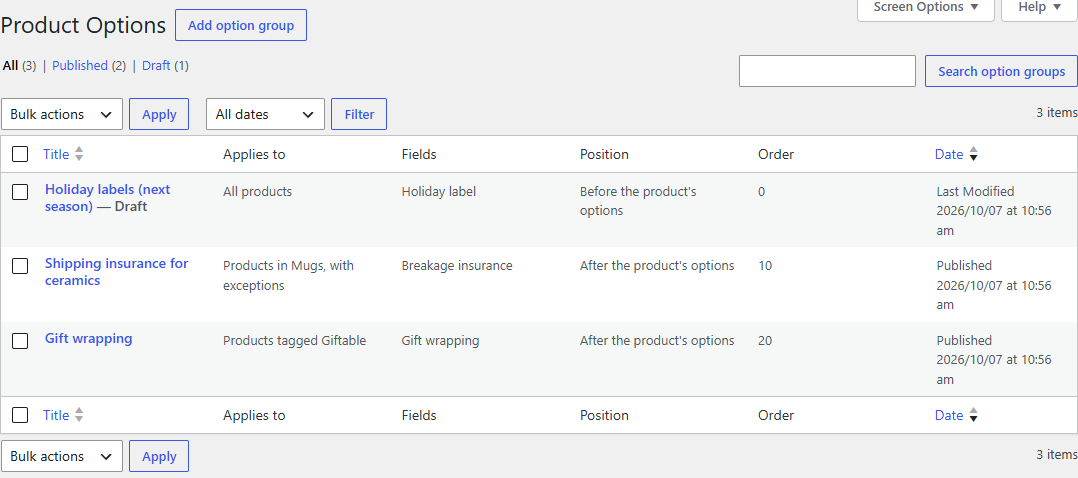
The list
WooCommerce → Product Options lists your groups with what each applies to, its fields, where its fields go, and its order number. Groups in the list are sorted by their order number.
Adding a group
- Click Add option group.
- Give the group a title. Only you see it.
- In Options, add fields exactly as on a product's Options tab: label, type, required, choices and prices, and Pro's settings. See Adding options.
- In Applies to, choose the products (see below).
- In Position, choose whether its fields go before or after each product's own options, and its Order number.
- Click Publish.
The group's options show on every product it applies to straight away. A draft group doesn't show anywhere, so you can prepare one and publish it later.
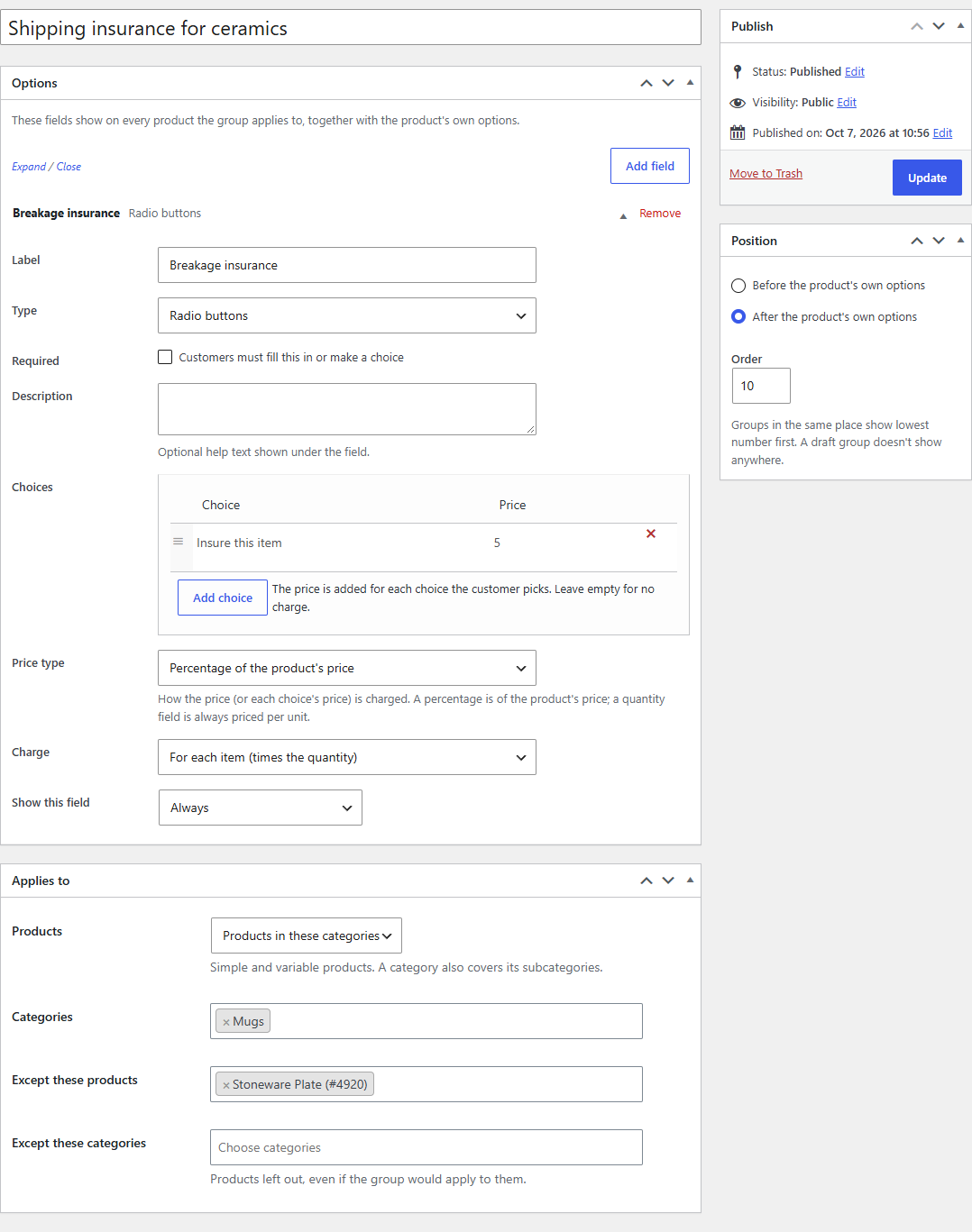
Which products
| Products | The group applies to |
|---|---|
| All products | Every simple and variable product. |
| Products in these categories | Products in the chosen categories, including their subcategories: a group for "Mugs" also applies to "Mugs › Travel". |
| Products with these tags | Products with any of the chosen tags. |
| These products | Only the products you pick. |
Except these products and Except these categories leave products out, even when the group would apply to them. Use them for the one product that shouldn't get gift wrap.
Where the fields go
On the product page, the fields show in this order:
- Groups set to Before the product's own options, lowest order number first.
- The product's own options.
- Groups set to After the product's own options, lowest order number first.
Groups with the same order number go in the order they were made.
The product's Options tab lists the groups that also apply to it, with a link to each.
In the cart and on orders
A group's fields work like a product's own: required fields must be filled in, choices are checked on the server, prices are added, and the options are listed in the cart and saved on the order. A product with a required group field gets Select options in the shop, like any product with required options.
Tip
A condition can only point at fields in the same place: a group's field at other fields of its group, a product's field at the product's own fields.
Without Optionline Pro
Groups are Optionline Pro's: while it's inactive, they don't apply, and products show only their own options. They're kept, and apply again as soon as Pro is active.