
Adding options
Every setting of an option field on the product's Options tab, and how to order, change and remove fields.
Each product has its own option fields, on the Options tab of the Product data box. Edit a product and open the tab.
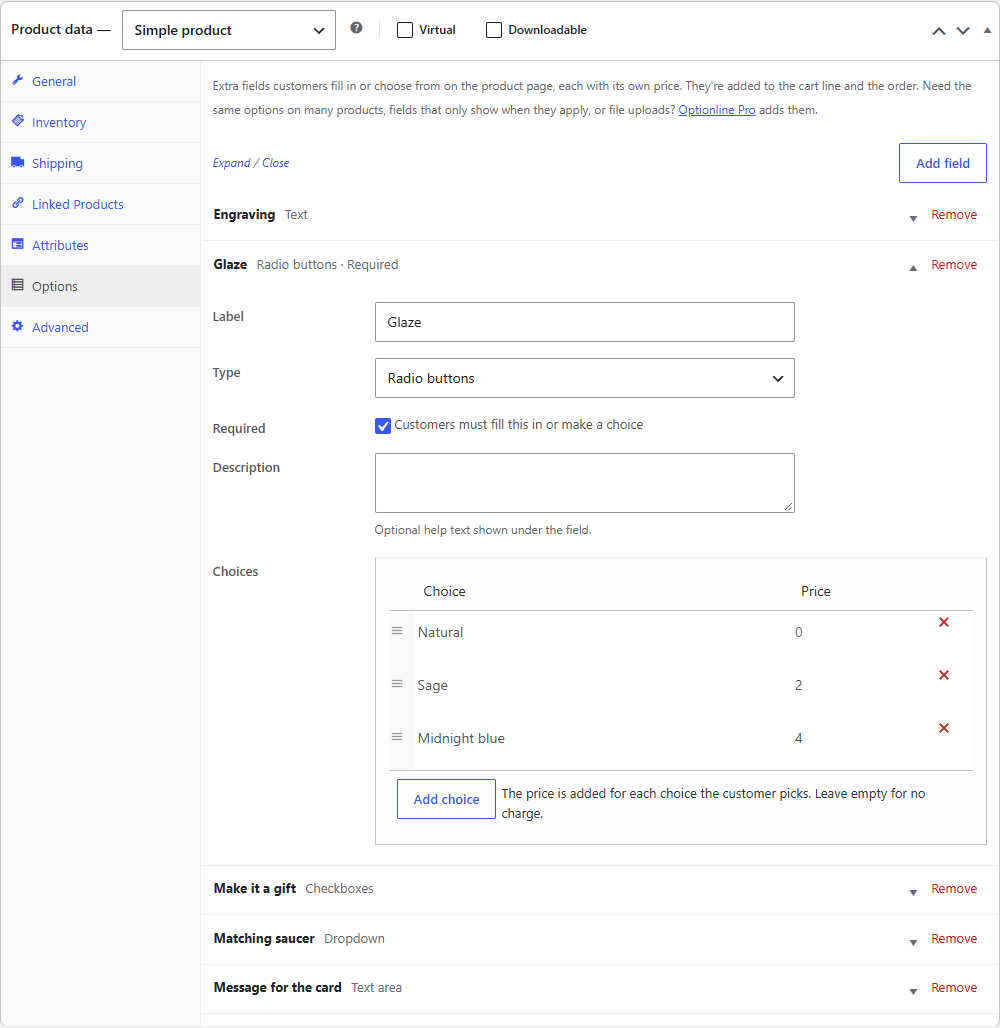
Adding a field
Click Add field. A new box opens at the end of the list. Fill in its settings, then Update the product to save.
| Setting | What it does |
|---|---|
| Label | The field's name on the product page, in the cart and on the order, e.g. "Engraving". |
| Type | Text, text area, dropdown, radio buttons or checkboxes. See Field types. |
| Required | Customers must fill it in (or make a choice) before the product can go in the cart. |
| Description | Optional help text shown under the field. |
| Placeholder | A hint inside the empty field. For a dropdown it's the first, empty choice ("Choose a colour"). Text, text area and dropdown only. |
| Price | For text and text area fields: added to the price when the customer fills the field in. Leave it empty for no charge. |
| Choices | For dropdowns, radio buttons and checkboxes: each choice's name and price. |
The settings that don't apply to the type you chose are hidden.
Choices
A dropdown, radio buttons or checkboxes need at least one choice. In the Choices table:
- Type the choice's name, for example "Large", and its Price, or leave the price empty for no charge.
- Click Add choice (or press Enter in a choice) for the next one.
- Drag a row by its handle to change the order.
- Click the cross at the end of a row to remove it.
Ordering fields
Fields show on the product page in the order of the list. Drag a field by its title bar to move it. Expand and Close above the list open or close every box.
Changing and removing fields
Click a field's title bar to open it, change what you need and Update the product. Click Remove in the title bar to delete it.
Orders keep the options customers already chose, with the prices they paid. Changes only apply to products added to the cart from then on, and a customer whose cart already holds the product keeps their choices.
Note
A field without a label, or a dropdown, radio buttons or checkboxes field without any choices, isn't saved. WooCommerce shows a notice at the top of the product screen when that happens.
Fields marked "Not shown in your shop"
A field set up with Optionline Pro — one of its field types, a condition on when it shows, or a Pro price type — is kept while Optionline Pro is inactive, but left off the product page and out of the price of anything added to the cart from then on. Its box says so. See Troubleshooting.