
Linking products to pools
Link products and variations to pools on the Inventory tab, with the amount one item uses, several pools per product and variations that differ.
A product sells from a pool once it's linked to it, with the amount one item uses.
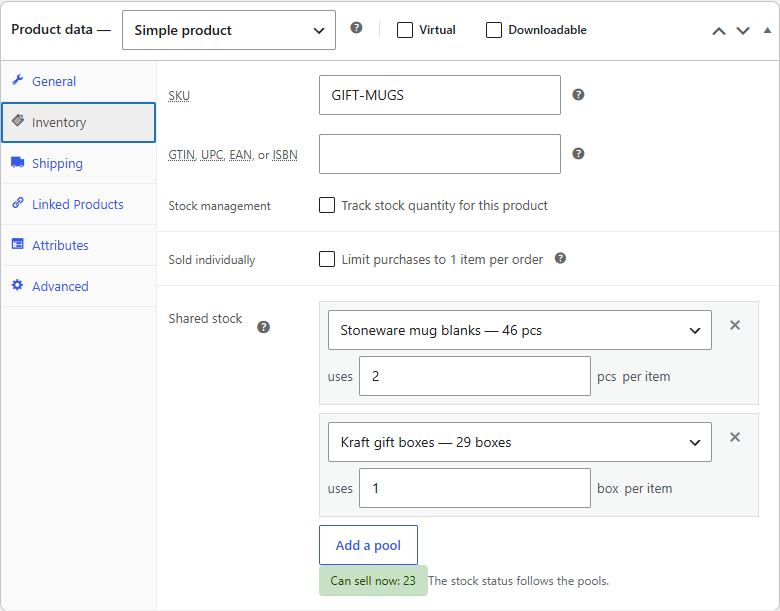
On a product
- Edit the product and open its Inventory tab.
- Under Shared stock, click Add a pool.
- Choose the pool. The list shows each pool's stock, so you can check you picked the right one.
- Enter what one item uses: 1 for a mug made from one blank, 1.2 for a tee that takes 1.2 m of fabric, 6 for a six-pack. The pool's unit is shown next to it.
- Click Update.
Below the pools, Can sell now shows how many of the product the pools can cover.
Several pools
Add as many pools as the product takes. A gift set might use two mug blanks and one gift box:
| Pool | Uses per item |
|---|---|
| Stoneware mug blanks | 2 |
| Kraft gift boxes | 1 |
Every sale takes from each pool, and the product is out of stock as soon as any pool without backorders can't cover one more.
Variable products and variations
- Pools on the variable product apply to every variation. Use this when all sizes or colours draw on the same stock, such as one blank per tee.
- Pools on a variation (open the variation's panel on the Variations tab) replace the product's for that variation only. Use this when each colour uses its own fabric, or a bigger size uses more.
So a tee whose variations each use their colour's fabric and a blank lists both pools on each variation:
| Variation | Pools |
|---|---|
| Brick | Brick cotton jersey 1.2 m, Organic tee blanks 1 |
| Navy | Navy cotton jersey 1.2 m, Organic tee blanks 1 |
A variation without pools of its own says which pools it uses from the product.
Tip
Linking many products by hand is quicker in a grid: see Bulk linking with Gridline.
The Stock status field
For a product that doesn't track its own stock, the pools decide whether it's in stock, so Stockpool hides WooCommerce's Stock status field while the product has pools, and sets the status itself whenever the pools change. Remove the last pool and the field comes back; the product returns to "In stock".
Products that track their own stock
If Track stock quantity for this product is ticked, both limits apply: the product sells until its own stock or a pool runs out, whichever comes first. WooCommerce reduces the product's own stock as usual, and Stockpool the pools'.
Removing a link
Click the cross next to a pool and update the product. Orders placed before keep the record of what they took, so cancelling or refunding them later still gives stock back to the right pool.