
Using Stockpool
CSV import
Update stock counts, create pools and set rules and kit parts in bulk from a spreadsheet.
Note
This is part of Stockpool Pro.
A stock count is quickest in a spreadsheet: export your pools, change the numbers, import the file.
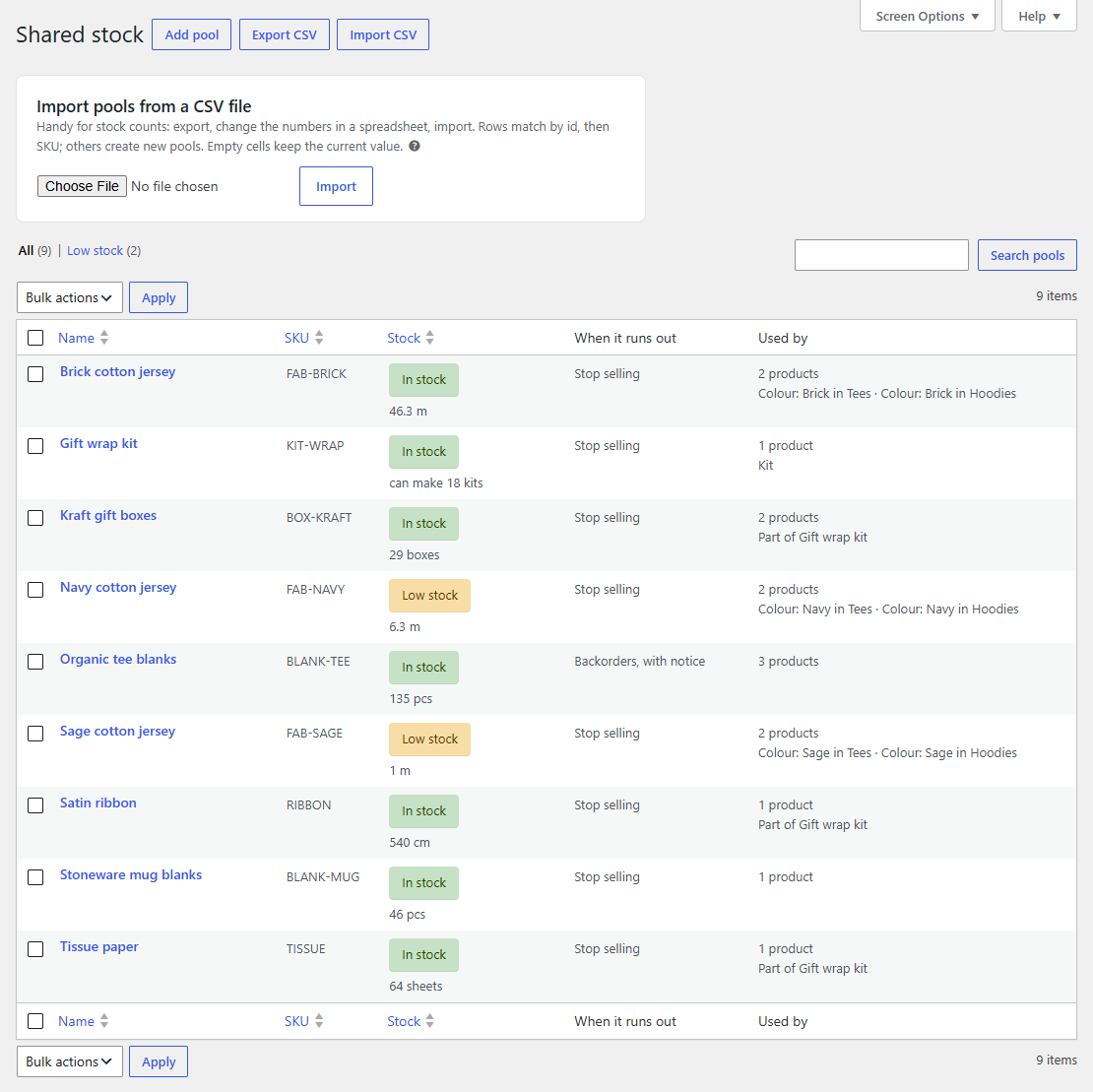
Importing
- On Products → Shared stock, click Export CSV and open the file in Excel, Numbers or Google Sheets.
- Change what you need: usually the
stockcolumn. Add rows for new pools. - Save as CSV, then click Import CSV, choose the file and click Import.
A notice says how many pools were created, updated and skipped, and why any rows were skipped.
How rows are matched
- A row with an
idupdates that pool; otherwise a row with askuupdates the pool with that SKU. - A row that matches neither creates a pool, if it has a
name. - Empty cells keep the current value, so a file with just
sku,stockupdates only the stock. Columns can be in any order; unknown columns are ignored. - A stock change is logged in the pool's history as CSV import.
The columns
| Column | Holds |
|---|---|
id, name, sku |
the pool; SKUs must stay unique |
stock |
the stock count |
unit |
the unit, e.g. m |
low_stock |
the low stock alert; - clears it, to use the store's |
backorders |
no, notify or yes |
enabled |
1 active, 0 paused |
rules |
the attribute rules, as JSON (as exported) |
components |
a kit's parts, as JSON: [{"pool":12,"qty":2}] |
made_ahead |
1 for a kit made ahead |
A rules or components cell that isn't valid JSON, or parts that would make a kit contain itself, leave that value unchanged and are listed in the notice; the rest of the row still imports.