
More schedules
Different days, slots and capacity for some shipping zones, shipping methods or pickup locations.
Note
This is part of Slotline Pro.
The Delivery and Pickup schedules cover most orders. More schedules are for the exceptions: an express courier that delivers every evening, a zone you only reach on Fridays, a second store with shorter hours.
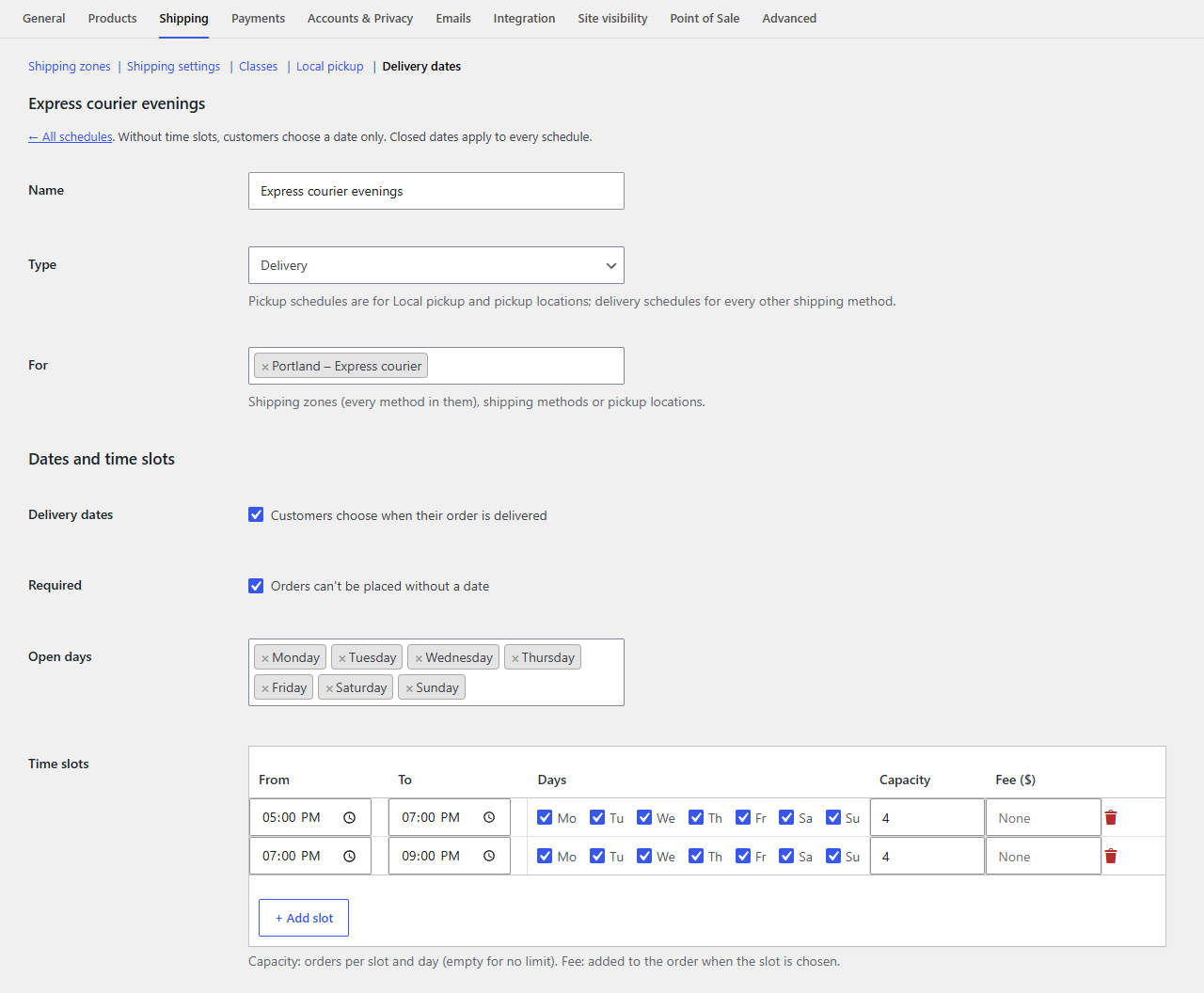
Adding a schedule
- Go to WooCommerce → Settings → Shipping → Delivery dates and scroll to More schedules.
- Click Add schedule. A new schedule opens, copied from the Delivery schedule.
- Give it a Name (customers don't see it; it's for you and the Deliveries page).
- Choose its Type: Delivery or Pickup.
- In For, choose what it's for: shipping zones (every method in them), single shipping methods, or pickup locations.
- Set its open days, time slots, capacity, notice and limits, then save.
← All schedules takes you back to the main settings, where the list shows each schedule, its type, what it's for and its slots.
Which schedule an order uses
When a customer chooses a shipping method, Slotline Pro looks through More schedules in order and uses the first one that:
- is of the same type (a delivery schedule for a delivery method, a pickup schedule for local pickup or a pickup location), and
- lists that shipping method, or the shipping zone the customer's address falls in.
If none matches, the Delivery or Pickup schedule applies.
Tip
To ask for no date at all with one shipping method (say, a pallet carrier who books their own slots), add a schedule for it and untick its Delivery dates.
Its own capacity
Each schedule counts its own bookings. An order booked in the express schedule doesn't take a place in the Delivery schedule's slots, even at the same time on the same day. That's what lets a courier and your own vans run side by side.
Deleting a schedule
Hover over it in the list and click Delete. Orders already booked in it keep their date and slot; on the order screen and the Deliveries page they show under its type ("Delivery" or "Pickup").
Closed dates
The closed dates under Closed apply to every schedule. There's no separate list per schedule.