
At checkout
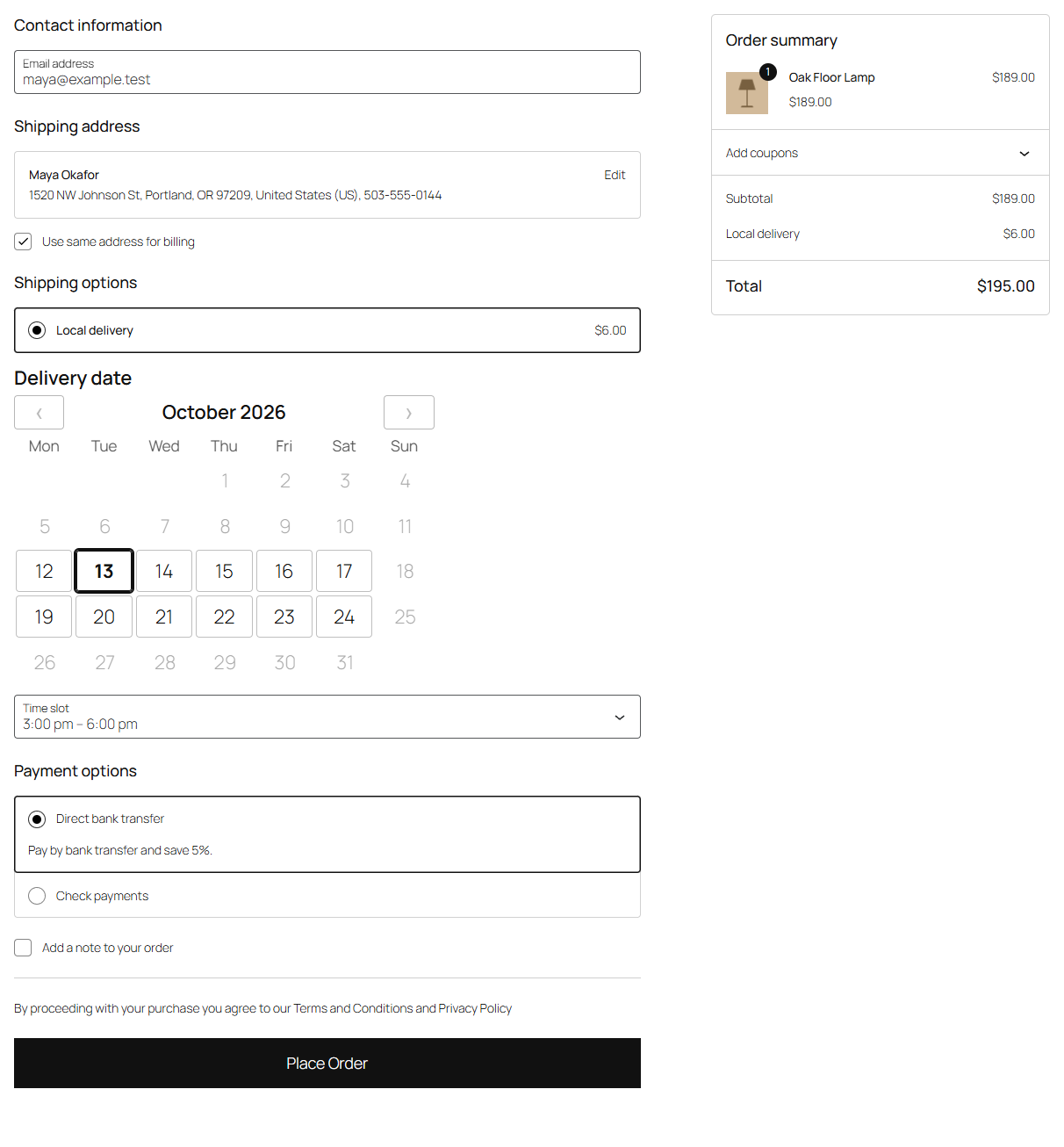
What customers see when they choose a delivery date and time slot, from a list or on a calendar, in both checkouts.
Customers choose their delivery date and time slot right under the shipping options, in the same step where they pick how their order is shipped.
The date and the slot
- Choose a date. Only dates you deliver are offered: open days, not closed, after the minimum notice, within how far ahead customers can book.
- Choose a time slot. The slots of that date appear once a date is chosen. A full slot is marked fully booked and can't be chosen; a nearly full one says how many places are left ("2 left").
Without time slots, customers choose a date only.
If nothing can be offered (every date is closed or full), the checkout says "No dates are available right now." With Required ticked, the order can't then be placed, so keep an eye on your capacity.
A list or a calendar
Under WooCommerce → Settings → Shipping → Delivery dates → Customers, Date picker chooses how dates are shown:
- A list of dates: a drop-down such as "Tuesday, June 4". Compact, and familiar on phones.
- A calendar: a month at a time, with arrows to the next month. Open dates are buttons, full ones are crossed out, and the rest are greyed out.
The calendar takes its colours from your theme and starts the week on the day set under Settings → General → Week Starts On.
Which orders are asked
- Orders that ship with any shipping method except local pickup.
- Not orders with nothing to ship (only virtual or downloadable products).
- Not local pickups, including the Checkout block's pickup locations. A pickup schedule is part of Slotline Pro.
When the customer switches shipping method, a date chosen for the old one is cleared, so they choose again.
When the order is placed
If the date is required and missing, or the slot was left empty, the checkout shows "Please choose a delivery date." or "Please choose a time slot." under the picker, and the order isn't placed.
The choice is checked once more as the order is placed. If the slot filled up in the meantime (another customer took the last place), the customer is asked to choose another.
Both checkouts
Slotline works the same in the Checkout block (the default for new stores) and the classic checkout (the [woocommerce_checkout] shortcode). In the classic checkout, the date and slot are a row under shipping in the order summary.