
Dates on orders
Where the delivery date shows on an order, changing it on the order screen, and the Delivery column on the orders list.
Once an order is placed with a delivery date, it shows wherever the order does.
For the customer
The date and slot are a line in the order's totals, under shipping:
Delivery: Saturday, October 10, 9:00 am – 12:00 pm
WooCommerce shows that table on the order confirmation page, on the order's page in My Account, and in its order emails (new order, processing, completed and the rest), so the customer sees their date in all of them. An order booked for a pickup (with Slotline Pro) reads "Pickup:".
On the order screen
Edit the order: under the shipping address there's a Delivery date box.
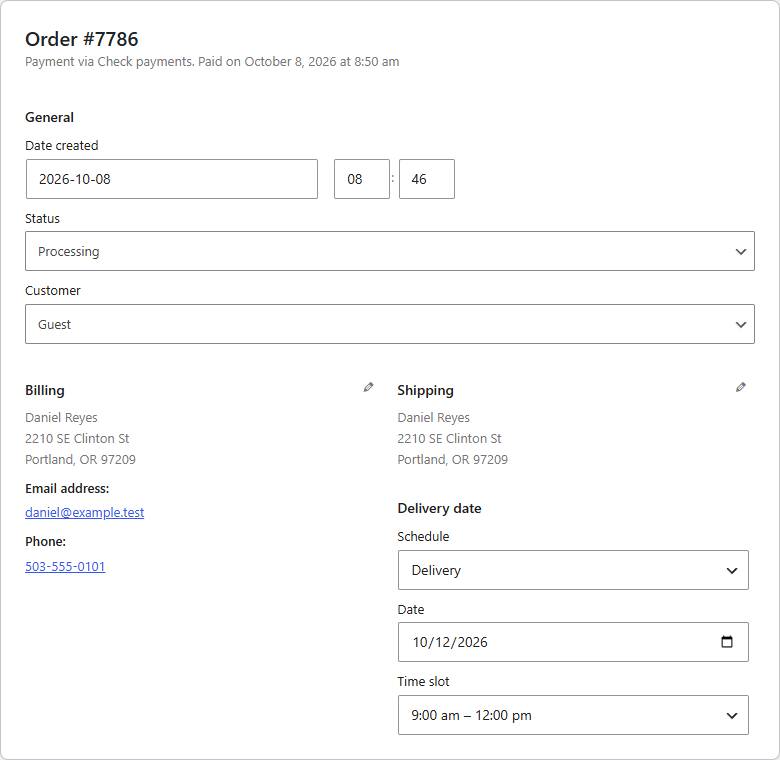
- Schedule: Delivery, or No date to remove the booking.
- Date and Time slot.
Change them and click Update. The change is added to the order notes, e.g. "Delivery date changed from Delivery: Tuesday, June 4, 9:00 am – 12:00 pm to Delivery: Tuesday, June 4, 12:00 pm – 3:00 pm."
Note
The order screen lets you book any date and slot, even a full or closed one: you're the one deciding. Customers at checkout are always held to the schedule.
The orders list
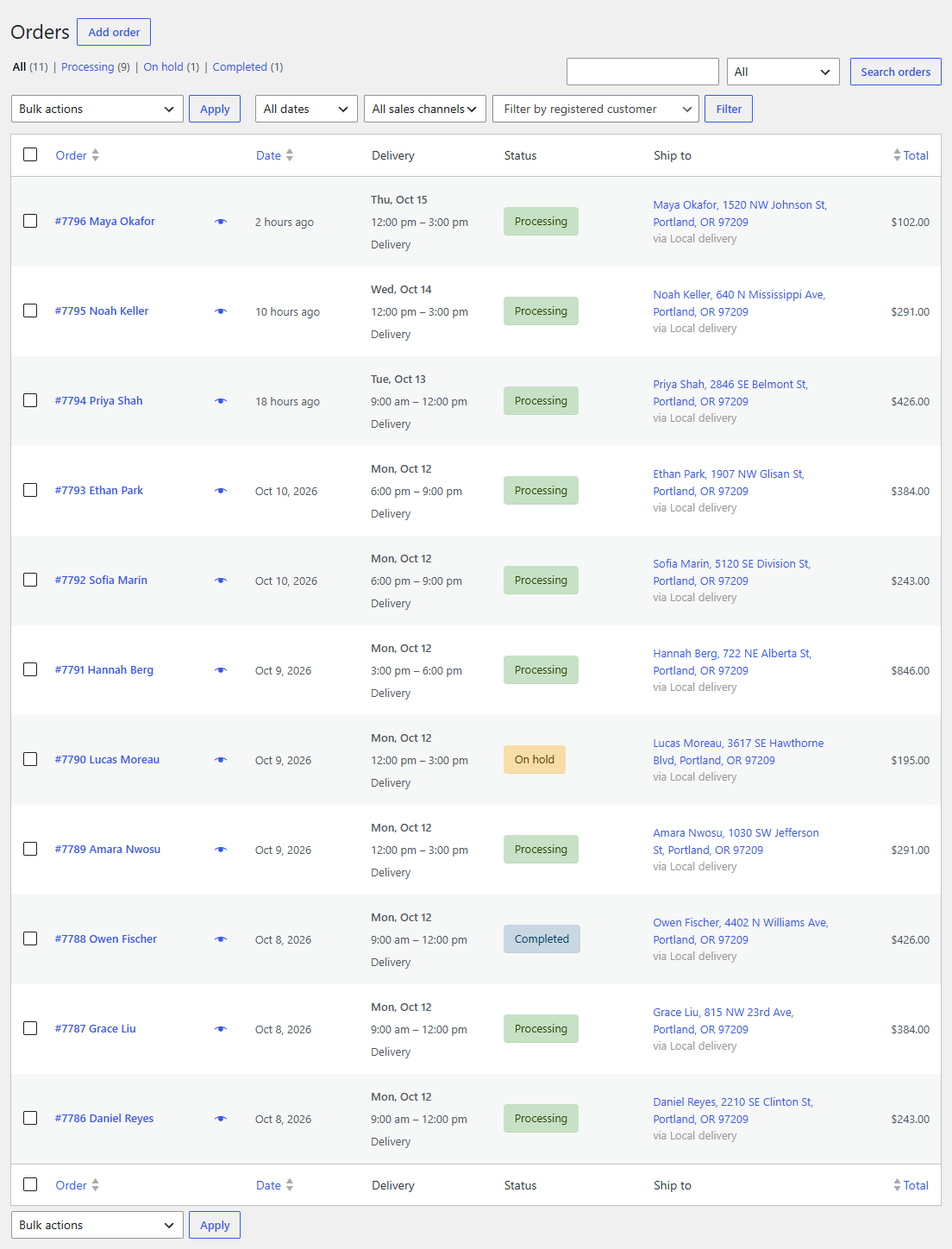
WooCommerce → Orders has a Delivery column after the order date: the date, the slot and whether it's a delivery or a pickup. Orders without a date show a dash.
Capacity and order statuses
An order takes its place in the slot while it's pending, processing, on hold or completed. Cancelling, failing or refunding it frees the place. Changing the date on the order screen moves the place with it.