
Installation
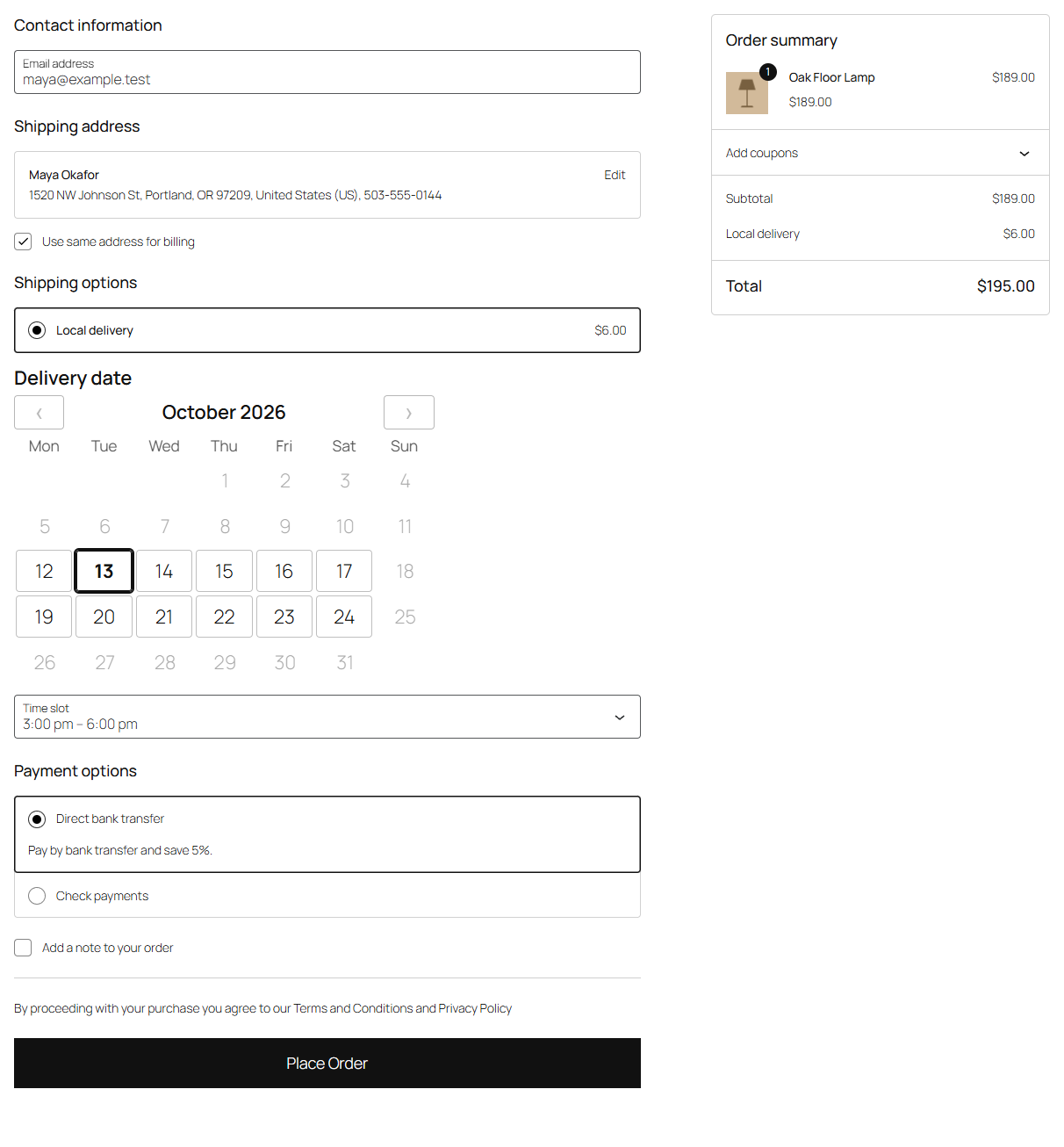
Install Slotline, set up your delivery days and time slots, and see the date picker at checkout.
Slotline adds a delivery date and time slot to your WooCommerce checkout. This page takes you from installing it to your first order with a delivery date.
Requirements
- WordPress 6.5 or later and PHP 7.4 or later.
- WooCommerce 8.2 or later, active.
- At least one shipping method other than local pickup, in a shipping zone that covers your customers. Slotline only asks for a date when the order ships.
Slotline works with the Checkout block and the classic checkout, with block themes and classic themes, and with both of WooCommerce's order storages (High-Performance Order Storage and the older posts storage).
Install
- In WordPress, go to Plugins → Add New Plugin and search for Slotline.
- Click Install Now, then Activate.
Or download the zip from WordPress.org and upload it under Plugins → Add New Plugin → Upload Plugin.
Set up your schedule
Go to WooCommerce → Settings → Shipping → Delivery dates (the Settings link under Slotline on the Plugins screen goes straight there).
Out of the box, Slotline offers deliveries Monday to Saturday in three slots (9 am to 12 pm, 12 pm to 3 pm and 3 pm to 6 pm), with 24 hours' notice and up to 14 days ahead. Change what doesn't fit:
- Open days: the weekdays you deliver.
- Time slots: add, change or remove rows. Give a slot a Capacity if you can only take so many orders in it.
- Minimum notice and Book ahead: how soon, and how far ahead, customers can book.
- Closed dates: holidays and days off.
Click Save changes. Each setting is explained in The delivery schedule and Closed dates.
Try it
Add a product that ships to the cart and go to the checkout. Under the shipping options there's a Delivery date with a list of dates; choose one, then a time slot. Place the order, and the order confirmation shows "Delivery:" with the date and slot.
Next steps
- Prefer a calendar to a list of dates? See At checkout.
- To change an order's date, or see deliveries in the orders list, see Dates on orders.
- Using Packboard or Preorderline as well? See With other Extendiment plugins.