
Installation
Install Searchline from your purchase, activate the license and see results while you type in a few minutes.
Searchline comes as a zip file with your purchase from extendiment.com.
Install the plugin
- Make sure WooCommerce is installed and active. Searchline won't activate without it.
- Download
searchline.zipfrom your purchase email or your account on extendiment.com. - Go to Plugins → Add New Plugin → Upload Plugin, choose the zip, then Install Now and Activate.
- Enter your license key under Searchline on the Plugins screen, so updates arrive (see Licenses and updates).
On activation, Searchline builds its search index in the background: every published product, page and post. Until the index is ready, your shop's searches work exactly as before, with WordPress's own search. Nothing in your products, pages or posts is changed.
A Searchline item appears under the WooCommerce menu, with five tabs: Settings, Synonyms, Redirects, Search report and Index. Anyone who can manage WooCommerce (by default Administrators and Shop managers) can use it.
Tip
Every Searchline tab has a Help tab at the top right of the screen, with how synonyms are written, how redirects match and what the search report shows, and a link to these docs.
See it work
- Go to WooCommerce → Searchline → Index. While the index is being built, a notice shows "Indexed … of … posts…". Wait until it's done.
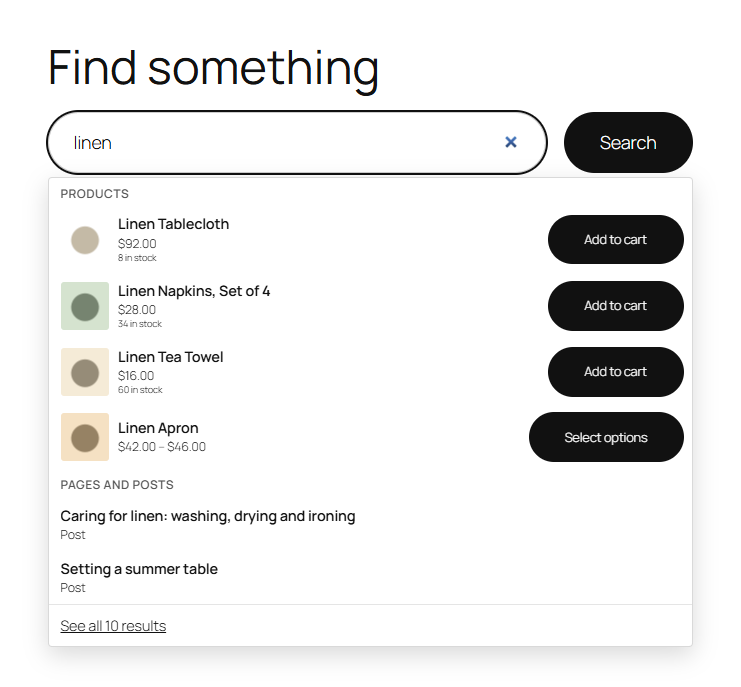
- Open your shop in another tab and type a product name into any search box. After three characters, a dropdown shows matching products with their price, stock and an add to cart button, then pages and posts.
- Try a typo or a plural, for example "stonware mugs". Searchline still finds the stoneware mugs.
- Press Enter. The search results page shows the same products, in the same order.
Tip
The settings work well as they are. Have a look at WooCommerce → Searchline → Settings once, to choose which content types are searched and whether custom fields should be too.
What's next
- How results are found explains what is searched, the weights and typos.
- Live search covers the dropdown, the search block and the shortcode.
- Search report shows what visitors search for, and fixes searches that found nothing.