
Installation
Install Giftline from your purchase, activate the license and sell your first gift card in a few minutes.
Giftline comes as a zip file with your purchase from extendiment.com.
Install the plugin
- Make sure WooCommerce is installed and active. Giftline won't activate without it.
- Download
giftline.zipfrom your purchase email or your account on extendiment.com. - Go to Plugins → Add New Plugin → Upload Plugin, choose the zip, then Install Now and Activate.
- Enter your license key under Giftline on the Plugins screen, so updates arrive (see Licenses and updates).
Activating Giftline adds:
- WooCommerce → Gift cards, where staff see every gift card and store credit balance, create cards and credit, and find the liability report and CSV import and export.
- WooCommerce → Giftline, the settings.
- A Gift card product type in the product editor.
- A Gift card field and the customer's store credit at checkout, in the Checkout block and the classic checkout.
- Gift cards & credit in My Account, and four emails under WooCommerce → Settings → Emails.
Nothing changes for shoppers until you publish a gift card product or give someone a card or credit. Your products, orders and coupons aren't touched.
Sell your first gift card
- Go to Products → Add New Product and name it, for example "Gift card".
- In the Product data box, choose Gift card as the product type and tick Virtual, so the card is emailed.
- On the Gift card tab, type the Amounts customers can choose from, such as
25, 50, 100. Tick Any amount if they may type their own. - Publish the product.
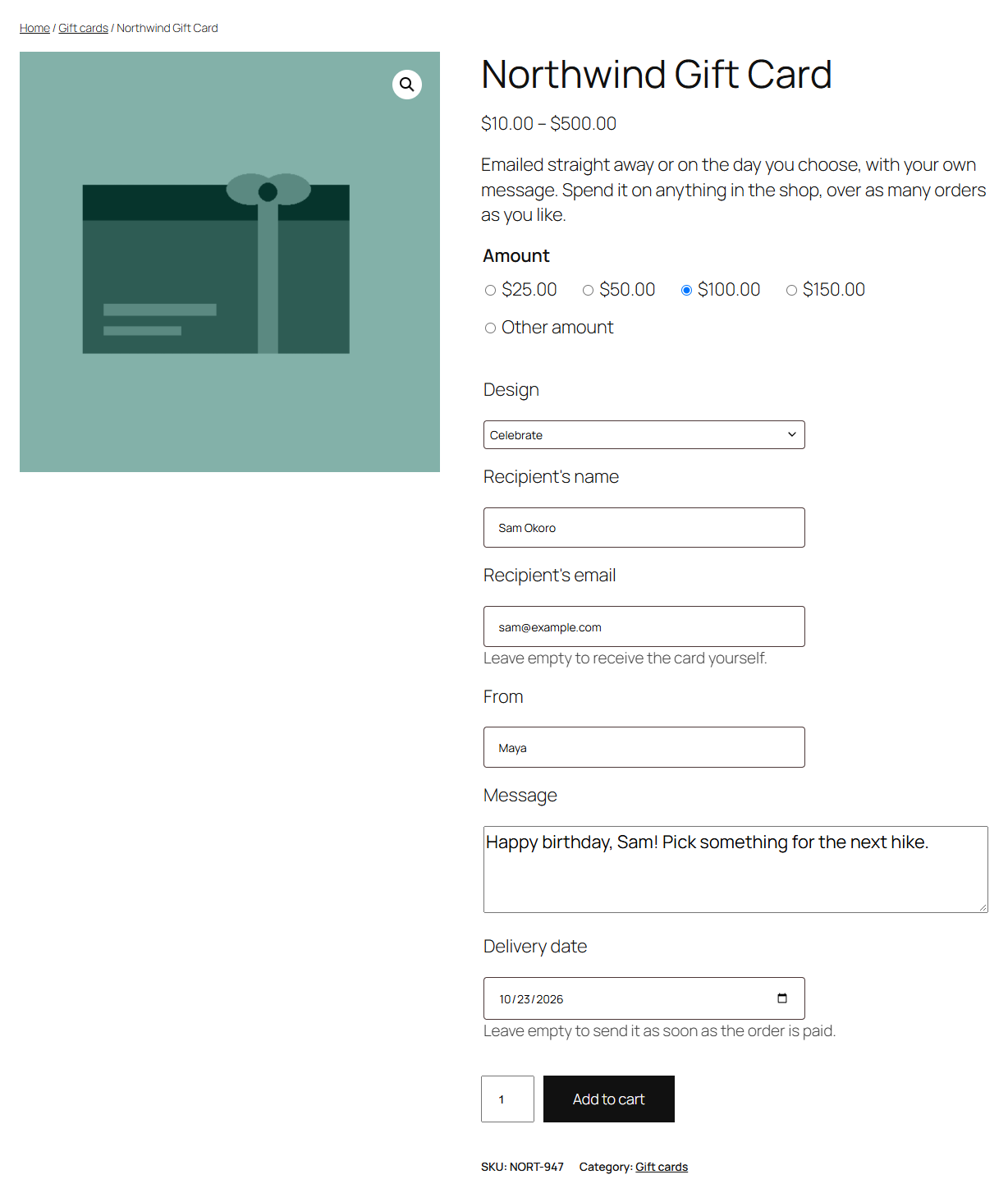
Customers now pick an amount, a recipient and a message on the product page. Once the order is paid, Giftline creates the card and emails it with its code. The code works at checkout straight away.
The settings under WooCommerce → Giftline start from safe defaults: gift cards don't expire, aren't taxed when sold, and customers' store credit is used at checkout automatically. Look them over before you sell your first card.
What's next
- Selling gift cards: amounts, designs, delivery dates and the email.
- Paying with gift cards and store credit: what customers see at checkout.
- Store credit and refunds: giving credit and refunding orders to it.
- Managing gift cards: the staff screens.
- Settings and emails: every setting.