
Page builders and templates
Find page-builder widgets and modules that no longer work, see where each saved template is used, and trash the ones with no reference.
The Page builders tab of Tools → Pruneline has two lists: Missing widgets & modules and Templates. Switch between them with the links under the tabs.
Pruneline reads the layouts of these page builders:
| Builder | What is read |
|---|---|
| Elementor | Widgets, including those of add-ons, and the templates they use |
| Beaver Builder | Modules and saved templates |
| SiteOrigin Page Builder | Widgets in its layouts |
| Bricks | Elements, including headers and footers, and templates |
| Oxygen | Components, in its newer and older formats |
| Divi | Modules in Divi 4 layouts. Divi 5 layouts are blocks: see Blocks |
| WPBakery | Elements |
Missing widgets and modules
This list shows widgets and modules in your pages that nothing on the site provides now, usually because an add-on was switched off or deleted.
- Open Page builders, then Missing widgets & modules.
- Click a builder's name at the top to show only its items.
- Hover over a row and click Where used to see every page that uses it. Edit opens the page, in Elementor's editor for pages built with Elementor.
| Column | What it shows |
|---|---|
| Widget or module | The name the builder stores, such as acme-price-table. |
| Builder | The page builder it belongs to. |
| Status | Missing, Builder inactive or Needs confirmation. |
| From | The add-on it came from, when Pruneline knows it, with (inactive) or (deleted). Unknown add-on otherwise. For Builder inactive, the builder's name. |
| Places, Uses, In drafts | How many places use it, how many times, and how many of those places are drafts. |
What the statuses mean:
- Missing: the builder is active but doesn't know this widget or module.
- Builder inactive: the page builder itself is switched off, so none of its layout shows.
- Needs confirmation: Pruneline can't tell from the admin. Divi and WPBakery load their modules only on some pages, and Oxygen's components can't be checked, so their items show this unless they're plainly registered.
Templates
This list shows the templates and layouts saved in Elementor, Beaver Builder, Divi, Bricks and Oxygen, and where each one is used.
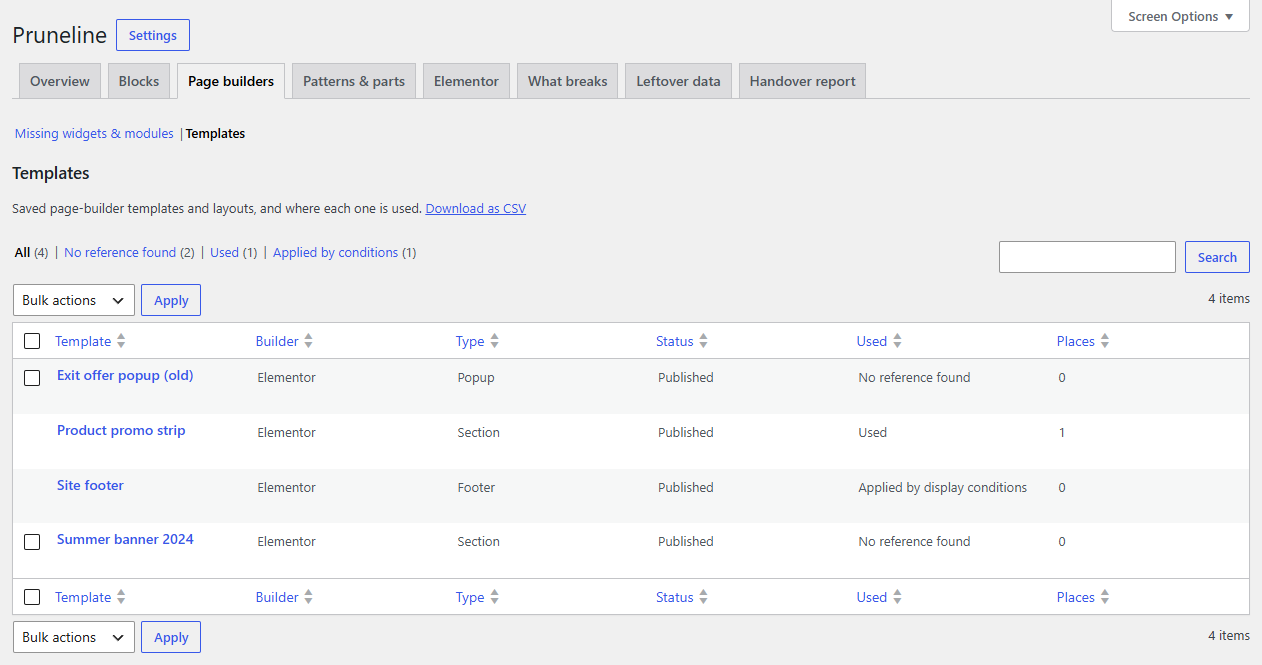
| Column | What it shows |
|---|---|
| Template | Its title. Click it to edit it. |
| Builder | The page builder it belongs to. |
| Type | The kind of template the builder gives, such as Section, Popup or Header. |
| Status | Published, Draft and so on. |
| Used | See below. |
| Places | How many places point at it. Where used lists them. |
Used says how the template is used:
| Value | Meaning |
|---|---|
| Used | A page, another template or a widget points at it, for example Elementor's Template widget, a global widget, a [elementor-template id="…"] shortcode or a Bricks Template element. |
| Applied by display conditions | It has no reference, but it's shown by its own conditions, such as an Elementor or Bricks header for the whole site. Oxygen templates always show this. |
| Opened by its own triggers | An Elementor popup that opens by its own triggers, such as on page load. |
| Active site kit | Elementor's active kit, which holds your global styles. |
| No reference found | None of the above. |
Use the views No reference found, Used and Applied by conditions to narrow the list.
Note
"No reference found" means nothing Pruneline scanned points at the template. It may still be used by your theme's code or another plugin's settings, which Pruneline can't see. Open it and check before you trash it. If you turned off scanning drafts, a template used only in a draft also shows "No reference found".
WPBakery keeps its saved templates outside your content, so they aren't listed.
Move unused templates to the Trash
Only templates with No reference found have a checkbox.
- Open Page builders, then Templates, and click No reference found.
- Tick the templates you don't need.
- Choose Move to Trash under Bulk actions, then Apply.
The notice says how many were moved. They're in the Trash of their builder's template list, and you can restore them from there. Each template is checked again before it moves: one that has become used in the meantime stays.