
Leftover data and cleanup
Find the options, tables, scheduled events and meta that old plugins left behind, export them, then delete them.
Most plugins leave their data in the database when you delete them: settings, tables, scheduled events that WordPress keeps trying to run. The Leftover data tab of Tools → Pruneline lists what inactive and deleted plugins and themes left behind, who left it, and how Pruneline knows.
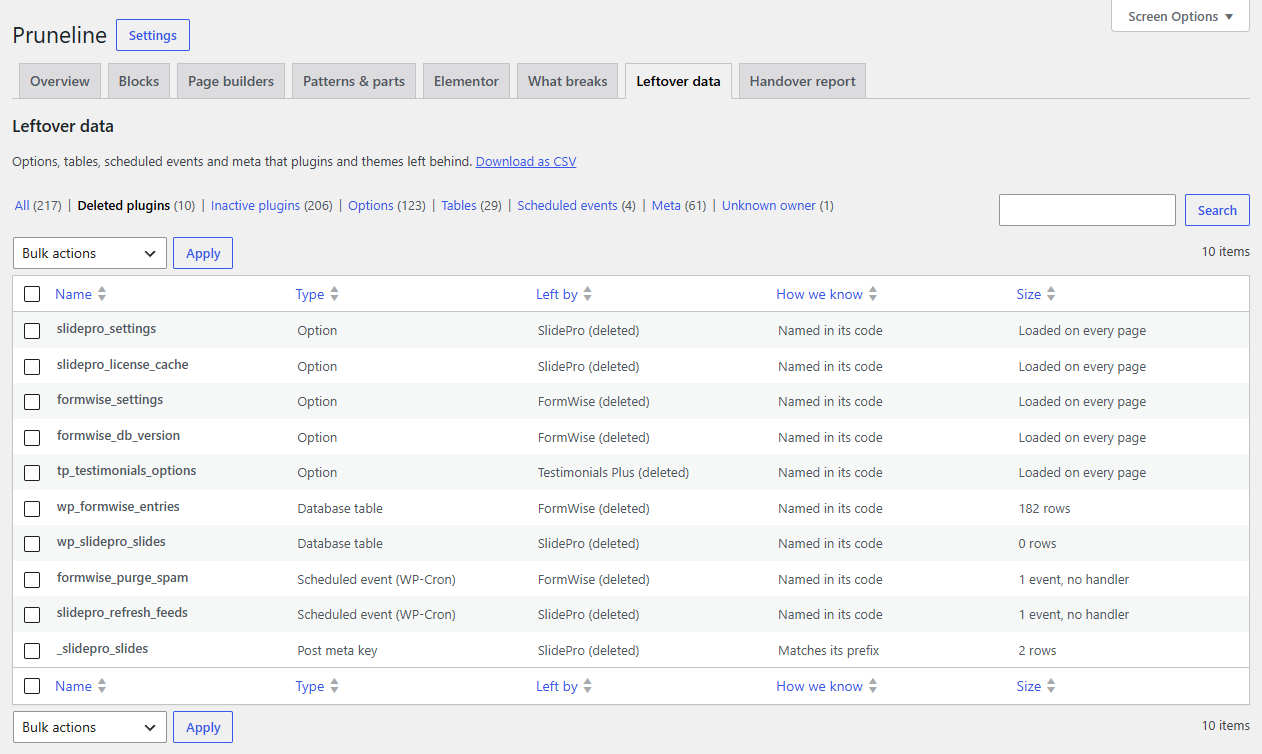
What is listed
| Type | Listed when |
|---|---|
| Option | Its owner is inactive or deleted. |
| Database table | It has your site's table prefix and isn't WordPress's. Tables Pruneline can't trace are listed with an unknown owner. |
| Scheduled event (WP-Cron) | It's still scheduled and nothing handles it any more. |
| Scheduled action (Action Scheduler) | It's pending and nothing handles it any more. |
| Post meta key, User meta key | Its name starts with the prefix of an inactive or deleted plugin. |
Never listed: WordPress's own data, data an active plugin or theme names in its code, transients (they expire by themselves) and Pruneline's own data.
The columns
| Column | What it shows |
|---|---|
| Name | The option, table, event or meta key. |
| Type | One of the types above. |
| Left by | The plugin or theme, with (inactive) or (deleted). Unknown when Pruneline can't tell. (kept on purpose) for protected data (see below). |
| How we know | Named in its code: the plugin's code uses this exact name. Matches its prefix: the name starts with the plugin's prefix, such as its folder name. |
| Size | For an option, its size, or Loaded on every page when WordPress loads it on every request. For a table or meta key, its rows. For events, how many are waiting with no handler. |
Use the views to narrow the list: Deleted plugins (the clearest case: the plugin is gone from your site) and Inactive plugins (still installed, so it may come back and need its data), then Options, Tables, Scheduled events, Meta and Unknown owner.
Tip
Matches its prefix is a strong hint, not proof. Read the names before you select them, and prefer Named in its code when you're unsure.What you can't select
Some rows have no checkbox:
- Unknown owner: Pruneline couldn't trace it to a plugin, so it never offers to delete it.
- Kept on purpose: some plugins come as a pair, a free plugin and its paid add-on, and keep their data for each other. While one of the pair is active, the other's data is protected.
- On multisite: user meta and the main site's network-wide tables are shared by every site. They're offered only to super admins, and only when their plugin is inactive on every site.
Export and delete
- Open Leftover data and tick the items to remove.
- Choose Export and delete… under Bulk actions, then Apply.
- On Export and delete leftover data, check the list: name, type and who left each item.
- Click Download the export and keep the file. It's a JSON file named
pruneline-export-<date>.json. - Tick I have downloaded the export and want to delete these items permanently.
- Click Delete N items.
The notice says how many items were deleted. If you click delete without downloading the export or ticking the box, nothing is deleted and Pruneline asks you to do both first. The export and the selection are valid for an hour. Cancel takes you back without deleting anything.
What the export holds:
| Type | In the export |
|---|---|
| Option | Its value, and whether it was loaded on every page |
| Meta key | Each row's object and value, up to 5,000 rows per key, and the total |
| WP-Cron event | Each event's time, schedule and arguments |
| Action Scheduler action | How many were pending |
| Database table | Its structure and row count. The rows aren't exported. |
Note
Deleting is permanent: there's no Trash for database data. Back up your database before you delete a table, because the export holds only its structure.
Each item is checked again just before it is deleted. If its plugin has become active again, or the item is now protected, it is skipped.
Site Health
Tools → Site Health also reports scheduled events left by inactive or deleted plugins, with a link to this list. See Settings and Site Health.