
Blocks
Find blocks in your content that no active plugin or theme provides, and every place they're used.
When a plugin that added blocks is switched off or deleted, its blocks stay in your content. The block editor then says "Your site doesn't include support for this block", and visitors see nothing or the block's saved HTML. The Blocks tab of Tools → Pruneline lists those blocks.
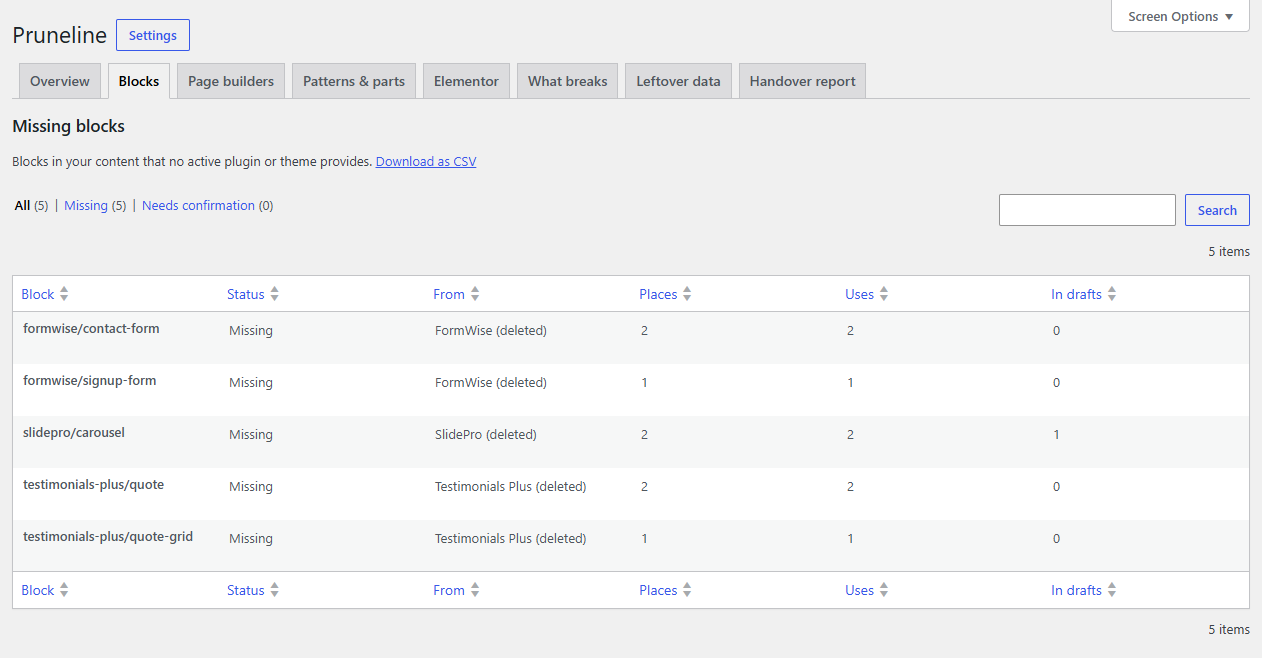
Find missing blocks
- Go to Tools → Pruneline and run a scan if you haven't yet. See The scan and the overview.
- Open the Blocks tab.
- Hover over a block and click Where used to see every page, post, template or widget it's in. Click a title to edit it.
Blocks nested inside other blocks count, and so do blocks in drafts, block widgets and your block theme's templates.
The columns
| Column | What it shows |
|---|---|
| Block | The block's name, such as acme/slider. |
| Status | Missing or Needs confirmation (see below). |
| From | The plugin or theme the block belongs to, with (inactive) or (deleted) after its name. Unknown plugin when Pruneline can't tell. |
| Places | How many places use the block. |
| Uses | How many times it appears in total. |
| In drafts | How many of those places are drafts, pending or scheduled. |
Blocks that work aren't listed.
Missing or needs confirmation
- Missing: no active plugin or theme provides the block. It doesn't show on your site.
- Needs confirmation: the block isn't registered, but other blocks with the same prefix (the part before
/) are, or its plugin is active. Some plugins register blocks only inside the editor, where Pruneline's scan can't see them.
To settle a Needs confirmation, open the block editor on any post. Pruneline notes which blocks the editor knows (at most once a day), and remembers them for 30 days. Reload the Blocks tab: blocks the editor knows are no longer listed.
Fix a missing block
- You still need it: activate its plugin again, or install it again if it was deleted.
- You don't: open each place from Where used and remove or replace the block. The list updates as you save.
Note
Divi 5 keeps its layouts as blocks, so Divi 5 modules show here, not on the Page builders tab.