
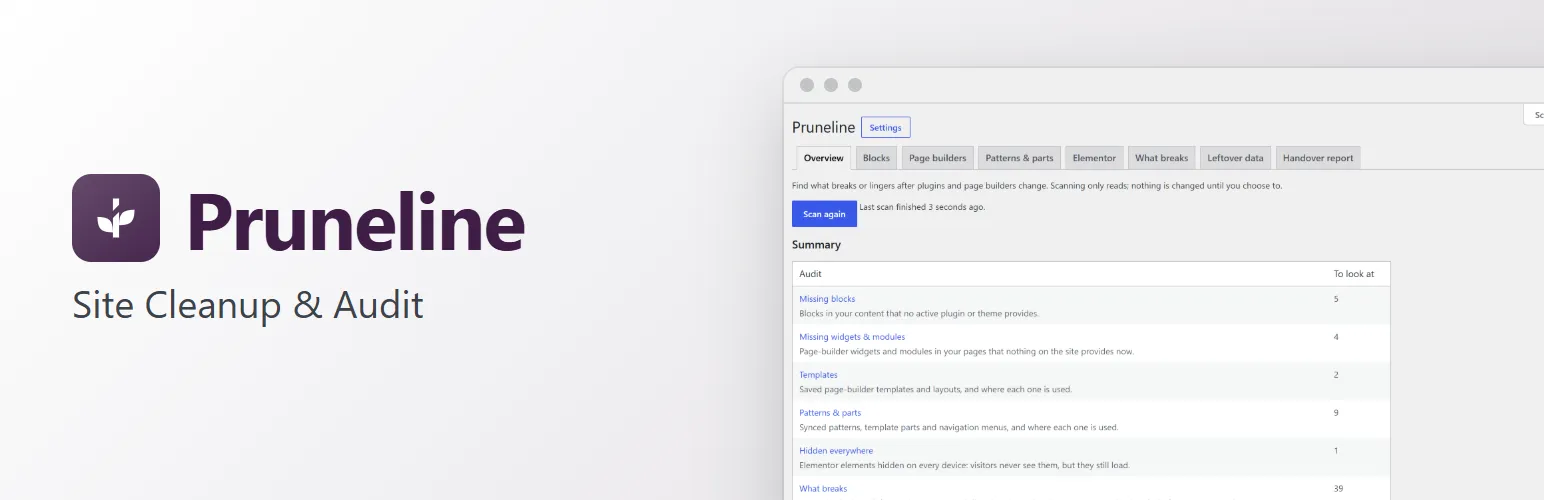
When you switch off or delete a plugin, its pieces stay behind. Pages keep blocks and widgets that nothing draws any more. Saved templates and patterns pile up, and nobody knows which are still used. Options, tables and scheduled events stay in the database. Pruneline scans your site, tells you what is missing, what is unused and what was left behind, and by which plugin. Scanning only reads. Nothing changes until you choose to move something to the Trash or delete leftover data, and leftover data is exported first.
The scan
- Everything is under Tools → Pruneline, in tabs: Overview, Blocks, Page builders, Patterns & parts, Elementor, What breaks, Leftover data and Handover report.
- Scan the site reads your posts, pages and every other kind of content, block widgets and your block theme's template files. Big sites are scanned in batches, with a progress bar.
- It also reads the code of your installed plugins and themes, so it knows which blocks, widgets, options, tables and scheduled events belong to which plugin, even after the plugin is switched off.
- Published and private content is scanned, and drafts, pending and scheduled posts too unless you turn that off. The trash and revisions aren't.
- Saving a post updates the results straight away, so they stay current between scans.
- The Overview sums up what to look at in each list, and which editors and page builders your pages use.
- Every list can be searched, sorted and downloaded as CSV.
Missing blocks, widgets and modules
- Blocks: blocks in your content that no active plugin or theme provides, with the plugin they came from, how many places use them, and how many of those are drafts. Where used lists each page, with a link to edit it.
- A block whose plugin is active but registers it only in the editor is marked Needs confirmation, not Missing.
- Page builders: widgets and modules that nothing on the site provides now, for Elementor, Beaver Builder, SiteOrigin Page Builder, Bricks, Oxygen, Divi and WPBakery. A page built with a builder that is switched off shows as Builder inactive.
Templates, patterns and menus
- Templates: saved Elementor, Beaver Builder, Divi, Bricks and Oxygen templates and layouts, and where each one is used.
- Templates applied by display conditions, popups opened by their own triggers and the active Elementor site kit are marked as such, not as unused.
- No reference found marks the ones that nothing Pruneline scanned points at. Select them and Move to Trash. You can restore them from the Trash.
- Patterns & parts: synced patterns, template parts and navigation menus, and where each one is used: in content, in other patterns, in templates, in widgets and in your theme's files. Unused ones can go to the Trash too.
Elementor
- Widget usage: which Elementor widgets each page uses, drafts included, and how many are missing.
- Hidden everywhere: Elementor elements hidden on every device. Visitors never see them, but they still load. HTML, Shortcode and Code widgets get a note, because their script or shortcode may still run.
- A small panel in the Elementor editor lists the page's shortcodes and whether each one works.
What breaks, and what was left behind
- What breaks: for each plugin and theme, including deleted ones, the blocks, Elementor widgets, shortcodes, scheduled events and leftover data that depend on it. Check it before you remove a plugin.
- Leftover data: options, database tables, scheduled events (WP-Cron and Action Scheduler) and post and user meta that inactive or deleted plugins left behind, with the plugin that left them and how Pruneline knows: Named in its code or Matches its prefix.
- WordPress's own data, and data an active plugin or theme names in its code, is never listed.
- Data whose owner can't be found is listed but can't be deleted from here. Neither can data a free plugin and its paid add-on keep for each other.
- Cleaning up takes three steps: download a JSON export of what will go, tick a box, then delete. Database tables are exported as their structure only, so back up your database first.
- A Site Health check lists scheduled events that inactive or deleted plugins left behind.
Handover report
- One page on how the site is built: the theme, the editors and active plugins, templates and where they're used, Elementor's global colours and fonts, which add-on each widget comes from, and the blocks from plugins. Print it or save it as PDF for a client or the next developer.
WP-CLI
wp pruneline scan,wp pruneline list <audit>andwp pruneline reportscan, list any audit (as a table, CSV or JSON) and print the handover report.
For developers
- Filters and actions for the scan (
pruneline_sources,pruneline_scan_finished), what counts as registered (pruneline_registered), template types and how they're applied (pruneline_template_types,pruneline_template_applied), protected data and cleanup (pruneline_protected,pruneline_cleanup_capability,pruneline_cleaned), the audits and the report (pruneline_audits,pruneline_report), who can use it (pruneline_capability) and the settings page (pruneline_settings). pruneline_loadedfires once Pruneline has loaded, for add-ons.- No WooCommerce or other plugin needed.
With Bracketline, our free shortcode audit, active, What breaks also counts each plugin's shortcodes, and the Elementor panel links each shortcode to its page in Bracketline.
Pruneline is free, with nothing locked. See extendiment.com/plugins/pruneline for the docs.