
Installation
Install Pruneline from WordPress.org and run your first scan in a few minutes.
Pruneline is free and listed on WordPress.org, so you can install it straight from your dashboard. It works on any WordPress site: no WooCommerce or other plugin needed.
Install the plugin
- Go to Plugins → Add New Plugin and search for Pruneline.
- Click Install Now on "Pruneline – Site Cleanup & Audit", then Activate.
If you have the zip file instead, use Plugins → Add New Plugin → Upload Plugin, choose the file, then Install Now and Activate.
You'll find Pruneline under Tools → Pruneline, with its few settings under Settings → Pruneline. Activating changes nothing on your site, and Pruneline doesn't scan anything until you ask it to.
Run your first scan
- Go to Tools → Pruneline.
- Click Scan the site. A progress bar shows how far the scan is. Keep the page open.
- When the scan is done, the page reloads with a summary of what to look at.
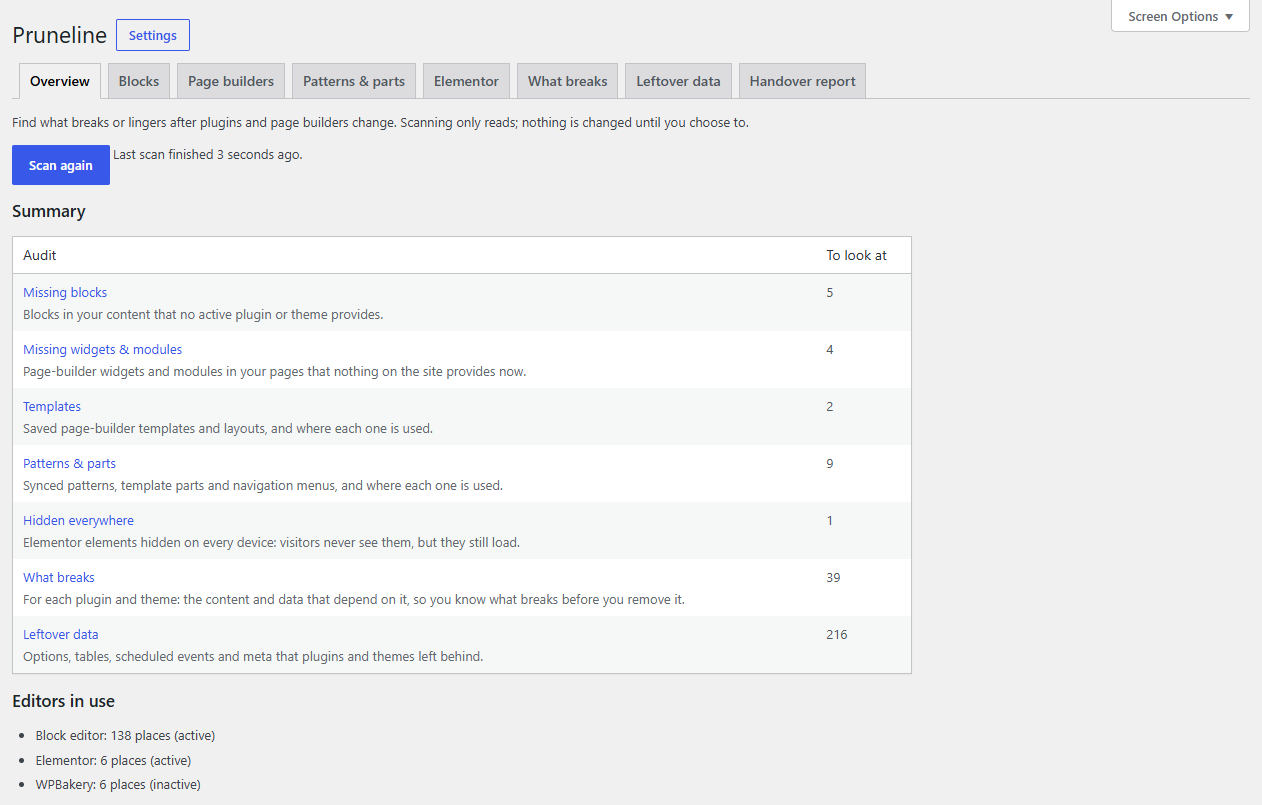
The scan reads your content, your theme's templates and the code of your installed plugins and themes. Nothing is changed. The first scan reads every plugin, so it takes longer than later ones.
Tip
On the Plugins screen, Pruneline has an Audit link, which opens Tools → Pruneline, and a Settings link.
Install it before you remove plugins
Pruneline can only tell you what a deleted plugin left behind if it read that plugin while it was still installed. If you plan to clean up a site, install Pruneline and run a scan first, then switch off and delete plugins.
What's next
- The scan and the overview explains what is read and what the summary shows.
- What breaks shows what depends on each plugin, before you remove it.
- Leftover data and cleanup covers deleting what old plugins left in the database.
- Settings and Site Health lists the three settings.