
Setting up deposits
Set a deposit store-wide, per product category, per product or per variation, as a percentage or an amount per item, optional or required.
A deposit has two parts: whether the product takes one (the mode), and how much (the amount). You can set them in four places, from the broadest to the most specific:
- Store-wide, under WooCommerce → Depositline.
- Per product category, under Products → Categories.
- Per product, on its General tab.
- Per variation, on each variation of a variable product.
The most specific setting wins. A product without its own setting uses its category's, and a category without one uses the store-wide setting.
The modes
| Mode | What the customer does |
|---|---|
| No deposit | Pays in full, as usual. |
| Deposit, or pay in full at checkout | Pays the deposit, or picks Pay in full now at checkout. |
| Deposit required | Always pays the deposit now and the balance later. |
The amount
Enter either:
- A percentage, such as
25%: a share of the price after coupons, before tax. - An amount, such as
50: that much per item, so 3 items take a deposit of 150.
A deposit is never more than the item costs. The percentage must be below 100%.
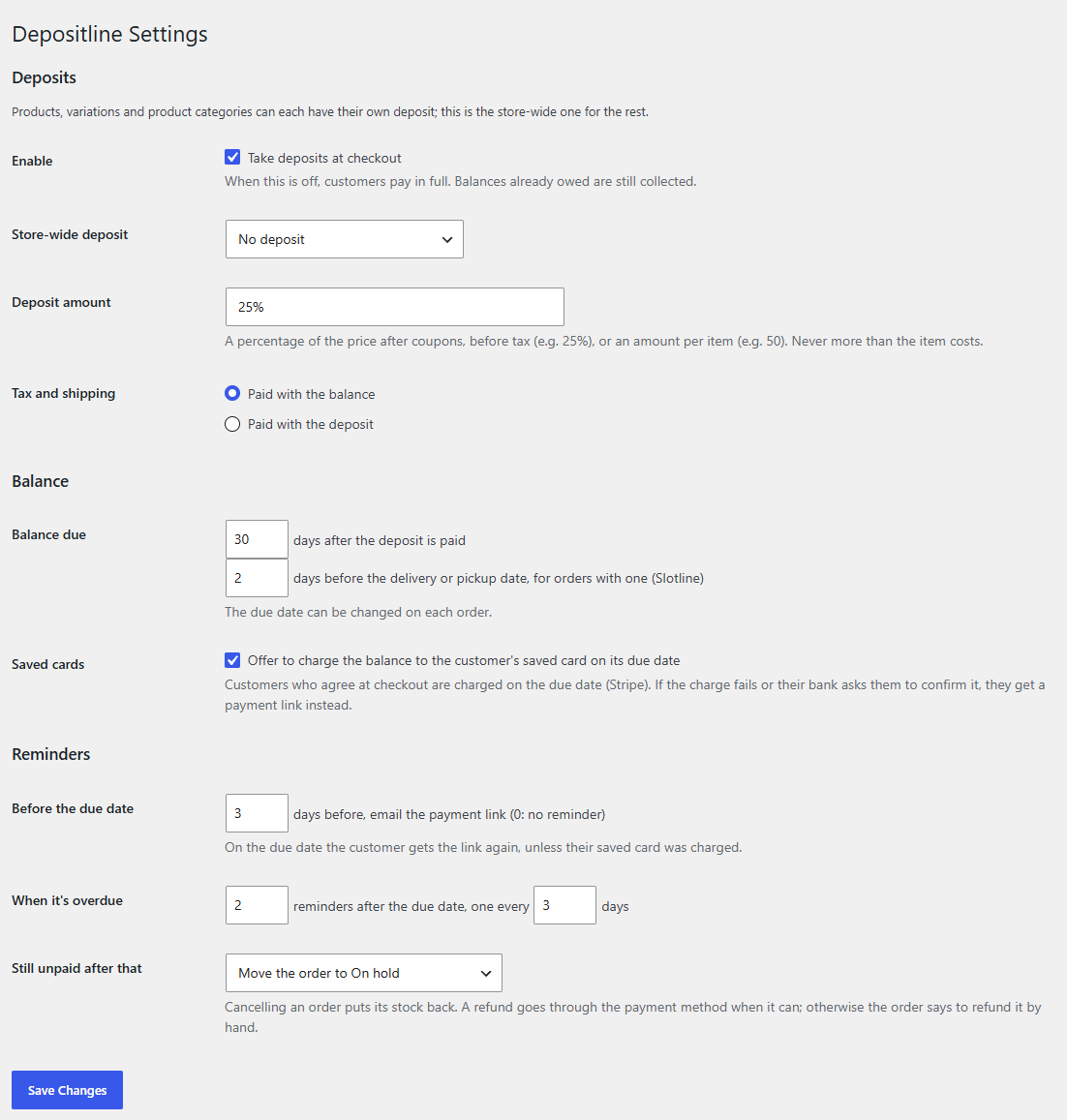
Set the store-wide deposit
- Go to WooCommerce → Depositline.
- Under Deposits, check that Enable has Take deposits at checkout ticked.
- Choose the Store-wide deposit: No deposit, Deposit, or pay in full at checkout or Deposit required.
- Enter the Deposit amount (25% to start with).
- Choose how Tax and shipping are paid: Paid with the balance or Paid with the deposit. See Deposits at checkout.
- Click Save Changes.
Note
Unticking Take deposits at checkout stops new deposits: customers pay in full. Balances already owed are still collected.
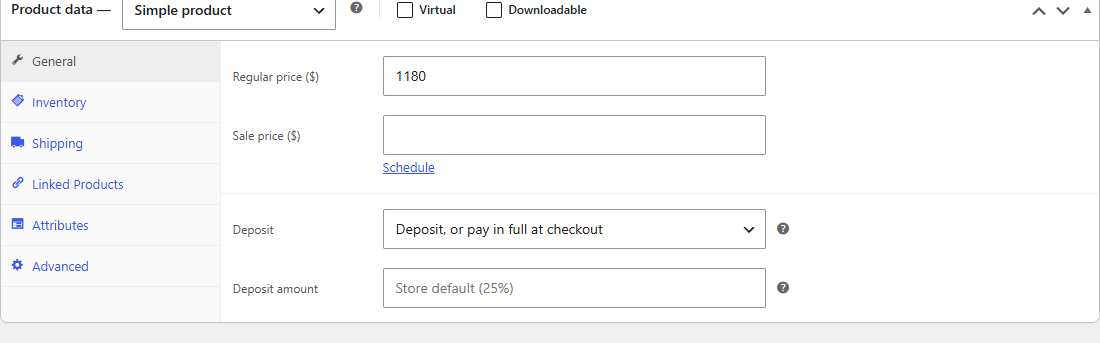
Set a deposit on a product
- Edit the product and open its General tab.
- Choose the Deposit. Store default (…) follows the category or store-wide setting, and shows what that is.
- Enter a Deposit amount, or leave it empty to use the default shown in the field.
- Click Update.
Set a deposit on a variation
- Edit the variable product and open its Variations tab.
- Expand a variation. Under its price, choose the Deposit and the Deposit amount. Same as the product (or an empty amount) follows the product.
- Click Save changes.
For example, a sofa can take a 30% deposit, with the made-to-order fabric variation set to Deposit required at 50%.
Set a deposit on a product category
- Go to Products → Categories and add or edit a category.
- Choose the Deposit and the Deposit amount. They apply to products in this category without their own setting.
- Click Add new category or Update.
When a product is in several categories with a deposit, the first one by name is used.
Tip
The mode and the amount are looked up separately. A category can switch deposits on with an empty amount, and the store-wide amount still applies.
What shoppers see on the product page
A product that takes a deposit says so above the Add to cart button: "Pay a 25% deposit now and the rest later." or "Pay a deposit of $50.00 per item now and the rest later.", followed by "You can also pay in full at checkout." when the deposit is optional. On a variable product, the line appears with the price once a variation is chosen.
Related
- Deposits at checkout
- Working with other plugins: Preorderline pre-orders never take a Depositline deposit.